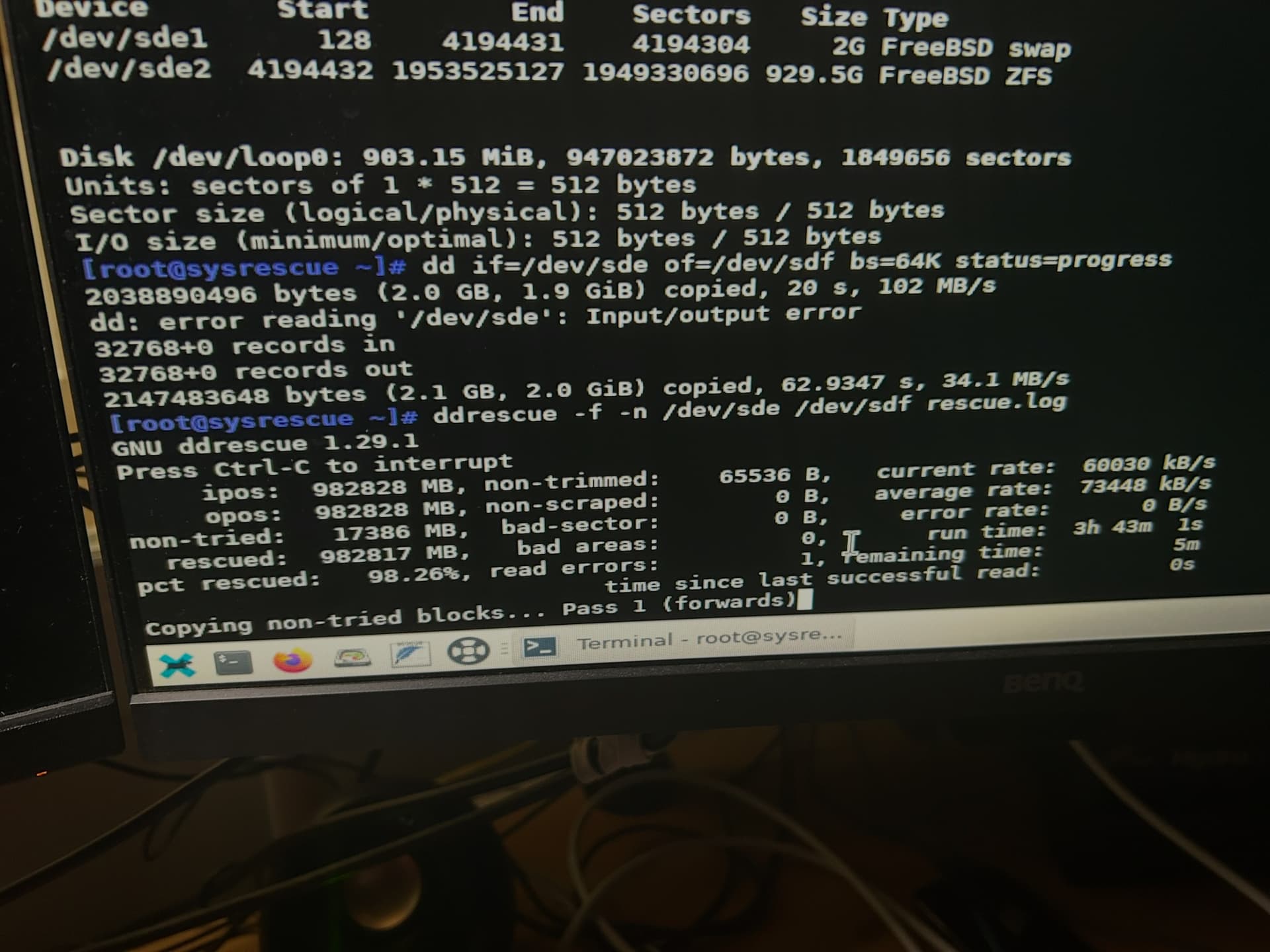
This is why you may need to use a command-line program like ddrescue or a bootdisk with it available; ddrescue has options to “fail a block and continue” IIRC, rather than hang up trying to stubbornly read the same LBA.
If it is truly the same size down to the LBAs it may work.
Before trying that method, I’d like to clear up a few doubts and rule out some options.
It doesn’t let me import the pool like the first time, because the pool is already imported. Wouldn’t it be possible to export the pool and then re-import it?
And secondly (sorry if you already answered this and I didn’t see it), if I add the disks to the existing pool, won’t it recognize that the data is already there and make it available again? I remember that this option wasn’t available before (back when the disk failed for the first time and when I first tried to import it).
If the pool is already imported now, what data are you seeing - and is it read-only or read-write?
No - the process of “add disk to pool” is for adding a new disk and treating it as blank/overwriteable, which is the opposite of what we want to accomplish here of “import disk with valid data and read from it” - so definitely don’t do any “Add this disk to extend an existing pool” operations.
Okey okey, thanks and sorry if i make stupid questions
I’ll give that a try. A while ago I tried cloning the drive with Clonezilla, but it didn’t work — it finished way too fast to be a proper clone.
Hopefully this time I won’t run into any issues. Right now I don’t have a Linux machine available — the closest thing I have is a MacBook, but if needed, I can try booting Ubuntu from a USB stick on my main PC.
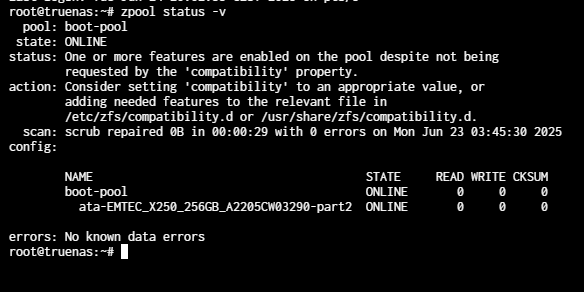
That’s likely just an artifact of the middleware, and your pool is not actually imported then. If you check from the command-line with zpool status it will be clear there.
“There are naive questions, tedious questions, ill-phrased questions, questions put after inadequate self-criticism. But every question is a cry to understand the world. There is no such thing as a dumb question.” - Carl Sagan
A live-OS like System-Rescue is a good option - just make sure that you disconnect or do not select to overwrite any drives that you don’t want to.
@Cusssy Personally at this point I think you should accept that your data is gone and create a new pool from scratch, learning from your previous mistakes by NOT using SMR drives and by creating a redundant pool from the start, and thus have a useable NAS again.
Then if you have backups, you can restore from those.
I was thinking about it last night, but if I was able to regain access to them recently, and they were only lost due to a reboot, it makes me think there’s still salvation.
Well - the actual data is still there on disk so there is always a possibility (however remote) of getting it back. The question is just how vital that data is, and how much effort (and possibly money) you are prepared to spend to recover it.
What you have are 3 disks, with the data for most files spread across all 3 of them, 1 disk of which is missing a whole bunch of the information that would normally be used to determine what each block of data on the disk is part of - like the partition table, the partition details, the zfs labels etc. etc. etc.
TBH, I am surprised that it ever worked.
Do you have the details of the exact command you used to clone the partition (specifically that would confirm whether the partition (which would start at 2MB) was written to the same position on the new disk or to the beginning of the disk? (My guess is that you copied the partition to the beginning of the disk, but ZFS might have been clever enough on the previous occasions to work things out but is failing this time.)
But I think that recovery actions now will very much depend on knowing this.
I’m not sure if I understood you correctly, but I haven’t used any command to clone the disk so far. With ReclaiMe Pro, I created a .img file of the partition containing the data, and then I used Balena Etcher to burn that image onto the new Barracuda HDD I bought. I connected it to the server and it worked without any issues — until I restarted the server, and then the problem came back.
But this makes me think the issue is no longer with the damaged disk, but rather with how TrueNAS handles the pools (I’m speaking from limited knowledge here, so apologies if I say something wrong). It seems like it’s failing to import the pool because it thinks it’s already imported, just not connecting the disks for some reason. In the disk manager, it does recognize them as part of the “data” pool, and it even gives me the option to add them to it.
So I guess, as a last resort, I might try manually adding the disks (which TrueNAS recognizes as belonging to the “data” pool) back into the pool.
Forgive me for asking - but if cloning the .img made it work, couldn’t you just re-clone said .img onto the same HDD, and have it re-mount the pool, whereupon you then manually copy files off of it to a safe/secure/redundant location?
This will definitely cook your data if it gets the order to wipe your disks and add them to a new pool.
I am concerned that you cloned a partition to an entire disk. That can very easily lead to some of the ZFS label issues we saw. Can you clone like to like (disk to disk or partition to partition) and try again.
That’s what I’ve done, but I still have the same problem. In the import pool menu, it no longer lets me import the “data” pool because it’s already imported but without the disk.
That’s what I’m doing now, I hope to reconnect it, but I doubt it will do anything, I think the problem is no longer in the disk, but in TrueNas
Please dump the tail end of /proc/spl/kstat/zfs/dbgmsg inside codeblocks but I wager we are still dealing with “unable to rebuild a stripe with a missing member” as a root cause.