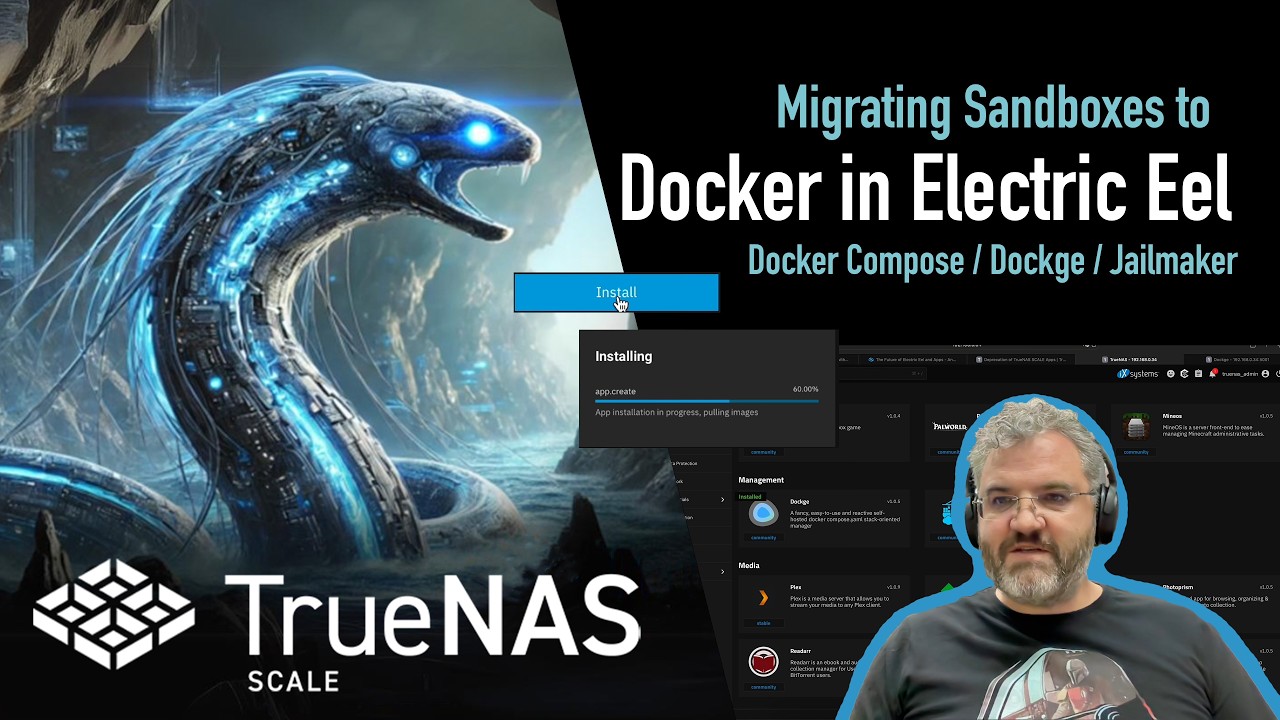
I interpret that you want to run some containers in a way that is portable, so if you choose to move away from TrueNAS then there is minimum effort. You want to have a docker compose stack that you can just copy portably to another computer. TrueNAS Apps are not really designed for this, but Dockge is. I don’t use Dockge so I deployed it with a simple container stack for jellyfin. You can follow this approach to deploy anything.
Step 0: make a snapshot and a backup of everything
- Please make sure you have a snapshot and a backup of everything in case you are not happy with how this turns out
Step 1: make an Apps dataset
- In the TrueNAS web UI create a new dataset for apps, and chose Dataset Preset = Apps.
- DO NOT choose to setup ACL.
- I will assume it is tank/apps and mounted as /mnt/tank/apps
Step 2: deploy Dockge datasets
- If you skip ahead and look at the TrueNAS App for Dockge you will see it needs 2 datasets: stacks and data.
- Let’s create datasets for Dockge, stacks and data. Under Datasets click on “tank/apps” and add a dataset “dockge” of Dataset Preset = Generic (default). DO NOT choose to setup ACL.
- Under “dockge” add datasets for stacks and data, also Dataset Preset = Generic (default). DO NOT choose to setup ACL.
- You will now have these datasets:
- tank/apps
- tank/apps/dockge
- tank/apps/dockge/stacks
- tank/apps/dockge/data
Step 3: deploy the Dockge app
- Go to Apps → Discover Apps, search for Dockge and click Install.
- Scroll down to Storage Configuration. Change the two volumes to Type = Host Path
- Enter the host path for Stacks: /mnt/tank/apps/dockge/stacks
- Enter the host path for Data: /mnt/tank12t/apps/dockge/data
- DO NOT choose Enable ACL
- Click install at the bottom and wait for Dockge to deploy
Step 3: open Dockge
- Back on the Apps page, click Dockge and the on the right click Web UI
- Set your userid and password
Step 4: Jellyfin pre-setup
- Let’s deploy Jellyfin. Here is the docker-compose we will use for inspiration: Container | Jellyfin. I give you the docker-compose I deployed below…
- We want Jellyfin to run as a specified user. In the TrueNAS web UI, make a user jellyfin, user id=4000, group jellyfin, group id = 4000 (or any numbers you like that are not used)
- The docker-compose example says we need two volumes, config and cache.
- In the TrueNAS web UI make some more datasets, exactly like you did before. We will create:
- tank/apps/jellyfin
- tank/apps/jellyfin/cache
- tank/apps/jellyfin/config
- click on tank/apps/jellyfin/cache and edit permissions. Set the permissions user: jellyfin, group: media, select Apply User, select Apply Group, and Save. DO NOT click Set ACL.
- repeat for tank/apps/jellyfin/config
Step 5: Make a dummy media library
- the docker-compose example also said we needed a volume for media.
- I would like you to do this first with a dummy dataset so that you can experiment with permissions safely.
- It is pretty normal that the media library is on a SMB share, so let’s start with that.
- Add a dataset tank/media, type SMB share, share name: media
- Click “Go to ACL”
- You can set this up in different ways. My datasets have Owner: my account, Owner Group: my account. If you do this you will see below that owner and owner group “my account” received Modify permissions to the dataset.
- If you don’t do this you need to give yourself access. Click Add Item, Who: User, User: your account, Permissions: Modify
- You will also need to give jellyfin access. Click Add Item, Who: User: User: jellyfin, Permissions: read
- Click “Apply Recursively” and then “Save Access Control List”.
- Connect to the share and put some media files, or copy media files into the dataset to use for testing.
- Once you have this working with a test you can follow the same principle to share real data with a container.
- Note that the TrueNAS GUI only lets you change permissions on datasets. If you want more fine-grained control you need to use the command line.
Step 6: Deploy Jellyfin
- Go back to Dockge. Click “+ Compose”. Give the stack a name: jellyfin
- Paste the compose YAML you want to use in the top right. This is what I deployed:
services:
  jellyfin:
    image: jellyfin/jellyfin
    container_name: jellyfin
    user: 4000:4000 # matching the jellyfin user and group that you used above
    ports:
      - 8096:8096
    networks:
      - jellyfin_network
    volumes:
      - /mnt/tank/apps/jellyfin/config:/config
      - /mnt/tank/apps/jellyfin/cache:/cache
      - /mnt/tank/media:/media:ro # mounted read-only for safety as Jellyfin doesn't need write permissions to your media library
    restart: 'unless-stopped'
- Underneath Internal Networks, add a network: jellyfin_network
- Click Save.
- You will find your stacks neatly arranged on the server under /tank/apps/dockge/stacks. You can copy those and take anywhere.
root@fileserver[/mnt/tank/apps/dockge/stacks/jellyfin]# ls -la
total 28
drwxr-xr-x 2 root root   4 Oct  3 14:57 .
drwxr-xr-x 3 root root   3 Oct  3 14:57 ..
-rw-r--r-- 1 root root  25 Oct  3 15:01 .env
-rw-r--r-- 1 root root 341 Oct  3 15:01 compose.yaml
Step 6: Start Jellyfin
- Go to http://your-truenas:8096
- Login to Jellyfin
- Try adding your media library. With some luck it will work the first time but if you have trouble please post enough information and screenshots that we can help.
You can follow the above procedure for deploying any container that needs to access any file on your TrueNAS.
Back to your comments:
The original design of TrueNAS (from FreeNAS) was a bootable USB stick that had your config, and then your data disks. If something happened to your server you could move the USB stick and data disks and be up and running in minutes. If something happened to the USB stick you could write a new one and restore a small config file and be up and running in minutes. If something happened to the data… well, that’s why you have ZFS, snapshots, mirrors or raidz, and backups.  This is all still essentially true today: TrueNAS is designed for easy recovery of a complete system and not configuration exports of individual bits like container stacks.
Further, containers are designed with TrueNAS Apps in mind. TrueNAS Apps use a kind of pre-chewed application template and make no sense on any platform other than TrueNAS. So again portability is not a priority.
TrueNAS also has as a priority to “remove sharp edges”. That means it doesn’t necessarily present all the configurability you might have elsewhere. In exchange you are less likely to shoot yourself in the foot. They view that as better for their customers overall.
Whether you like it is up to you, but having gone through the above, you have a perfectly valid TrueNAS config that probably is more like what you wanted. You can also decide to not use TrueNAS and copy the stacks and data elsewhere, or you can decide not to use Dockge and cut-and-paste the compose.yaml into individual TrueNAS Apps to run “natively”. At the very least you should not be in ACL & Permission Hell anymore.
Best wishes,
Evan


 DISCLAIMER!