How do I safely eject an external USB drive?

Hey there. I plan to use external USB drive to backup my pool to. My question is, how do I safely disconnect the USB drive after I’m finished? I plan to:

  1. Replicate the pool
  2. Use the WEB UI to export/disconnect the new pool (which sits on a single USB drive)
  3. ???
  4. Unplug the drive

Do I need to do anything after disconnecting the replicated pool? I know that hard drives don’t take unexpected loss of power slightly, so I don’t want to risk losing equipment.

If you exported the pool on the USB drive you can safely unplug it. Exporting a ZFS pool is “ejecting”.

4 Likes

Replicate the pool and export the new pool via the WEB UI.

After that, go to the WEB UI, select the drive, and safely “unmount” or “eject” it.

Once it’s unmounted, you can physically disconnect the USB drive.

Thats the proper way to do it.

How exactly do you do that after the pool is already exported? Please show a screen shot of the unmount/eject option in your UI.

TrueNAS WE is based on Windows 11 and will eventually supersede TrueNAS SCALE/CE.

Here’s an organic solution I thought of by myself. No ChatGPT involved. :smirking_face:

Method 1 — Using the Web UI (recommended)

  1. Open the TrueNAS Web Interface.
  2. Go to Storage → Disks.
  3. Find the USB disk you exported.
  4. Click the ⋮ (three-dot menu) next to it.
  5. Select Detach or Power Off Disk (wording varies by version).

Once the disk shows as powered off / detached, you can safely unplug the USB drive.

TrueNAS Winnie Edition?
:thinking:

1 Like

This does not exist in my UI (25.10).

Are you accusing me of using ChatGPT to provide a solution that I did not verify myself? :face_with_symbols_on_mouth: I would never do that!

I’m sure if you look hard enough you’ll find “Power Off Disk” somewhere in the UI.

@winnielinnie stop it, ok?

Not only did @Robert_Anderson provide wrong advice, now you are piling more AI slop on top of it and we will have more beginners frantically searching for the “eject disk” buttons in their UI.

EXPORTING A POOL IS “EJECTING” ALL DISKS THAT MAKE UP THAT POOL. That’s what this function is for.

Thanks for tuning in, but I’m going to have to disagree. I just did that, and the disk is still spinning after exporting the pool - I can feel it. When I eject the USB device from a windows box, I can feel the disk physically spinning down and ‘staying still’.

That might be the case but all blocks are committed to stable storage and you can power down the disk. Like pulling out the hot plug cage a bit, let it spin down, then pulling it completely.

The drive and USB enclosure are not hot-swappable. I am trying to avoid damaging the platters with unexpected power losses, if this is even still a thing with modern drivers.

You could try

sudo hdparm -Y /dev/sdX

Not via AI, but also untested for now, sorry.

Or power the system down…

HI scotrod,

Adding this for full visibility about how the things are looking and working.

Simple CLI verification to validate the USB attached pool:

TNAS-ALEX% sudo zpool status -L BACKUP3.6TB
  pool: BACKUP3.6TB
 state: ONLINE
  scan: scrub repaired 0B in 07:32:15 with 0 errors on Sun Feb 15 07:32:17 2026
config:

        NAME         STATE     READ WRITE CKSUM
        BACKUP3.6TB  ONLINE       0     0     0
          sdg1       ONLINE       0     0     0

errors: No known data errors
TNAS-ALEX%
TNAS-ALEX% lsblk -o KNAME,TYPE,SIZE,MODEL,TRAN /dev/sdg
KNAME TYPE  SIZE MODEL              TRAN
sdg   disk  3.6T ST4000DM004-2CV104 usb
sdg1  part  3.6T
TNAS-ALEX%
TNAS-ALEX% ls -l /dev/disk/by-id/usb*
lrwxrwxrwx 1 root root  9 Mar  1 19:17 /dev/disk/by-id/usb-_Sabrent_Disk_Dev_00000000000000000000-0:0 -> ../../sdg
lrwxrwxrwx 1 root root 10 Mar  1 19:17 /dev/disk/by-id/usb-_Sabrent_Disk_Dev_00000000000000000000-0:0-part1 -> ../../sdg1
TNAS-ALEX%
TNAS-ALEX% lsusb -t
/:  Bus 02.Port 1: Dev 1, Class=root_hub, Driver=xhci_hcd/4p, 10000M
/:  Bus 01.Port 1: Dev 1, Class=root_hub, Driver=xhci_hcd/12p, 480M
    |__ Port 1: Dev 2, If 0, Class=Mass Storage, Driver=uas, 480M
TNAS-ALEX%
TNAS-ALEX% sudo lsusb -v -s 1:2 | grep Product
  idProduct          0x55aa ASM1051E SATA 6Gb/s bridge, ASM1053E SATA 6Gb/s bridge, ASM1153 SATA 3Gb/s bridge, ASM1153E SATA 6Gb/s bridge
  iProduct                3 Sabrent Disk Device
TNAS-ALEX%

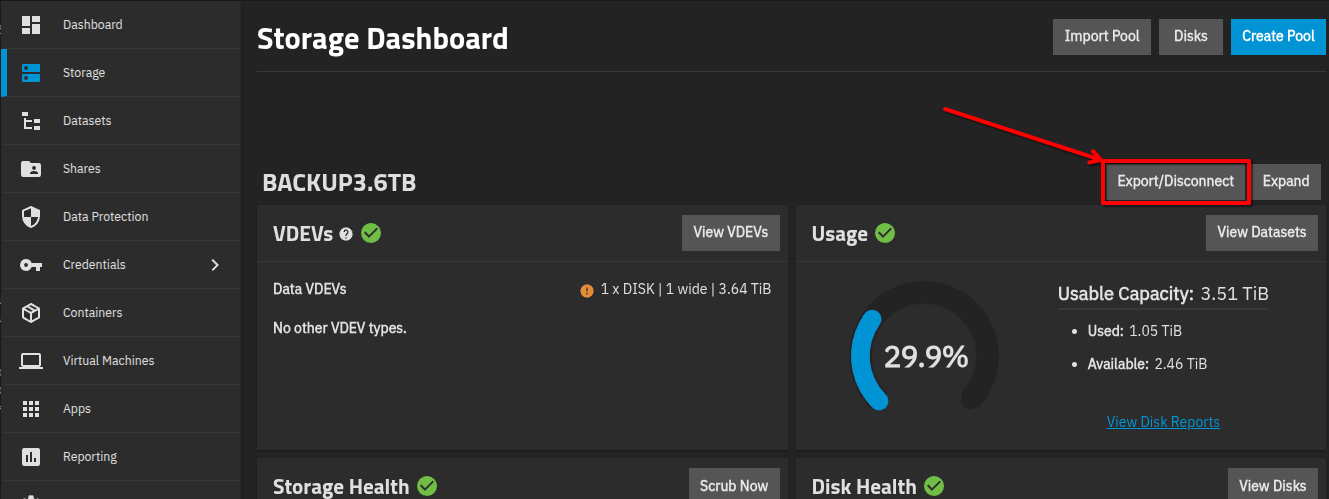
Now from the GUI you just need to push one button to disconnect the USB storage:

Greets,

Alex