
I don’t know if it is really dead, but now when I start the server, sometimes the bios sees it and sometimes not. Even if the bios sees it and I choose to boot from it, I get straight back to the BIOS. Anyway, no particular reason, I used to have that m.2 SSD from my previous gaming PC build so I thought why not recycle it. I just bought a couple of 256GB (for 60 euros) SanDisk plus SSDs for mirroring now, so I will be ok for (hopefully) a good time.
What is your motherboard? How are you connecting your boot drive?
MB: Asus pro w680 ace and the boot drive is on the first top slot (connected to cpu directly)
Slot #1 is closest to the CPU.
I’m not sure how you came up with the slot was connected directly to the CPU, I could not find any diagrams stating that. It very well could be but I could not prove it.
This problem is a motherboard issue. A few things to look at:
- Is the BIOS up to date?
- Are you using UEFI or Legacy BIOS image to boot from? I suspect UEFI.
What it odd, the system will boot periodically but sometimes not at all.
In the “BIOS Setup”, ensure you can see the drive in question and ensure it is the first boot device.
Also, just in case you tried to do this (not saying you did), if you have tried to use the onboard RAID configuration, stop there, you can’t really do that with ZFS.
The slot#1 is attached to the cpu because that ssd supports gen 4 or gen 5 if I am not mistaken, even though my ssd is gen3. The bios was updated to the latest version like 2 months ago, I checked and there were no other updates since then. I am using UEFI and CSM mode was disabled. The ssd is not revealed by the bios anymore, just on random reboots but anyway it doesn’t boot to GRUB. No raid is active, I have an LSI 9400-16i and all the rust drives are attached there. I’ll just re-install on the new SSD and I should be ok
If you could install a nice small 2.5" SSD as a boot drive (64GB or larger), I think you will be better off. The BIOS is apt to respect it a little more. And maybe in the near future, Asus will create a new BIOS.
One thing you can do is write Customer Support. Asus was very good to me last year and this one technical support rep gave me an unreleased BIOS which solved a problem I was having. The final BIOS version did change a little bit however what I have installed is working perfectly fine. You will see it written often, “Do not update your BIOS if your system is working fine.”
So write Asus technical support, tell them about your issue with the BIOS not recognizing the NVMe drive. Be very specific and clear as a bunch of gibberish will get tossed into the garbage can.
I first would ensure that moving that same NVMe drive to another slot makes it readable/bootable.
Last thing, when I looked up your NVMe drive model, I thought it was Gen 4. That is neither hear nor there except Gen 4 does create a lot more heat than a Gen 3. You can normally get away without a heatsink on a Gen 3, but not on a Gen 4, or I would not recommend no heatsink.
Good luck, hope it all works out.
Today I tried to restart the server (I made no changes, nor hardware nor BIOS changes) and it started right away into grub.
I went into console in truenas and typed as you suggested:
smartctl -a /dev/nvme0
This time I managed to go inside IPMI output and see the start of the errors below:

second piece of logs:
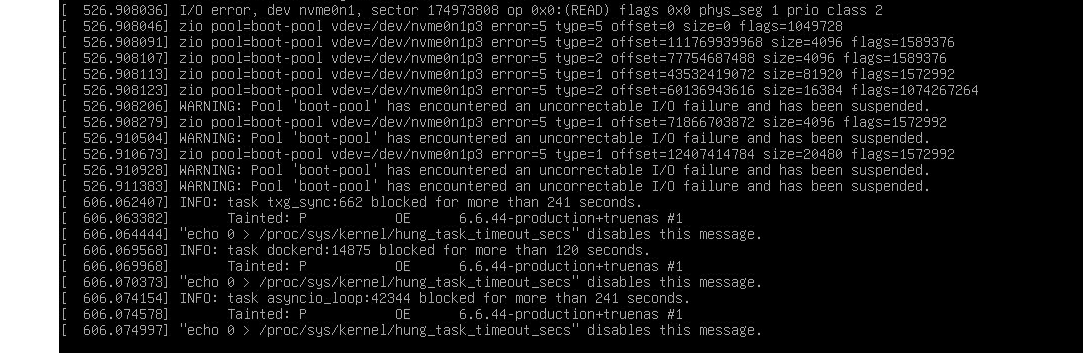
I stand by my impression of the drive being toasted.
1 Like
Me too… actually this SSD has 3+ years and previously it was the C volume of a windows 11 gaming PC, so I wouldn’t be surprised if it is dying already
That drive was 66C (150F) when you posted the smart data and this is the boot-pool so very little activity. Imagine how hot it got when it was actually in use. Mine runs at 24C to 25C routinely. I have seen it get up to 42C, I was transferring data from my old spinners to the NVMe system the other day, and it took over a day to transfer it, so it was non-stop.
I would recommend you examine all your drives for the temperature and see if you have a thermal issue. If you have high temps, you might need to rethink the air flow in your case. If you have a generic case (not a rack mounted server case), and you want some advice on how to improve airflow, drop me some photos, inside and out. I pretty good at case modifications and if you are someone who can slow down and take your time, you can produce great case modifications as well. This is assuming you even need one.
Also, those Invalid Command in Field error messages, looks like it is smartmontools. I just upgraded to 7.5 (development) and those are all gone. 7.5 is not released yet and there are 6 more items queued to be fixed, one is for smartd which I want to see sooner than later. However, once I have performed enough testing to ensure I’m not introducing a problem, I will publish specific instructions on how to do it yourself.
Hi @joeschmuck, thanks for the useful insight! I did not notice that the nvme temperature was so damn high  (it also has an heatsink on it). When I moved from Unraid to Truenas I actually installed a HBA (LSI 9400-16i) and a intel X710-D2 and that can for sure have contributed to the higher temps.
I> have a rack case (silverstone rm41-h506) and the yellow slots I have added 2 cages (left photo) to attach 5 HDD per box:
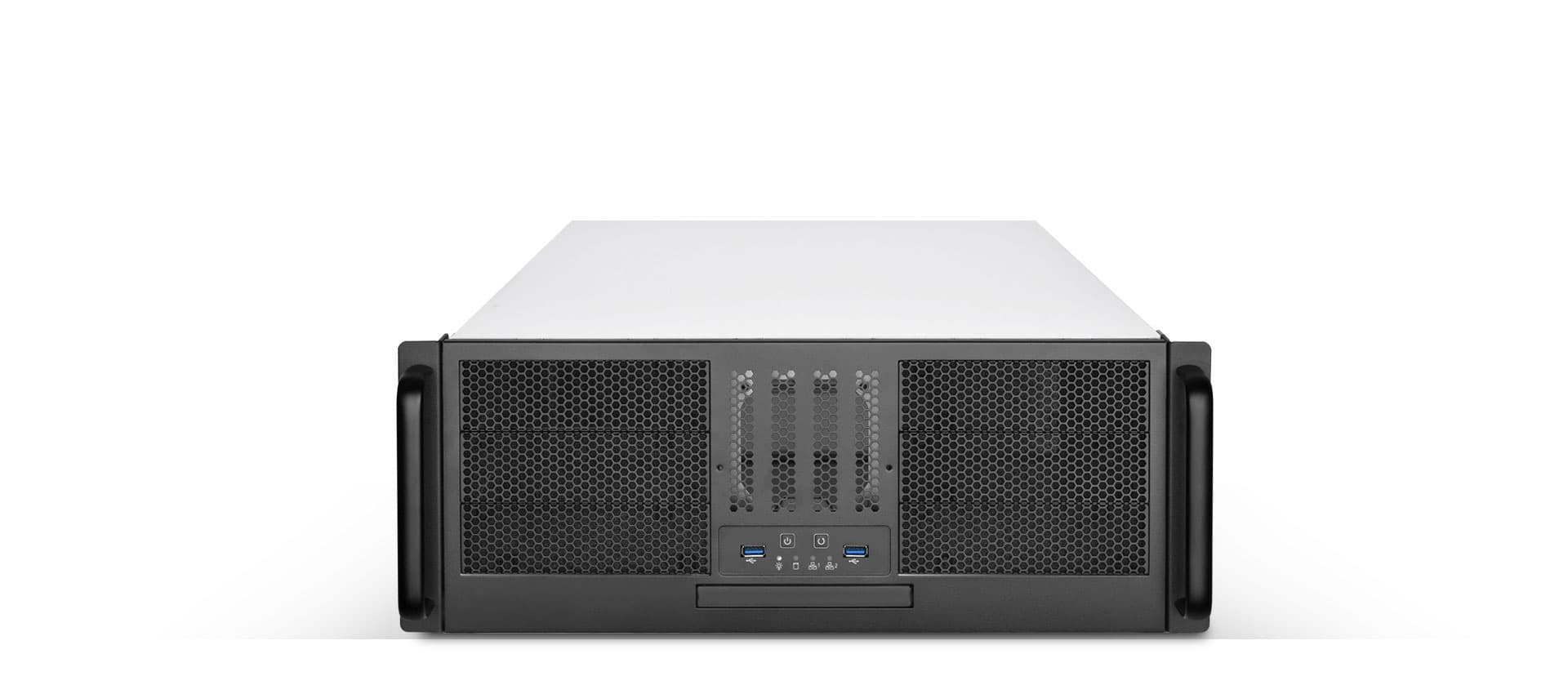

CPU is between 30 and 45 degrees but the rest of the airflow isn’t really exceptional.
This is the actual layout (I have to decide whether to move X710 or HBA on lower “metallic” PCIE slot to use the full pcie 4.0 x8 speed)
the lower black slots are only 3.0 x4 (so both hba and nic are theoretically “bottlenecked”)
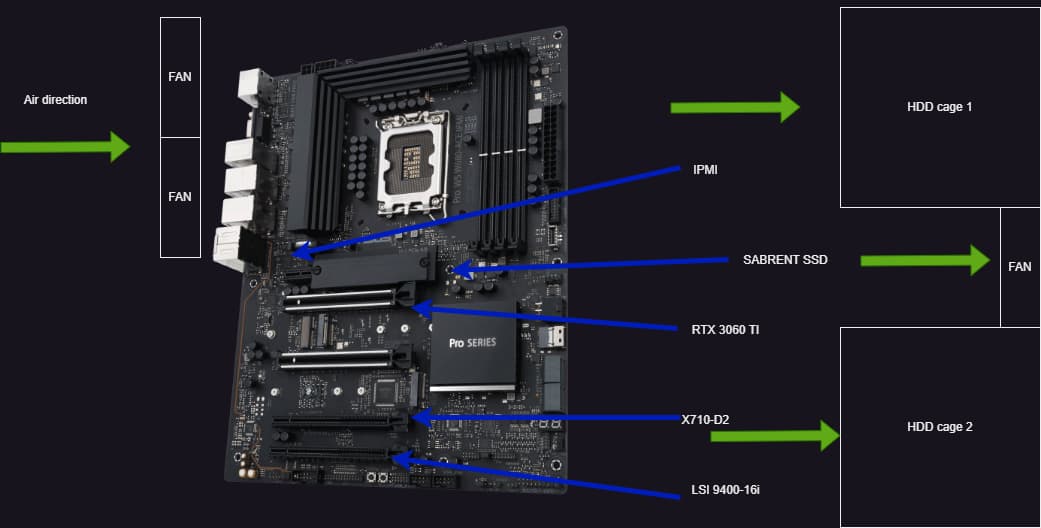
On the rear I have 2 fans taking air from outside and pushing it inside (basically over inputs of the motherboard), this air goes through the noctua cpu cooler and the warm air is sucked by the fan of the left HDD cage and pushed outside.
On the lower side as you see in the schema, I have the HOT stuff, an rtx 3060 ti (for AI), the X710 and the HBA. and there is really not so much air flowing, because there is only the extraction fan of the right HDD cage and the central cage of the case where I have another 80mm fan.
This is a long response.
Some follow-up things to think about:
- The power supply is mounted on the rear of the case, if it has a fan (most do) then the air flow goes out the rear of the case.
- The drive cages, do they have built in fans? The one I found that looks like yours (on the internet) was a SilverStone SST-FS305-12G which does have a fan. This fan “typically” pulls air into the case through the front of the drive cage and across the drives to keep those cool.
What I see is very turbulent air in your case. You have air sucked in from the two drive cages in the front just to be pushed back out the front. Imagine the air in two circular patterns just at the front of the case.
At the rear of the case you have two fans pulling in air, however you have the power supply fan pushing it back out. Another circular airflow issue.
My advice:
- Reverse all your fans you installed so the air all flows in one direction, pulled in from the front and exhausted out the rear.
- Disconnect the front fan from power at first and monitor temperatures. You may not even need that fan.
- If you need to change the fan direction of flow for the CPU heatsink, take your time and do that as well. You need to think airflow. If your CPU fan only moves air vertically (side to side), it should be pushing air upwards (away from the PCIe slots). Those heatsinks around the CPU are for the voltage regulators, those should be seeing some airflow as well, typically the CPU fan will blow across half of them. Do not blow the CPU heat into the RAM, not good unless your RAM gets damn hot and then you likely have a problem in the first place as to why they are so hot.
- All fans are not created equal. There are high airflow fans, quiet fans, not often do you find both together. If fan noise is a factor for you, let me know and we can work through some solutions. I wish it were as simple as plugging in a new fan but it never gets that simple. Well if the motherboard is really good, you can manually set fan speeds. Put a pin in that for now.
- Going back to the fan in the front of the case between the drive cages: If the drives within the drive cages are too warm, then block the air from coming into the case from that location thus forcing more airflow across the drives and providing better cooling.
Just because a component has a heatsink on it, doesn’t mean it has adequate thermal protection. You need to ensure that heatsink has some sort of airflow. And while that may not be the rule, it is what I live by to keep the components as cool as possible. With that said, you can force air into the directions you need it, here is how I do it if needed.
- What can I do to provide airflow to a designated area?
- If I cannot cool things with the current fan setup, can I add a new fan, 120mm preferred?
- Will the case allow for modifying to add a 120mm fan if there is not place that allows mounting a fan?
If I can, I will add some cardboard secured into the case to specifically direct airflow in the path I want. I try this first if it is a reasonable solution as it is easy to do. Even just to experiment.
If redirecting the airflow is not viable, then adding another fan is my solution. In your situation, possibly adding two fans on the sides of the case, one on each side, one sucking air in, one exhausting air, or possibly both exhausting. But I always start with one fan and usually that is all I need.
And lets not forget the PCIe card slot case vents as it appears you have those as well. Consider airflow there to ensure your cards stay cool. The HBA can generate a lot of heat.
And if you decide you must modify the case to add another fan, remove everything from the case. You are cutting metal and there will me metal shavings which is bad for electronics. If you find yourself wanting to do that, send me a message with actual photos of your system installed, cables and everything. Maybe I can give your advice on either a better setup or help you choose where to cut a hole. But never cut unless you have a clear plan. And always take your time to make it look like the case came that way.
This is a lot to digest, but it is all a simple idea to grasp. I’m certain the case you have will work well, it just needs a little work.
When you monitor temperatures in your system, know what is acceptable and what is just too hot. Write down those temps and check those when the system is very active so you get a sense of your typical high temperature for each component. Do not just focus on the drive temps, also the motherboard temps, RAM, add-on cards. If you need to, an IR thermometer is a great tool to have if you cannot check something electronically. I bought one for less than $20 USD many years ago. Well I bought it for my house HVAC system, it was not working well in the summertime. But I use it for computers, and other things from time to time.
Take care, time for me to visit the grocery store, buy some meat for dinner.
1 Like
Super thanks @joeschmuck for the writing and have a lovely dinner!
Yes I forgot to mention, the cages model is the one you posted and the fans used to suck air in, but top one (closer to CPU) is reversed, so that it doesn’t ruin the flow, while the cage in the “hot area” is pushing fresh air inside (I know, maybe the HDD inside will run a little bit hotter)
At the moment, my rack case is inside a rack network drawer, a 13U and on top of these rack I mounted also 2x120mm noctua fan. This drawer is in the corridor of my apartment and I can’t move it to another place, so fan noise has to be kept under control.
I just received to new SSDs, I bought 2 lexar SSD for boot-pool for mirroring and another crucial P3 that replaces the Sabrent.
So while I got the case opened, I moved X710 and HBA up of 1 position so that they get a little more from the fan pushing air in.

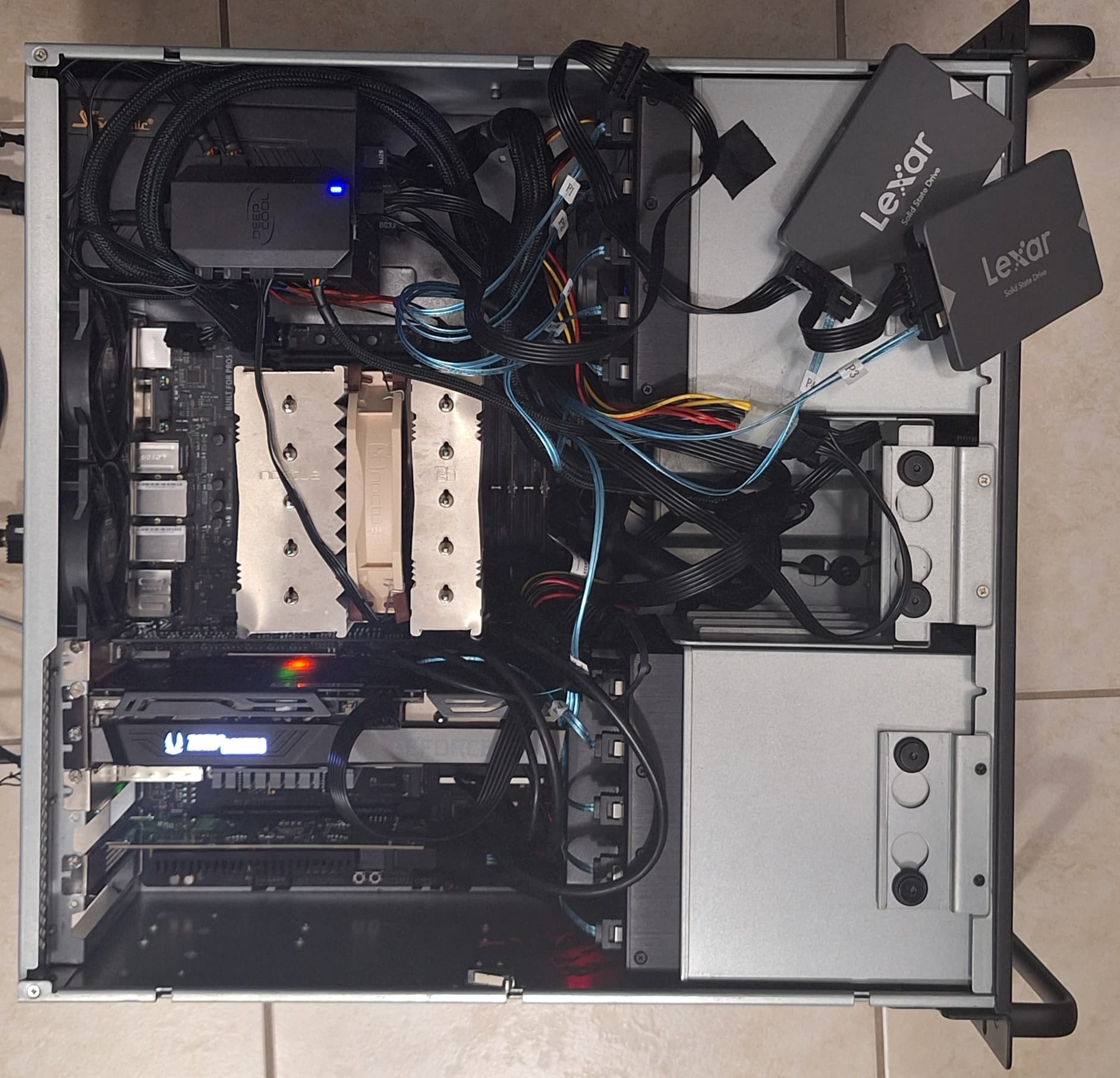
I took a photo of the actual situation (a lot of cables around
)
They are not visible but NVMEs drives are all under a pcie unfortunately.
1st nvme slot (with heatsink): is under the first card (IPMI)
2nd slot (worst one): is under the GPU
3rd slot: probably the coolest because it’s between NIC and HBA cards
BUT BIG NEWS:
Boot-pool error is gone now! I don’t see it as exported anymore! so maybe it was because I installed nightlies EE, then RC1 and then RC2, or maybe just the nvme was really dying… who knows
If anyone encounters such an issue, I recommend to either run smartctl and test if the boot-pools disk/dosks are OK and if everything is fine, then proceed with a re-installation of truenas
1 Like
There is quite a lot of heat packed in that space!
Yes, it`s not utilized at 100% all the time, so the heat is still manageable, but there is a lot of stuff for the case
I thought some time ago to have a much smaller server (also consumption wise) to keep up all the day and run all the apps like nextcloud etc,
but let’s suppose I want to access photos which are inside truenas, so in the end I have 2 systems turned on 24/7. If you have an idea I am all ears on this 
While I had a difficult time believing it, a mess of cables actually does impede airflow. Make some nice neat bundles out of your cables. If you can use a wire loom then use those, it can really make for a nice looking interior as well.
A covered heatsink is just a hot iron, it needs decent airflow.
And I will have to say, reverse the airflow so it comes in the front and goes out the rear. Why? The air coming in the front of the case through the drive bays will flow out in a straight stream for some distance thus allowing some cooler air to reach hopefully the components under those PCIe cards. Thankfully the CPU fan can be changed easily. Yes, I still stand by my recommendation to have the ari come in the front and out the rear.
Are those 80mm fans on the rear of the case? Will 120mm fans fit, or even a single 140mm fan?
And mount those SSDs in the drive cage in the middle to keep them out of the way. I have done a lot of things to mount drives in various places. I do not like using tape/velcro. I prefer to drill a few holes (2 holes for a SSD) and mount the think properly.
Thanks for the idea of using wire looms, it will definitely tide things up!
I wish this case could fit 120mm, but unfortunately only 80mm fans fit.
For the SSDs I will probably buy one of those plastic cages that can fit 1 or 2 SSDs for each 3.5 slot so it will be a little tidier.
Regarding the temperatures, the NVME drives are at mean of 44 celsius (for the nvme under heatsink)
the other 2 are at 46 and 49ish respectively (always mean) so defnitely there is room for improvement…
maybe I’ll decide to find a solution and run AI models on some pay by use online GPU so that I can remove the 3060 TI. It should improve the temps in this area for sure.