Running these two commands will show the current PCIe lane speed situation:
sudo lspci -vv -s 04:00.0 | grep -E 'LnkSta|LnkCap'
sudo lspci -vv -s 05:00.0 | grep -E 'LnkSta|LnkCap'
Please post the output.
Running these two commands will show the current PCIe lane speed situation:
sudo lspci -vv -s 04:00.0 | grep -E 'LnkSta|LnkCap'
sudo lspci -vv -s 05:00.0 | grep -E 'LnkSta|LnkCap'
Please post the output.
[quote=“prez02, post:19, topic:28306”]
If you want to use a graphic card, you’ll have to put the second HBA in a x1. If that works, I guess the speed will not be great…
[/quote]It’s storage only, for a media server that’s running on a different machine.
root@truenas[~]# sudo lspci -vv -s 04:00.0 | grep -E 'LnkSta|LnkCap'
pcilib: sysfs_read_vpd: read failed: No such device
                LnkCap: Port #0, Speed 5GT/s, Width x8, ASPM L0s, Exit Latency L0s <64ns
                LnkSta: Speed 5GT/s, Width x1 (downgraded)
                LnkSta2: Current De-emphasis Level: -6dB, EqualizationComplete- EqualizationPhase1-
root@truenas[~]# sudo lspci -vv -s 05:00.0 | grep -E 'LnkSta|LnkCap'
pcilib: sysfs_read_vpd: read failed: No such device
                LnkCap: Port #0, Speed 5GT/s, Width x8, ASPM L0s, Exit Latency L0s <64ns
                LnkSta: Speed 5GT/s, Width x4 (downgraded)
                LnkSta2: Current De-emphasis Level: -6dB, EqualizationComplete- EqualizationPhase1-
So NEITHER of them are running at x16. I guess they are probably in the x4 and x1 slots rather than the x16 slot.
So it seems…
So, uh…now what? Disassemble and reasssemble THE ENTIRE MACHINE, natch, but in terms of preserving data?
Some people plan to use graphic cards for hardware transcoding of media, thats why I asked…
As I said, storage only.
However, given that I plugged the drive into the card that’s already successfully running at least two of the existing drives, and it doesn’t work, doesn’t that mean we still have a problem here even if I manage to move the other card to the x16 slot?
Well, you just have to move one PCI-E card to the slot usually reserved for graphic cards.
That should be empty. Then check if sas2flash lists two devices. If not, this HBA card is probably broken.
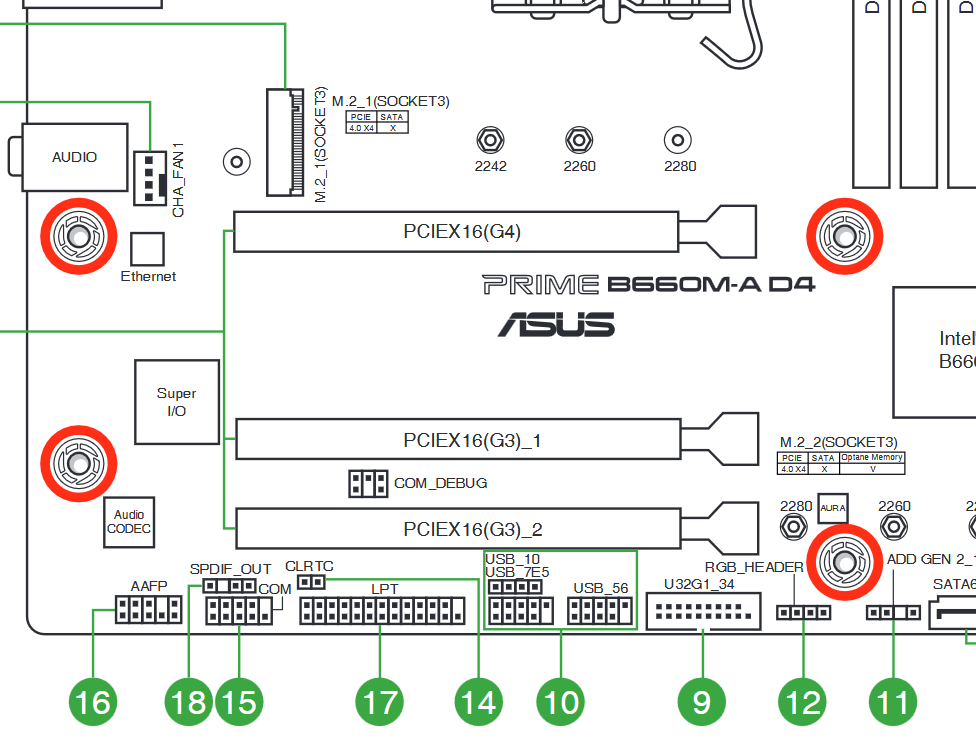
It is not named explicitly, but the lowest slot will likely be the x1, the one above the x4. That will be the one that is currently works and is connected to the drives with your data.
At this point I would prioritise figuring out if the drive even works.
I would put it on a table beside the computer and connect a normal SATA data cable directly to the motherboard, as well as a SATA power cable.
This lets you feel if the drive powers on, without moving the drive around.
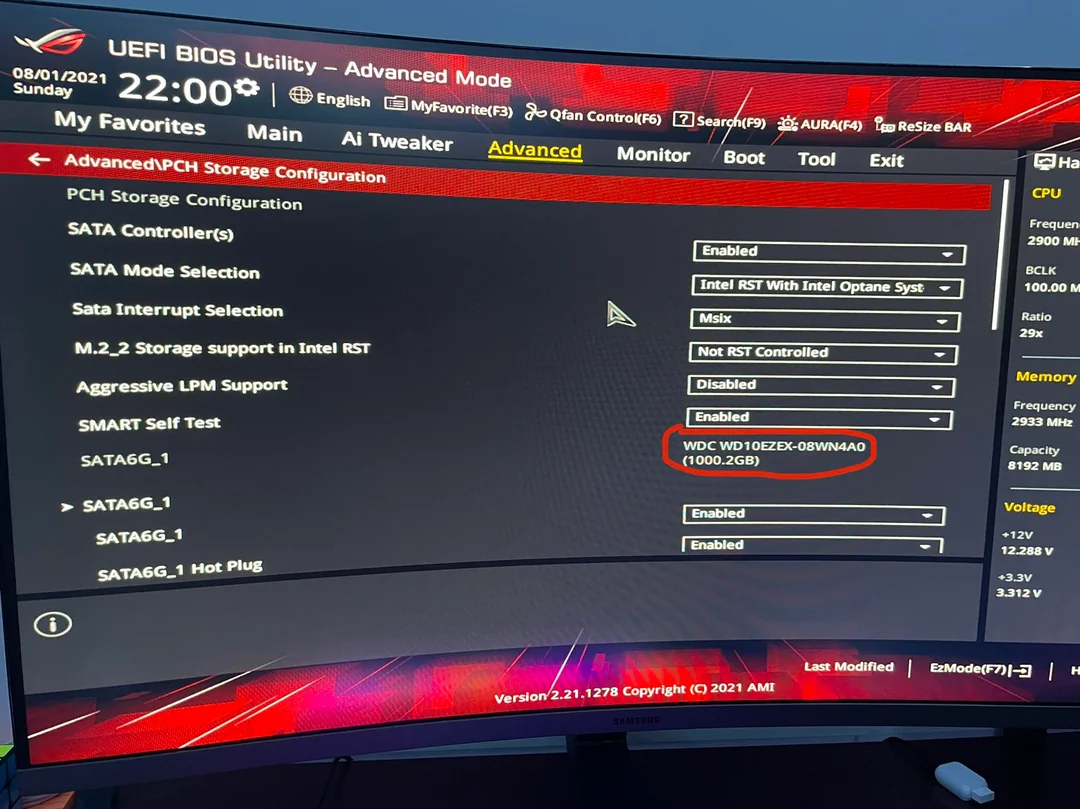
If it does, my next stop would be to check if the drive is detected in the BIOS when looking at the related SATA-port.
I stuck my hand into the case and the drive does seem to be spinning.
It’s connected by the same group of four cables that’s connecting two of my other drives. The remaining four are presumably running straight off the mobo, as the other three groups of four cables are all connected to precisely nothing.
So even if I swap the other card over to a different PCIe slot, it still ain’t gonna help.
Or maybe the other slot is fine, and the cable I tried first is also connected to this same card? No way of knowing that. In which case maybe the other card is fine and this is the best I can do?
How much do I have to worry about disconnecting the card the drives are attached to? Is that going to break the arrays?
I can’t get to the mobo without rearranging my entire desk, so that has to wait until…maybe next year TBH, who knows.
Is it the only computer you have?
If not, try the connecting the HDD to a different computer.
Tried it in a different machine, same outcome: definitely spins up, but no sign in the OS that the drive exists.
So I guess this is the next step then, but I have no idea how to do that?
You enter the BIOS by pressing DEL when the computer starts.
There should be a list of your connected SATA devices in there somewhere but each maker’s BIOS looks different and I don’t have a current ASUS board to reference.
But if this publicly available picture is anything to go by:
YMMV.
Well I don’t have a keyboard or a monitor attached to the TrueNAS box, so…small obstacle there. Blegh.
I very smartly put the case in an area of the desk I really have no access to, because it’s not like I was ever going to have to futz with it. So I’m pretty sure it’s my fault it’s not working.
Well I’m only seeing SATA6G_1, SATA6G_2, SATA6G_3, and SATA6G_4. I have six working drives and am trying to add a seventh…so I guess the BIOS just isn’t picking up on any of the drives that are connected to the PCIe cards, even though two of them work in the OS just fine.
The new drive definitely spins up.
When you tried the new drives on the other computer, was that through the HBA or directly connected to the MB’s SATA ports?
I don’t understand the question. HBA?
Host Bus Adapter - the LSI cards are HBAs.
Straight into the mobo, then. I don’t have LSI cards in the other machine.