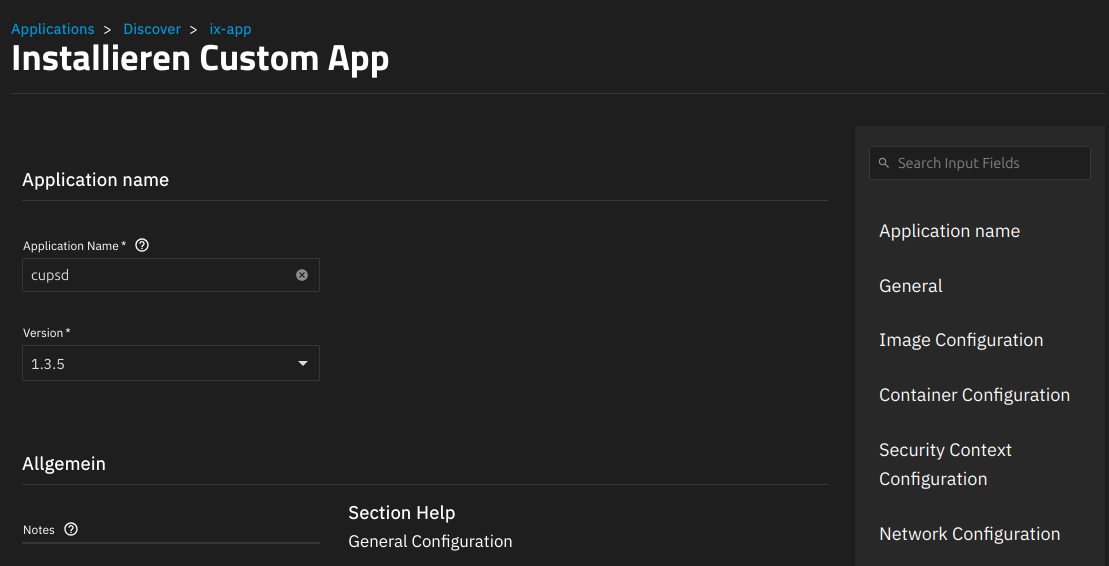
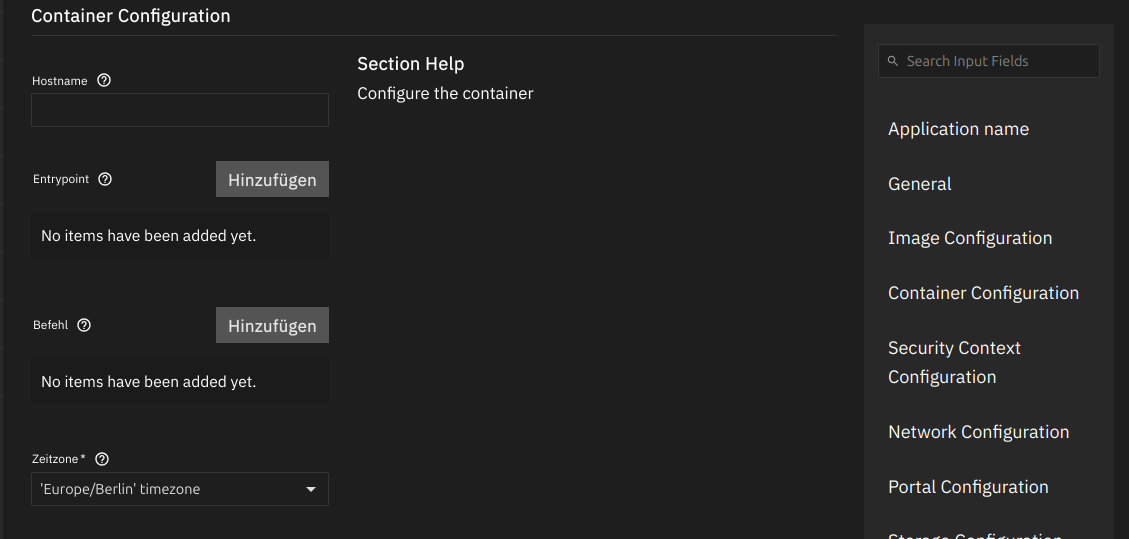
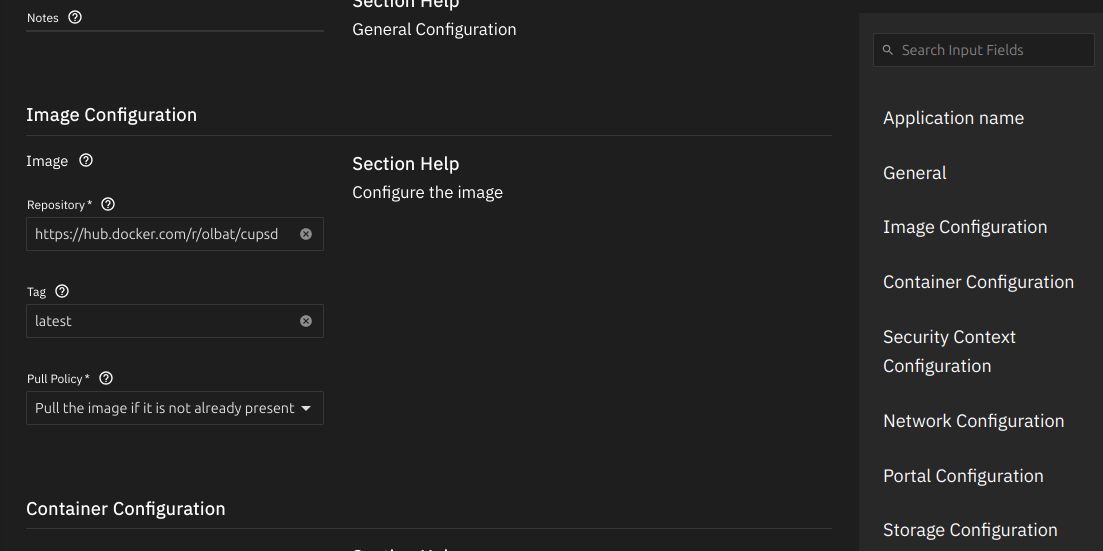
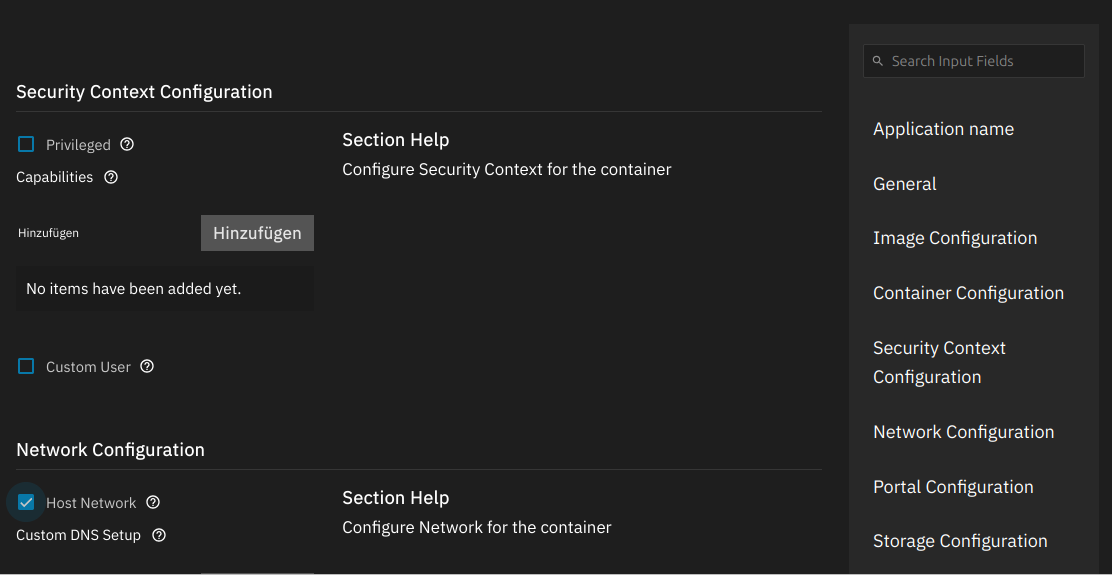
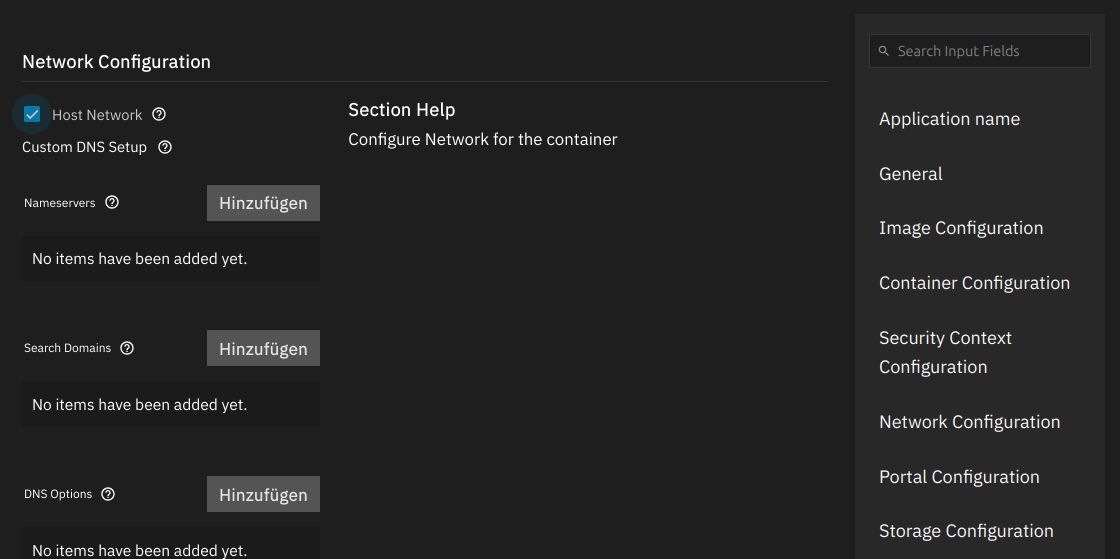
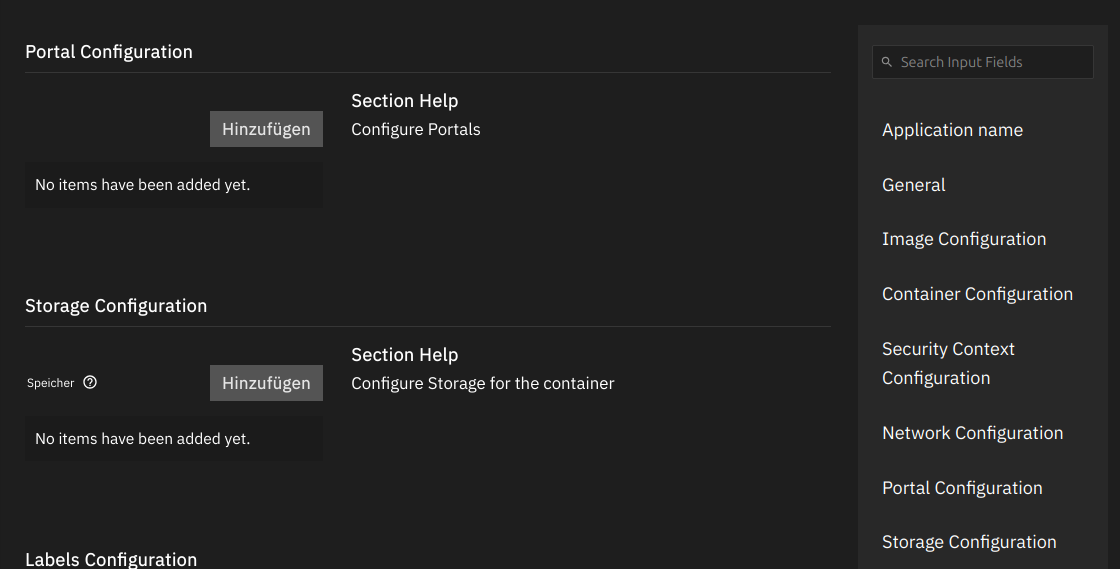
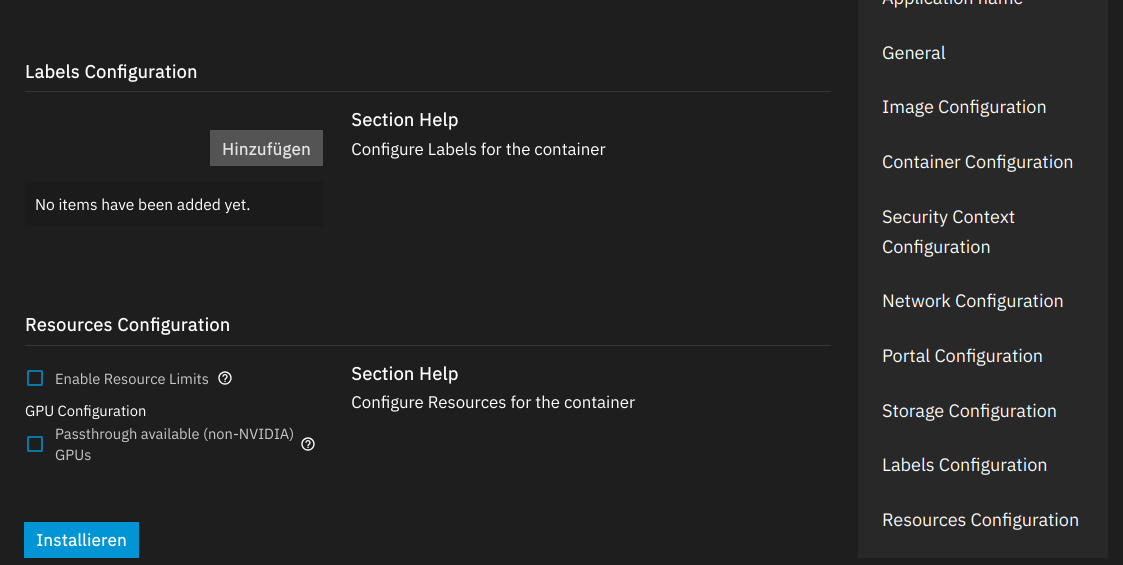
Let me start by saying that I’m not fluent in English and am relying on a machine translator here. As mentioned in other forum posts, getting CUPS to run as a Docker container on TrueNAS seems to be a rare stroke of luck. Unfortunately, selecting “German” in the web GUI isn’t much help either. The way another user, who was practically driven to despair in 2024, seems to be struggling to get a typical Linux application like CUPS running on TrueNAS is truly a feat. I’ve followed all the steps in the thread and tried to replicate them, but I’m stuck on the exact same error message: when I try to install a custom app, it throws up an error list with some references to Python scripts.
After more than 14 days of trying to install an external Docker image on TrueNAS that includes CUPS, I’m at my wit’s end! I’m about ready to throw the whole thing out the window. Why does everything have to be so complicated? I hope you understand and can help me with a real step-by-step guide. Thanks in advance.
version: "3"
services:
    cups:
        image: anujdatar/cups
        container_name: cups
        restart: unless-stopped
        ports:
            - "631:631"
        devices:
            - /dev/bus/usb:/dev/bus/usb
        environment:
            - CUPSADMIN=test
            - CUPSPASSWORD=test
            - TZ="Europe/Berlin"
        volumes:
            - /mnt/Data/test:/etc/cups #replace /mnt/Data/test with the path to your Datasets
x-portals: #code to add a web portal button on the truenas apps page
  - host: 0.0.0.0 #replace 0.0.0.0 with your truenas's ip
    name: Web UI
    path: /
    port: 631
    scheme: http
I do not hava a printer to test it, but at least the app is running. Hope this gets you a step further
This isn’t about configuring CUPS, but rather how to install this Docker image as described in the guide:
When I try to install this image as described in this forum guide, using the web GUI (not the shell), I can’t complete the installation.
I have no idea what these error messages mean! It just displays random nonsense about some Python scripts throwing errors.
I’m not a Docker specialist; I have basic Linux skills, but when I can switch a GUI to another language, and then parts of the configuration menus remain in English, and I’m asked questions I don’t understand!!!
the yaml above can be used to install cups with the custom yaml function. It’s basically adjust the storage path and paste it into the yaml editor, hit save. Tha’s all i had to do to get it installed and running
I just want to install a crappy Docker image, that’s all!
And I can’t figure out the whole user interface in the web console because it asks for things I don’t understand!
It’s great to know how to install such an image, even if you’re fluent in English, but when it comes to providing someone with a step-by-step guide in simple terms, humans fail again.
Im Truenas gui erstellst du ein neues Dataset als installationsverzeichnis für cups, das kannst du nennen wie du willst
Gehe zur apps seite im truenas gui und klicke auf den großen blauen “Discover apps” Button. Oben rechts, neben dem Custom App Button sind drei Punkte zu sehen. Wenn Sie da rauf klicken