
I think the GUI was overly zealous in alerting you about a transient problem and made an aborted test look like a “failure”.
It looks perfectly fine. The high load cycles are not too excessive that you should need to worry about it. Or in other words, “Don’t fix it if it ain’t broke.”
To your original problem… I have no idea why TrueNAS threw those errors.
My advice, do nothing but monitor the system. Maybe something did happen like someone bumped the computer and caused it, only time will tell what is going on, and even then the problem may never resurface again. And track the problem using the drive serial number, not the drive ID of ada2 or sdX now that you are on SCALE.
I was thinking the way it was connected when you observed the errors.
My case has 4 backplanes with one SFF-8087 each connected to a LSI3008 onboard mini SAS Port
I disabled all three power saving functions for one of the drives for testing purposes.
Just wanted to double check if I get the information right.
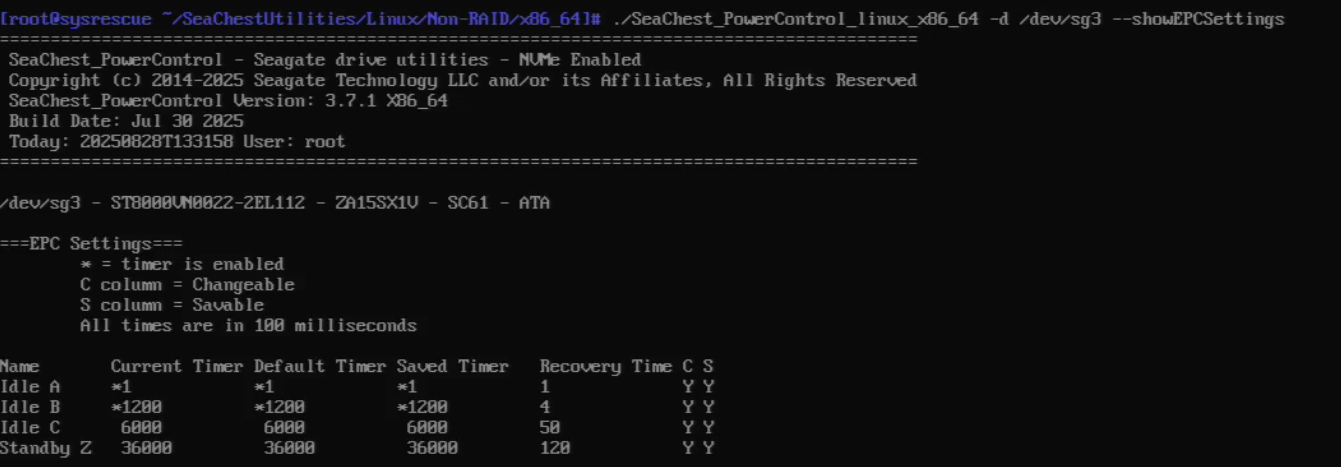
I did “–showEPCSettings” before:
and after:
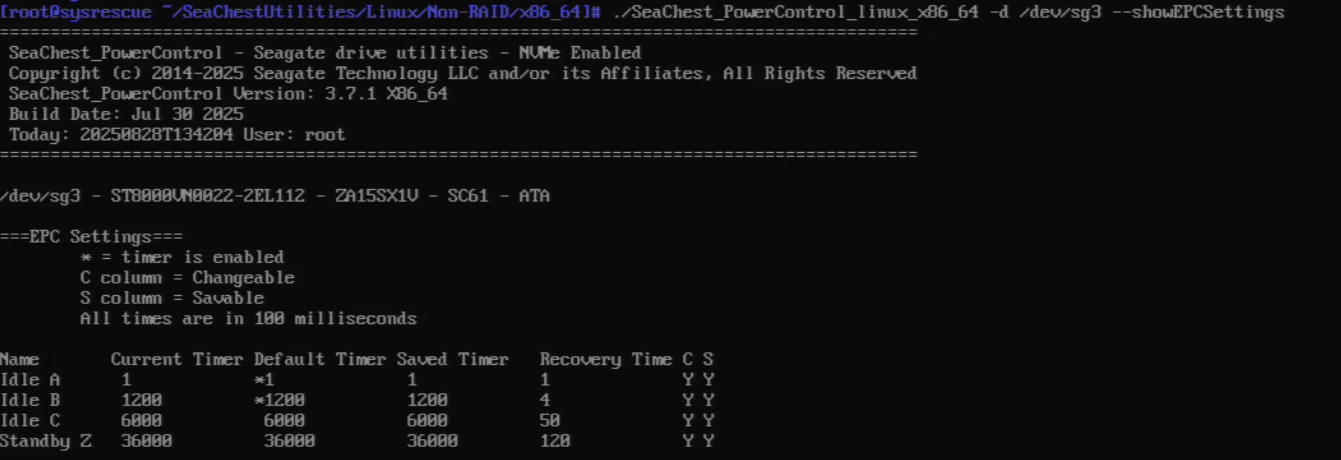
Am I right that the asterisk (timer is enabled) in the screenshot before means this state was enabled? So in that case idle_a and idle_b were enabled while idle_c was disabled already?
Is there anything else needed to be changed?
What matters is the “Saved Timer”. Those are the values set after a reboot. The missing asterisks means that they are disabled, no matter what the numeric values might be. 
here’s something interesting:
I was able to disable idle states of two drives. both are my BackupPool. But this shouldn’t matter since TrueNAS is not booted.
I wasn’t able to disable these state on all the other 6 drives which belong to my main pool. I get a message “successfully configured the requested EPC settings” but if I check again with
--showEPCSettings
there aren’t any changes in terms of the asterisks.
any idea what the problem here?
Did you happen to disable EPC before trying to apply the individual timer overrides?
I am not exactly sure what you mean.
my procedure was:
- SeaChest_PowerControl --scan
- SeaChest_PowerControl -d /dev/sgX --showEPCSettings
- SeaChest_PowerControl -d /dev/sgX --idle_a disable --idle_b disable --idle_c disable
- SeaChest_PowerControl -d /dev/sgX --showEPCSettings
Not sure why it would behave like that, especially if they are the same model of drive.
What if you try to disable each feature (a, b, c) one at a time, rather than all in the same command?
Were the remaining 6 purchased together? Was the SMART info you posted earlier from one of those 6 drives?
I tried this as well. unfortunately didn’t work either.
no, this drive is not part of the server anymore.
Furthermore, I can’t see a pattern for those drives besides the fact that they belong to one Pool. Different purchase dates, different sizes and also a mix of Ironwolf and Ironwolf Pro.
Edit: I realized there is a pattern. the 2 BackupPool drives are connected via SATA while the other 6 drives are connected to the onboard mini SAS.
In the documentation there is a" SAS only" section which says the command is
--idle disable
instead of
--idle_a disable
However this leads to
configuring idle settings is not supported on this device
Writing this quick walkthrough, keeping my word. I’m aiming this at people who have no clue what they are doing, which is a category I firmly place myself into.
Disclaimer: My server has 10 Ironwolf Pro drives, and as of the most recent upgrade, three Exos X24 24TB, and one Exos X24 16TB drive. Two drives are missing, due to a) failure to deliver and b) drive DoA.
My original plan was to attach all six new drives, run burn in tests, and then do all these changes in one go. As it is, that plan did not survive contact with reality, but it’s not actually a problem.
Step 0) create bootable USB stick with Linux iso. I have a Mint 22 sitting on a relative new and unused USB2 drive, it’s good enough for this. USB would have been a bit easier ie less jittery. Make sure you have a way to interact with the live ISO (ie screen, keyboard, mouse) or IPMI is set up and usable.
Step 1) Turn off Truenas. Add new drives. Start validation. Go away for a few days.
Step 2) validation finished. Turn off Truenas. Disconnect boot drives (easiest way, alternative is to mess with bios to change boot order but that adds complexity so meh). Connect bootable USB, restart server
Step 3) In Grub, run Mint 22 (don’t install, no idea how this will look for other bootable install media).
Step 4) Give the server a few minutes: Make a brew, use the facilities, don’t be impatient. Once Mint loads and initializes network connection, go to SeaChest Utilities | Seagate US and download Seachest utilities (not the lite version). Extract in place. Go to the correct folder (/SeaChestUtilities/Linux/Non-RAID/x86_64 for me, and I imagine for most people, unless your reading this in the future and Truenas ARM has taken the world by storm).
Step 5) Change Seachest_PowerControl properties/permissions to make the file executable (It took me longer to figure this out than to do all the other steps for 14 HDD).
Step 6) Open terminal in this directory, and run sudo ./SeaChest_PowerControl_linux_x86_64 --scan to confirm the /dev/sgX identity of all drives you need to update. Then run, one at a time because you don’t want to miss one by accident (or don’t, if you trust yourself to not screw it up. I didn’t):
- sudo ./SeaChest_PowerControl_linux_x86_64 -d /dev/sgN --idle_a disable
- sudo ./SeaChest_PowerControl_linux_x86_64 -d /dev/sgN --idle_b disable
- sudo ./SeaChest_PowerControl_linux_x86_64 -d /dev/sgN --idle_c disable
for each Seagate drive you have that needs altering (ie every Ironwolf and Exos drive), where N=term identified in the --scan step.
Step 7) verification: run sudo ./SeaChest_PowerControl_linux_x86_64 -d /dev/sgN --showEPCSettings for each disk to confirm that all of the figures under “Saved Timer” do not have an asterisk
Step 8) Turn off the server, removing the bootable iso when it tells you to. Reconnect the Truenas boot drives, restart et voila.
Excluding step 0, the whole thing took me about 2 hours to complete, but an hour of that was me being too thick to remember I had to make the file executable. Note some drives are directly attached the the motherboard, and others are attached via HBA. All drives are SATA. commands for SAS drives are different and are explained in the included html and txt help files in the Seachest folder, but I believe that each step remains valid, it would just be the command which is different for SAS drives.
In future, my plan is to connect new Seagate drives to me desktop and do this live (which I will do once I get the last two drives delivered in working order), prior to adding to Truenas and doing burn in tests, which is fine unless I need to do it to more than 6 drives at a time (No Winnie, this is not another reason why mirrors are better than RaidZx, each drive still needs fixing once regardless of what vdev it gets dumped into). This process, thanks to the directions provided by Winnie, was not painful.
1 Like
Does this apply to the idle timers as well? @macx979 could not disable the timers on SAS-connected Ironwolf Pros.
Copied from the userguide:
SAS Only:
=========
–idle [ enable | disable | default | timerValueMilliseconds ] (SAS Only)
Use this setting to change the idle power mode settings.
NOTE: This is the legacy idle timer before EPC drives.
If this is used on an EPC drive, this will modify
the idle_a power state and timer values.
enable - enable the power state
disable - disable the power state
default - restore default settings for this power state
timerValue - number of milliseconds to set for the timer
used in this power state. If a timer is provided
the state will also be enabled, if not already.
Spec timers are set in 100 millisecond increments.
Timers will be truncated to fit 100 millisecond increments.
When using this option, the setting is non-volatile.
Use this with the --volatile flag to make the
setting volatile.
This is only available on SAS/SCSI drives as ATA drives did not
have a separate configurable idle timer.
WARNING: EPC Settings may affect all LUNs/namespaces for devices
with multiple logical units or namespaces.
So…yeah, looks like
sudo ./SeaChest_PowerControl_linux_x86_64 -d /dev/sgN --idle disable
is the correct command for SAS disks?
The way it’s written in the guide suggests that it’s a “legacy” command only known by SAS drives, and you should still use the newer separate options (a, b, and c) to disable all the timers.
shrug I got nothing.
@macx979 are those SATA drives connected via mini SAS? Maybe to permanently disable the idle timers, you’ll need to apply them while connected directly to SATA ports?
After that, you can connect them back into the mini SAS ports.
that’s something I could try. But my server is at a remote location, so it takes some time when I’ll be there next time.
But in terms of the procedure it could become difficult, since there aren’t enought sata port on the board.
Has anyone successfully tried SeaChest via an SATA-to-USB Adapter?