Immich changing the location of upload storage

Hello all,
I started few weeks ago to try Immich, and I am convinced.
BUT I would like to change the location of the “upload” storage.
Problem, everytime I tried that, the app is stuck in “deploying”.

I saw online the problem is with the Immich’s stack and I have to rebuild it with

start the immich stack again with docker-compose up -d --force-recreate

My problem is I do not know how to do that, as I installed it as an app in Truenas.

Thank you for your help,
Savanflou

Truenas: ElectricEel-24.10.2.2
Immich:
App Version:
v1.134.0
Version:
1.8.3

Did you fix this?

I tried that too and also initally failed. My understanding was the I can move the upload directory independently from the other directories like profile, library, thumbs etc. But I learned that the “upload directory” is in fact the base directory under which all the other directories are created (unless overwritten). So this worked for me:

  • stop the immich container
  • move all immich directories to the new location
  • change the immich upload directory to the new base directory
  • start the immich container
  • I then got an error that the encoded-video directory is missing. I created it and restarted the container and then it worked.

I am using TrueNAS Community Edition 25.0.4.1 and immich app version 1.134.0/1.9.2 which is the latest TrueNAS app version as of today.

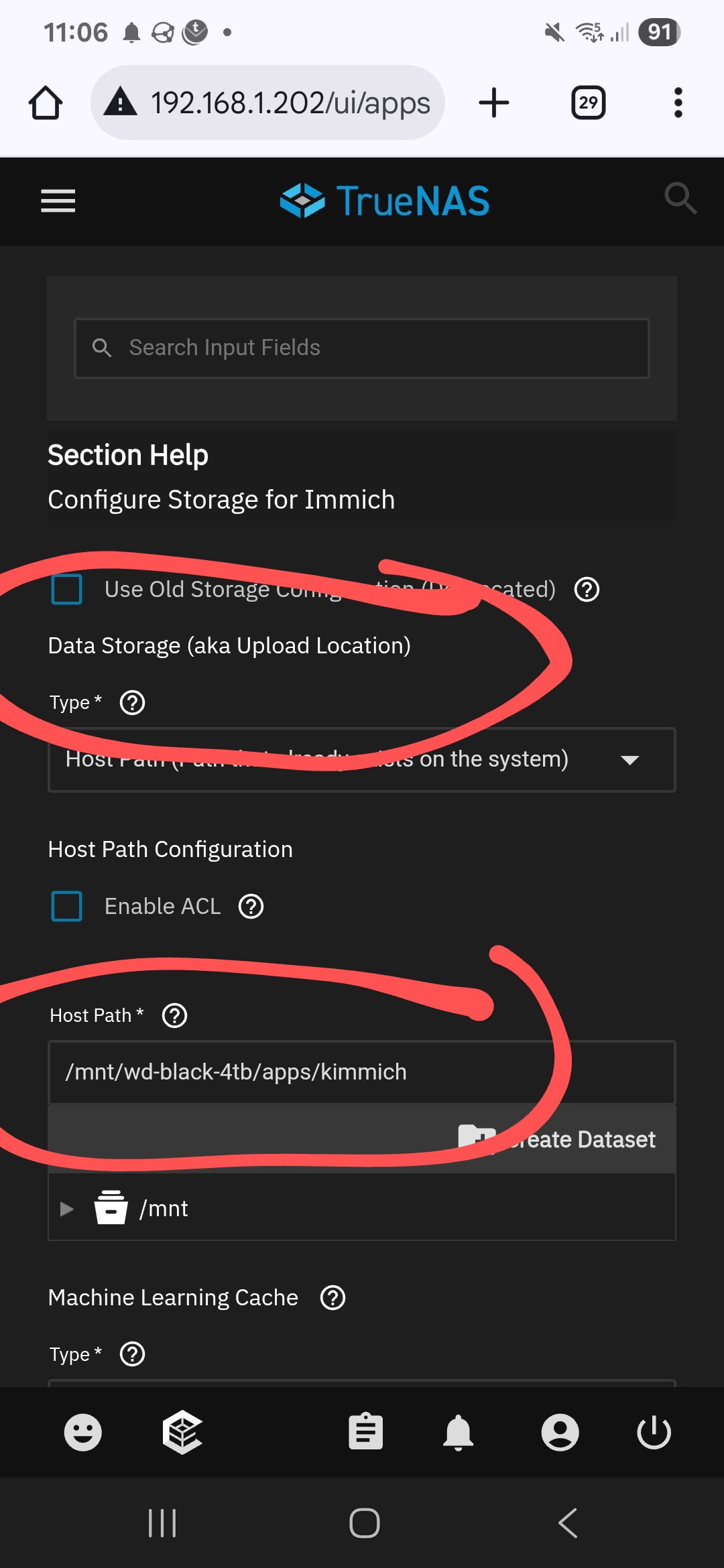
Forgot to add screenshot. Naming this the “upload location” is confusing.

I believe I’m trying to do the same thing.

I’m new to TrueNAS and the apps, but I was using immich with docker compose on a separate platform with upload handled by a synology photos.

I have everything running with immich on a applications pool on mirrored SSDs and existing photo library in an HDD storage pool mounted as an external library.

I would like to have only the ‘library’ folder within the folder selected for ‘Data Storage (aka Upload Location)’ in a different location. I would like to keep all the other folders in this directory on the SSD for performance sake.

I’ve tried adding an environmental variable ‘UPLOAD_LOCATION’ with a value of the HDD directory (/mnt/…) that I want the library folder. But this did not work. I even tried with a fresh install. Beyond this, I’m not really sure what to do.

I know I could put the ‘Data Storage (aka Upload Location)’ directory in my HDD pool but that seems like a compromise.

Did you fix this? If you didn’t how did you come to the conclusion that this is the answer?

You could try using a mount point for the library folder within the upload folder. That should allow you to have it stored elsewhere but accessed there. Something like the below.

sudo zfs set mountpoint=ssdpool/immich/uploads/library hddpool/immich/library

Not sure if it will cause issues or not though. It might mean that you can’t access the files through the HDDpool though.

Alternatively you could try setting up a symbolic link. That would probably be better in terms of being able to access it from both pools, but I don’t know if it would cause other issues or persist through updates.

Thinking about it more a symbolic link might be better.

Also refer to:

I ended up just making the upload folder (in the new folder layout) in my HDD pool. I don’t see any noticeable performance issues when moving around my library and if I ever rebuild immich in the future. I just move the pictures from the upload folder to my main photo library folder and redeploy.

1 Like

Hello, I have to admit, I dropped this idea as I changed my config in between. So… I do not know if we can indicate it as solved.
Thank you anyway for your help.

1 Like

I have managed to get it to work just like I’d like it to. This is the thread that AI used to try and answer my question (sadly, unsuccessfully) so leaving this here just in case someone else also comes here looking for an answer.

Initially I had all the Immich folders on a SSD pool but have retrospectively changed things successfully so that just the thumbs and profile folders remain on a SSD pool while library, upload, encoded-video, and backups now live on a HDD pool. The postgres db continues to live on the SSD pool.

Important Notes:

  1. Make sure you stop Immich before making any of these changes.
  2. Make sure you don’t delete anything from the SSD pool until you are satisfied that everything works as you’d like to.
  3. It is also a good idea to ensure that you are any other users do not make any changes to Immich while this change is being made. So, close the app on your phones, etc.

Steps:

Create four datasets using the Apps preset on the HDD pool that you’d like to use for library, upload, encoded-video, and backups. While this should be enough, just double check to make sure that the Apps user (or whichever user you have setup instead for that job) has Modify access to each of these.

Run the following commands to copy contents from the SSD pool into to respective folders on the HDD pool. You will need to tailor them to make sure the paths are correct for your setup. You can add “–dry-run” at the end of the first line just before the “\” if you’d like to check everything works OK but since you’re just copying stuff, this is optional.

Even if you think you don’t have any data in one or more of the folders that you want to move from the SSD pool to the HDD pool, you still need to run the rsync command. In my case, there was only 13 bytes of data in the uploads and library folders but that is what caused Immich to remain stuck in a deploying loop.

sudo rsync -aHAXh --numeric-ids --progress \ 
/mnt/<your ssd pool name>/<rest of the path to current upload folder>/ \ 
/mnt/<your hdd pool name>/<rest of the path to newly created upload folder>/
sudo rsync -aHAXh --numeric-ids --progress \ 
/mnt/<your ssd pool name>/<rest of the path to current encoded-video folder>/ \ 
/mnt/<your hdd pool name>/<rest of the path to newly created encoded-video folder>/
sudo rsync -aHAXh --numeric-ids --progress \ 
/mnt/<your ssd pool name>/<rest of the path to current library folder>/ \ 
/mnt/<your hdd pool name>/<rest of the path to newly created library folder>/
sudo rsync -aHAXh --numeric-ids --progress \ 
/mnt/<your ssd pool name>/<rest of the path to current backups folder>/ \ 
/mnt/<your hdd pool name>/<rest of the path to newly created backups folder>/

On your Immich server, edit the Immich app to make the following changes under the Storage Configuration section. Note that the data and pgdata folders remain mounted as per usual (in my case, both remain on the SSD pool).

Under additional storage, add four more locations (one for each folder you are moving). As an example, here is what the changes look like for the encoded-video folder - repeat this for all others.

Type: Host Path (Path that already exists on the system)

Mount Path*: /data/encoded-video

Host Path*: /mnt///

Once you’ve done this for all the other folders you want to move, that’s it! Start Immich and everything should work as it did before.

Should have mentioned that these instructions are based on Immich v2.0 and later but I can’t see why this would be different for older versions.