Having seen that the docker container option for Unifi Network is now coming to an end, I decided to see if I could make the new replacement option (UnifiOS) work in a container on Goldeye, since that seems to be the least wasteful way (IMHO) to run it.
I was successful.
Here’s what I did:
After setting up Containers in the UI (selecting a pool and a bridge), I created a new container (which I later had to delete, but maybe this was important in some way to initialize the system properly, so I won’t leave it out). Since the install failed in that container, I did some research about incus (the container manager used in Goldeye) and I found this:
https://discussion.scottibyte.com/t/self-hosted-unifi-os-in-an-incus-container/673
It was really helpful, but not complete for Goldeye.
So I worked at it for a bit and came up with these steps:
You must first create a network profile:
Since I’m using the macvlan type, I called it macvlan:
incus profile create macvlan
Then I assigned it to the bridge I use for my main network (br01) and gave the interface a name for inside the container (eth0):
incus profile device add macvlan eth0 nic nictype=macvlan parent=br01
Since I was creating the container from the CLI (GUI doesn’t allow all the options I needed), I had to also figure out the storage, which turned out to be the name of the pool I gave when setting up containers, but I used this command to check first:
incus storage list
+------+--------+-------------+---------+---------+
| NAME | DRIVER | DESCRIPTION | USED BY |  STATE  |
+------+--------+-------------+---------+---------+
| nvme | zfs    |             | 2       | CREATED |
+------+--------+-------------+---------+---------+
So I could see the “NAME” I needed to use… (although I could have easily guessed that as it’s the name of the pool).
Then I was ready to create the container:
incus launch images:debian/13 UnifiOS \
  -p default \
  -p macvlan \
  -s nvme \
  -c boot.autostart=true \
  -c security.nesting=true \
  -c security.privileged=true \
  -c security.syscalls.intercept.sysinfo=true \
  -c raw.lxc="lxc.apparmor.profile=unconfined
lxc.cgroup.devices.allow = a * rwm
lxc.mount.auto = proc:rw sys:rw"
Which went OK (note “-p macvlan” specifies the network profile and “-s nvme” specifies the name of the pool/storage to be used for the container… change those if you followed your own naming)
Then I had a running container with all the nice incus stuff done to make UnifiOS work inside it.
So next task was to install it, but first we need to get root access inside the container (which has fortunately appeared in the GUI). I prefer to run in my own terminal, so I needed to set a root password in order to use the incus console command (which demands login), so from the shell (all the way at the bottom of the GUI on the right with that container selected), I typed:
passwd
Followed the prompts to set and retype the password I wanted.
Then back in my shell to the TrueNAS host:
incus console UnifiOS
Then login with root and the password I set above and we’re off to the races.
apt update && apt upgrade -y
Then:
apt install curl wget podman kmod nano net-tools openssh-server -y
openssh-server is optional (I will use it later myself to avoid the need to go via the TrueNAS host and incus to get a console in future).
Finally, installing the UnifiOS package:
wget https://fw-download.ubnt.com/data/unifi-os-server/1856-linux-x64-5.0.6-33f4990f-6c68-4e72-9d9c-477496c22450.6-x6
You may want to go and check if there’s a later release on:
and replace the url if so… also replacing the name of the file in the next 2 commands:
chmod +x 1856-linux-x64-5.0.6-33f4990f-6c68-4e72-9d9c-477496c22450.6-x64

./1856-linux-x64-5.0.6-33f4990f-6c68-4e72-9d9c-477496c22450.6-x64
With that, you should be asked if you want to install UnifiOS… press Y and wait a bit.
You will be presented the URL to visit to get to your UnifiOS console at the end of the process if it all went well.
Browse there and you’re good to go.
I was able to take a backup from my old docker Unifi Network application (produces a .unf file) from the Settings | System | Backups tab, electing to download with all data included.
I then shut down the old container and on the start page of UnifiOS, elected to restore, providing the .unf file via upload.
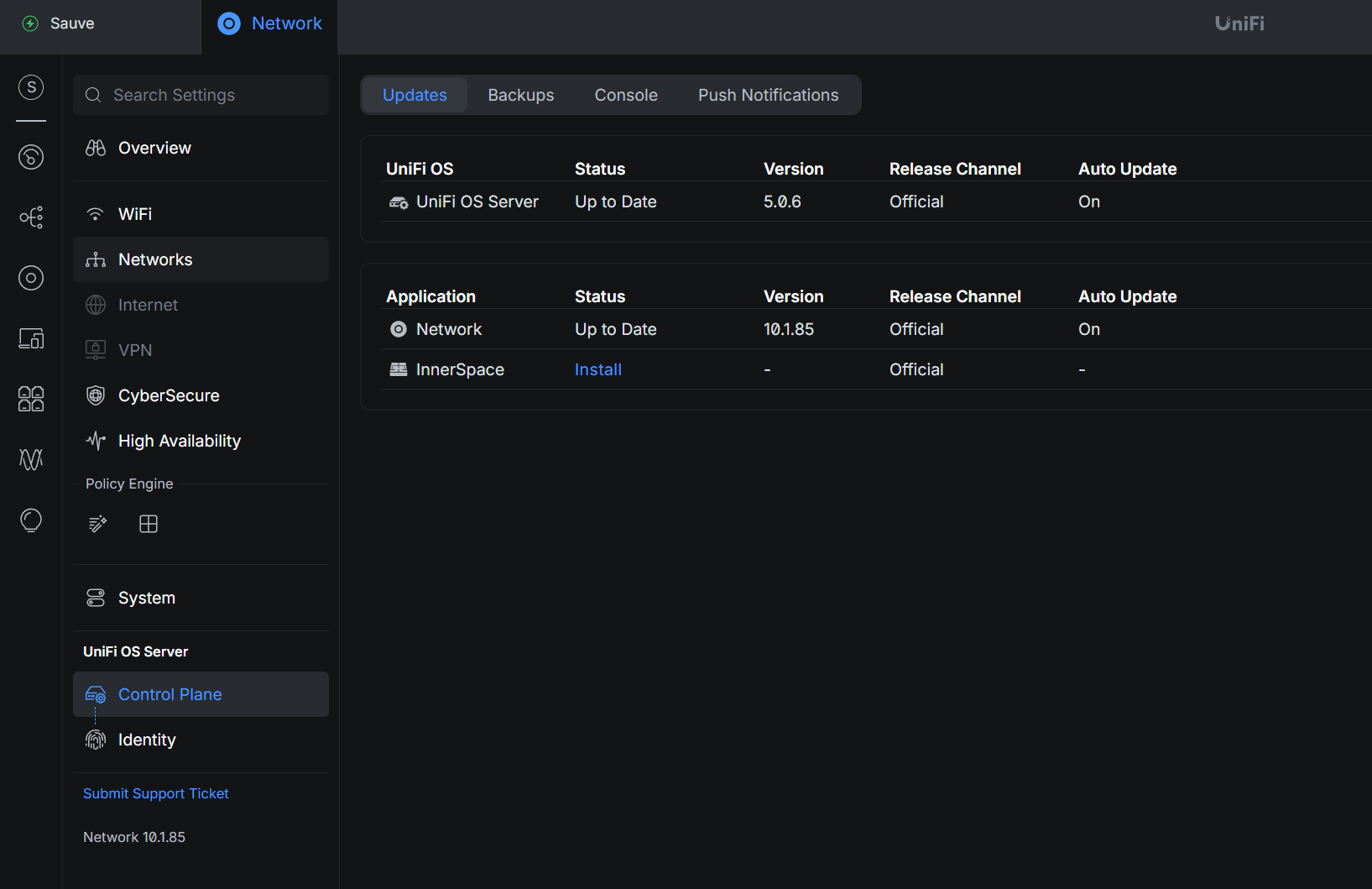
Minutes later, my whole network had swapped over and everything was as before, but a little better (since I now had the option to run innerspace too and application updates will be managed by Unifi in the future rather than docker).
Hope this helps someone.
EDIT: After an update to TrueNAS, I note that the creation of the network profile and bridge assignment to it were erased/forgotten.
I just re-ran those 2 commands and everything started normally again.