A snapshot is the raw data. If it helps, imagine that a dataset is many versions of a file-system, at some point in time, represented only by snapshots. The “live” version of the file-system you can call the “right now” snapshot. (This is not so, but it helps in the thought experiment.) This means that if your dataset has “0” snapshots, it actually has 1 snapshot: the “right now” snapshot.[1]
Now that you can imagine there is no such thing as a dataset without any snapshots, it means you can only transfer snapshots with ZFS. There is no file and folder copying. Just snapshots.
Which snapshots do you want to transfer? That’s where configuring the Replication Task comes in.
Snapshots, in ZFS, aren’t just fancy bookmarks or metadata. They refer to an entire file-system and its blocks. They are complete file-systems.[2]
If your file-system is 1 TB at the time you take a snapshot called @snap1, then it will mean that 1 TB of data needs to be transferred somewhere for a backup. If you write 500 GB extra data to it, and take a snapshot called @snap2, then it means that 1.5 TB of data needs to be transferred somewhere for a backup.
If you do an incremental replication of @snap1 → @snap2, only 500 GB of data need to be transferred, since those are the blocks that are unique to @snap2. If you send @snap2 in full, without doing an incremental replication, then the entire file-system needs to be transferred, which is 1.5 TB of blocks.
There is no such thing as a “right now” snapshot. A live file-system cannot be replicated with ZFS. A replication needs to know which blocks of a snapshot (TXG stamp) need to be transferred. Without a snapshot, it’s impossible, since five seconds later the entire pool’s TXG is already climbing. ↩︎
It sounds like you’re thinking of an “on demand” replication. ZFS does not technically do this without snapshots. There are tools out there, like Syncoid, which allow “on demand” replication. How they work is they create a snapshot immediately before sending. ↩︎
If i do incremental replication, that would basically be similar to “mirroring” drive A to B if i”m right…
So we had snap1 for 1TB of data, snap2 when we climbed to 1.5TB of data.
The incremental replication task copied only 500GB of data in the second replication and now the backup drive contains the entire 1.5TB of data in snapshot 2, with the ability to revert to an earlier state of snap1, right?
This would mean, that with snapshots, i”m not loosing any extra storage for having a snapshot every week as long as i”m not deleting any data, right?
If i delete some data then i”m not going to free up that space until i delete the snapshots pointing to that data?
I know it’s pedantic, but ZFS snapshots and replications apply to datasets, not drives or pools. When datasets, folders, drives, pools, and vdevs are conflated, it causes confusion for users down the road.
I know what you meant though. You are correct. Whether full or incremental replication, the target will have an exact “mirror” of the file-system at the exact point in time that its snapshot was created. Not just files. Everything. Data, metadata, timestamps, permissions, ownerships, everything.
Correct.
The disclaimer is that rolling back a snapshot is a destructive one-way operation. If you need to recover files that you had deleted, and they exist in an earlier snapshot, then there are safer ways to do that.
Rolling back the source to an earlier snapshot will break your ability to do incremental replications, unless you force a rollback on the destination as well.
Correct.
A better way to look at it: Snapshots never add data. They can retain deleted data that won’t free up any space until the snapshot is destroyed.
I made a non-technical guide here. You might find it helpful.[1] It’s intentionally silly and extreme for the sake of illustrating how powerful snapshots are and how they can get out of hand for many new users.
The “white” stickers are automatically tagged to boxes that exist in the “live file-system”. Unlike the “color” stickers, the white stickers are not snapshots. ↩︎
Good, i”ll read your guide now and then play with my trueNAS server a bit more when i return home.
It frustrates me that is seems overly complicated and i just wanted some storage with some backup but i know i”ll be thankful in the future that i researched this instead of just buying a synology….
No snapshots required on the source or destination. You can make the destination an exact copy of the source, if their is enough room on the destination.
Backups get complicated because snapshots are not a common feature for other file systems like exFAT or NTFS. Thus, people would have a learning curve on ZFS snapshots.
Note that other FSes or schemes that support snapshots can do so differently. A LVM snapshot is a single one per Logical Volume, meant for a short duration, like a day. BTRFS snapshots are Read/Write by default, (if I remember correctly). Meaning you could accidentally erase something. This is not to imply ZFS snapshots are perfect… just saying snapshots are not common, and how they are implemented is not the same.
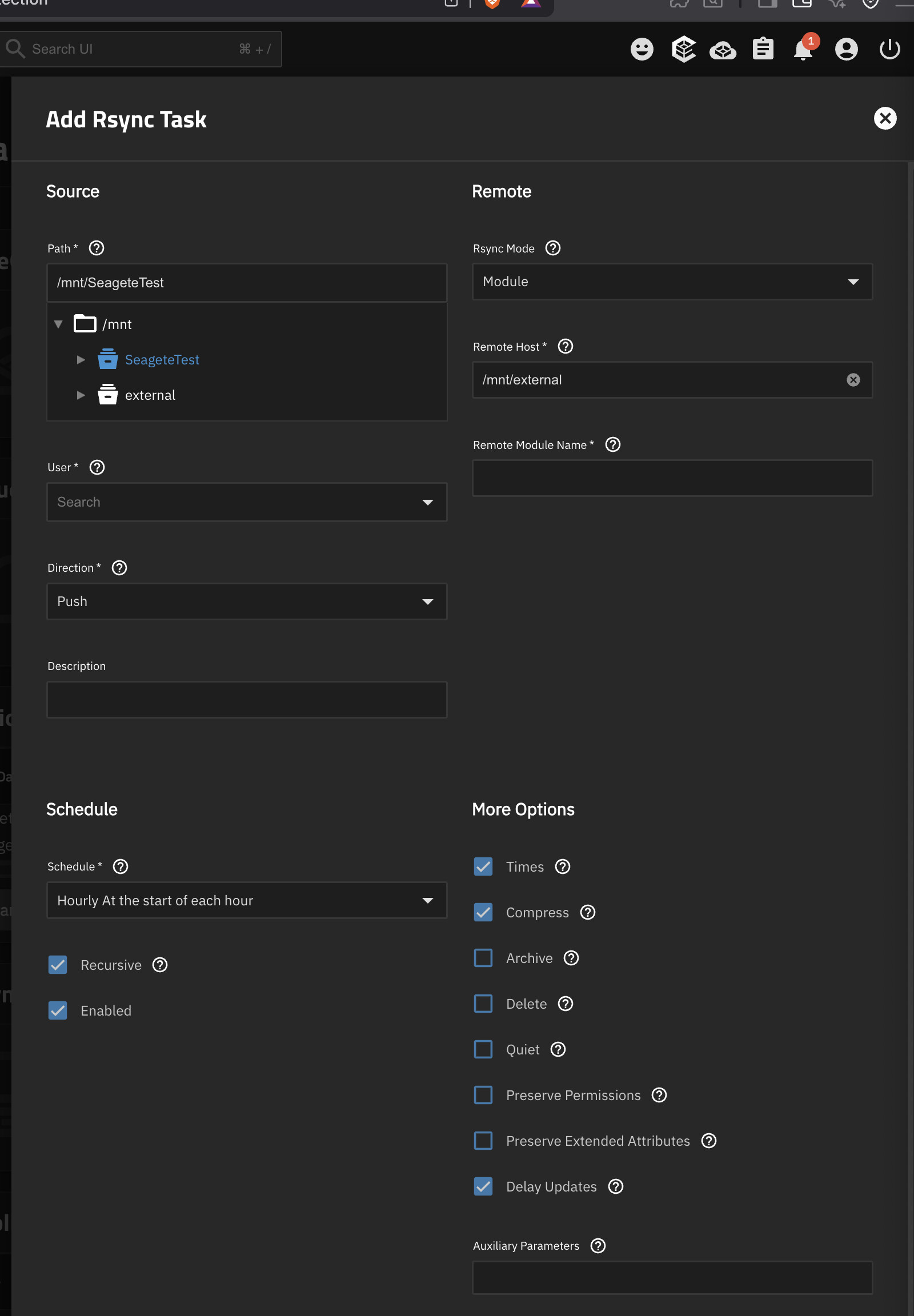
I actually wanted to do this but the problem is that Rsync only supports syncing an internal path to a some kind of a remote server? Why can”t i just sync from a local path to an other local path.
I tried doing this but it”s not working of course.
I’m not talking about having it vs not having it. I’m talking about just leaving that machine running vs power cycling every time you want to use it. The risk of failure goes up significantly in the scenario of power cycling it. Both scenarios you have a backup, just one has (much) higher risk of not being accessible due to failure.
My offlline drive will be spinned up for scrubbing and backup once every 4 months.
If you think that the hard drive would have a lesser risk of faliure if it was left spinning for 4 months rather then being turned off and disconnected from power for 4 months and then spun up once for backup, i think that”s just ridiculously wrong. Nobody sad the drives would be power cycled 10 times a day…
To provide an update to this situation and to thank for the detailed explanations.
I sucesfully set up and tested what i wanted with a couple of old 500GB drives for testing.
One drive inside in the “main drive” pool.
Snapshot task set up and running once every hour.
Secondary drive in an external case and set up in the secondary “backup drive” pool.
Replication task set up to be hooked to the snapshot task and run after it.
I then tested all the cases i was interested in… TrueNAS syncs the drives reliably no matter what i add or remove to the primary drive.
Snapshots work great and if i roll back to a previous snapshot on the main drive, the backup drive will contain the newer snapshot and won”t be reverted untill the two tasks run again.
If i eject and disconnect the external drive… the snapshot task will run okay but the replication task will be in the “pending” status.
When the backup drive is re-connected the replication task proceeds normally in the next hour.
So basically this is it.
Now the final minor thing left is that i have 2 more old toshiba 3TB drives that i would dump in the basement as the third backup that wouldn”t be started very often. Maybe once every 3 years. I can”t decide should i keep this in NTFS and just use them for manual access over a PC or should i also format them in ZFS so that they can be scrubbed…
I guess that maybe for “a bunch of offline drives in a drawer” that i don”t want to bother with as far as sync tasks are concerned… i can always just pull them into a pool on any trueNAS and expose them over network. And then i can do what i want with them in a file manager on my PC or Mac.
I went through this topic again. I would advise against this. Your use-case is specific and not how TrueNAS tasks and replications were designed to be used.
It would be safer to manually take snapshots with a naming schema of “backup” and to create a Replication Task that is not tethered to a Periodic Snapshot Task. You would “disable” the Replication Task, so that it may only be run when you request it. The manually-created snapshots shouldn’t have an “expiration” and pruning should be done manually.
This might sound like too much work, but it’s much safer for your use-case of cold storage backups every 4 months.
You can still have an automatic Periodic Snapshot Task for your main pool, which will not be tied into your backups. These will be useful for retrieving accidentally deleted files and old versions.
For your cold storage backups, the Replication Task will be created to only match a naming schema of “backup”. It will only consider snapshots with “backup” in their name. “From Scratch” should be disabled to prevent accidental destruction on the backup pool. Snapshot expirations should be disabled on the Replication Task.
Three times a year you will do this:
Grab the USB drive from cold storage and physically connect it and import the backup pool
Manually take a recursive “backup” snapshot on the main pool’s dataset
Manually run the disabled replication task
Export the backup pool and put the USB drive back into cold storage
You can manually prune old “backup” snapshots whenever you want.
If you’re feeling extra paranoid, protect the “backup” snapshots on the main and backup pool with the “Hold” feature. This means that you will have to uncheck “Hold” in order to destroy them. You might become frustrated in the future because trying to delete “backup” snapshots on the main or backup pool will give you an error message of “dataset busy”, but at least it will make you stop and pause before you continue. It’s better than deleting something and then immediately regretting it because you did not mean to.
EDIT: I want to make clear that you can still have “automatic” snapshots running every hour on the main pool, which will not be used in the manually-run backup replication task.
Why do you think the methodology of auto snapshot and backup that only runs with sucess when the backup drive is online wouldn”t be good. Because it”s too many failed tasks all the time?
I can do what you suggested then. A snapshot of the main drive called backup and then a manually run replication task tied to that name.
I can hardly believe why this system is so closed in the way it”s designed to work and doesn”t have this kind of simple funcionality set up in a basic 3 clicks GUI…
Like: “i want the sync-back pro on windows alternative in TrueNAS”.
I tried with rsync today too but then ran into some permission complications and realized i”m going to have to start writing console commands on the side so that i can remember them later and just gave up because i was about to throw it out of the window.
Synchronize source to destination should be a couple of clicks process with a simple ability to see the differential before syncing and that”s it.
It can get out of hand and has the potential to break incremental replications by automatically pruning old snapshots on the main pool, which is handled by the Periodic Snapshot Task. Even with the built-in protection in the Replication Task config, it’s unclear how reliable this is.
If you’re going to disable the expiration date on the automatic snapshots, then it means you’ll need to manually prune them yourself, which you’d be doing anyways with the manual backup method.
Manually creating a recursive snapshot once every 4 months ensure that the “backup” snapshots will not be tied into any pruning schedule.
AFAIK, the TrueNAS design was originally for a very narrow purpose of automatic replications to a remote target system that is online 24/7.
I mentioned it before. There are ZFS tools out there that allow for a more traditional backup approach, such as Syncoid. Sadly, they don’t have a fancy GUI where you can do it with the click of a mouse.
On the old TrueNAS forums, I think I suggested that they add a new feature for “simple backups” where you just click a button and it will work like Syncoid does. No need to take snapshots, create schedules or tasks, or deal with matching naming schemas.
EDIT: If TrueNAS integrated Syncoid into its UI, it would work something like this:
You import the backup pool
You click “Backup Now”
Under the hood, TrueNAS manually takes a recursive snapshot with the naming schema “backup” of the dataset that you configured this “Backup Now” task for
Under the hood, TrueNAS runs a zfs send/recv using the “backup” snapshot for an incremental replication to the backup pool
The Task Manager will notify you when it is safe to export the backup pool
The only way to do this currently is to manually take the recursive snapshot and to manually run a “disabled” Replication Task.
All understood. I”ll test the manual methodology tommorrow and do it that way then.
As far as the rest is concerned, i understand totally. I didn”t initially know the initial design behind TrueNAS.
I”m an ex windows power-user and .NET programmer. I worked in backend for 6 years and now i only use that knowledge recreatively with swift for some app store apps. I switched to a different industry.
I gave a couple of chances in my lifetime to learning linux and filled my thinkpads with different linux distros but never went deep.
Now i”m in a state of life where i need to get work done and don”t have time for improvized solutions that require days of learning and tinkering.
That”s why many things about TrueNAS trigger me. I wanted a funcional out of the box solution.
On the other hand, i went trough all the alternatives.
Open media vault and unraid do not seem to be significanty better for my needs in any regard.
The only paid out of the box solution that offers a seriously safe and good file system with scrubbing is synology… but i would need to dump 500-1000 euros for a device that fits a couple of drives and you are again getting some weak hardware.
Maybe i should have gone that route… but this way i will probably be more future-proof.
I have to improve it a bit, I want to add an auto mount and backup, and I can potentially simplify the configuration, but I created a script which after you connected the drive, you just have to run, and will do for each connected and configured disks (included encrypted disks).
You have to create a first pool, then a single dataset on that pool.
Encryption has to be changed from random to a passphrase so you can open the disk easier on another computer if the worst happened. But no need to do more.
You can add the script to cron and run it manually. It is designed so that it will send an email using the internal notification system of truenas.
if you configured more then just 1 drive, it will skip the disk not connected (you will be notified), and also, it will start a scrub every 4 weeks.
After backup, it unmounts the pool so you can directly disconnect the disk.
In addition, if you have a motherboard speaker, it will do some sounds to notify it starts, and finishes.