Problem/Justification (What is the problem you are trying to solve with this feature/improvement or why should it be considered?)
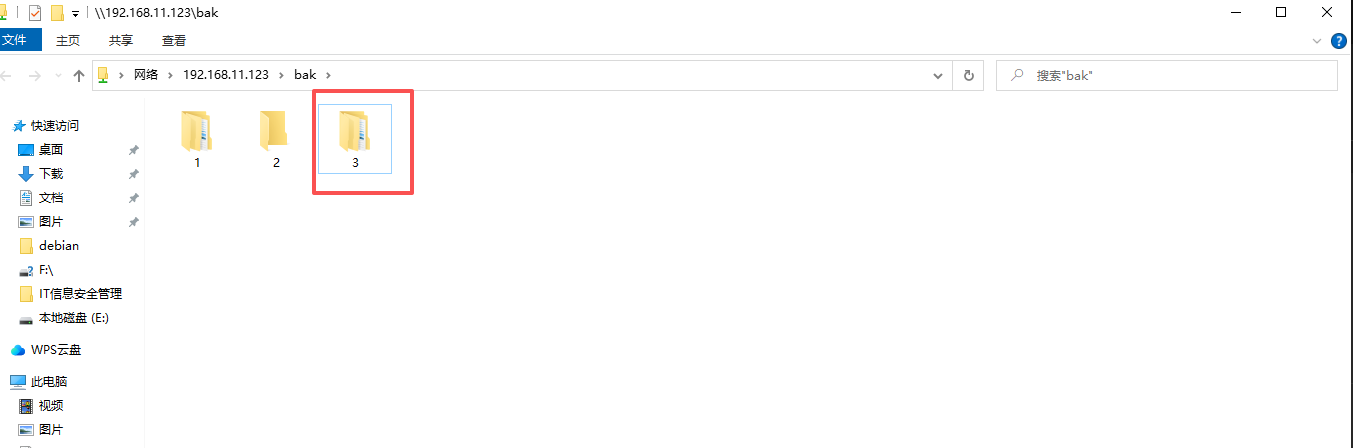
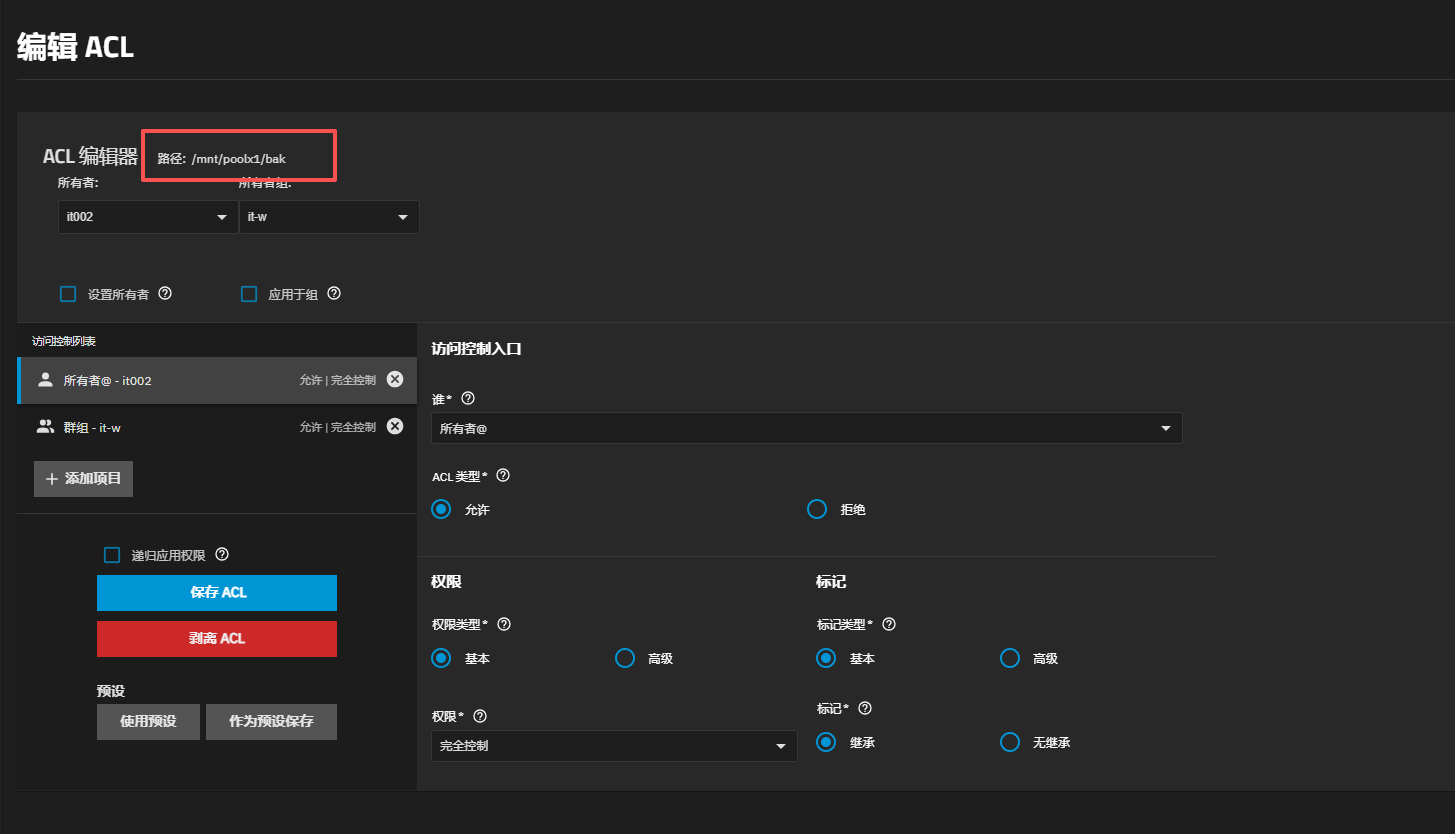
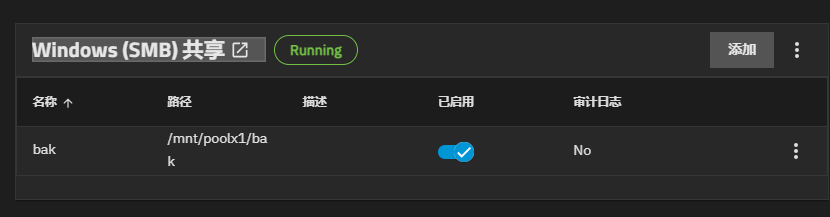
When a dataset is accessed via Windows SMB share, users can create new folders on the Windows platform. However, after these folders are created through the SMB share, the administrator currently cannot set folder ACL permissions directly through TrueNAS.
Impact (How is this feature going to impact all TrueNAS users? What are the benefits and advantages? Are there disadvantages?)
I want to replace Windows Server 2022 file server with TrueNAS to fulfill file sharing requirements.
User Story (Please give a short description on how you envision some user taking advantage of this feature, what are the steps a user will follow to accomplish it)
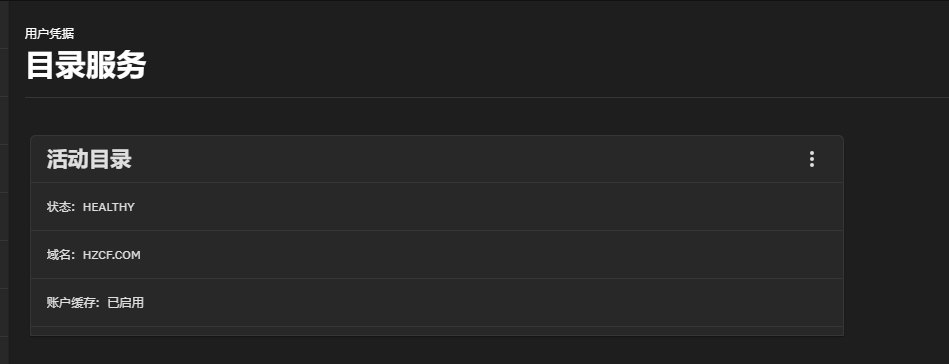
Active Directory — user accounts —> TrueNAS — SMB file sharing
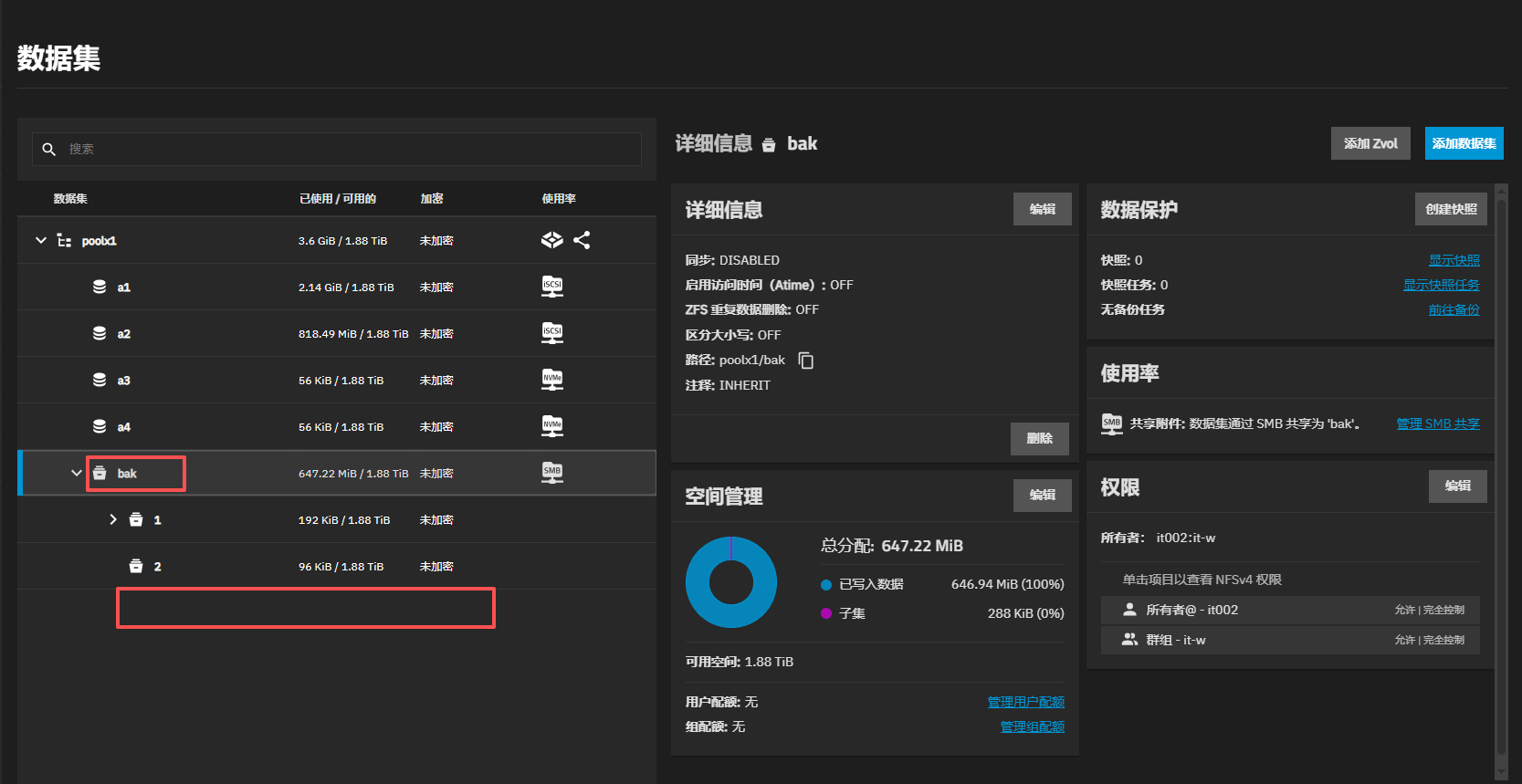
Only Datasets can be managed from the truenas gui, not folders. Folders inherit the permissions of the dataset they’re in. That will most likely not change…
This is very inconvenient. As a company, users establish file structures on SMB shares, and I then set folder permissions based on user requests. Our company has 100 users.
It’s an interesting idea. Currently I just map the share from a Windows machine as admin and set/change permissions on the sub folders that way. Which is also what I do with our Windows storage servers. The only time I see this being advantageous is if I was stamping permissions on a folder with a large amount of data in it then doing that from within TrueNAS would be helpful from a speed point of view.
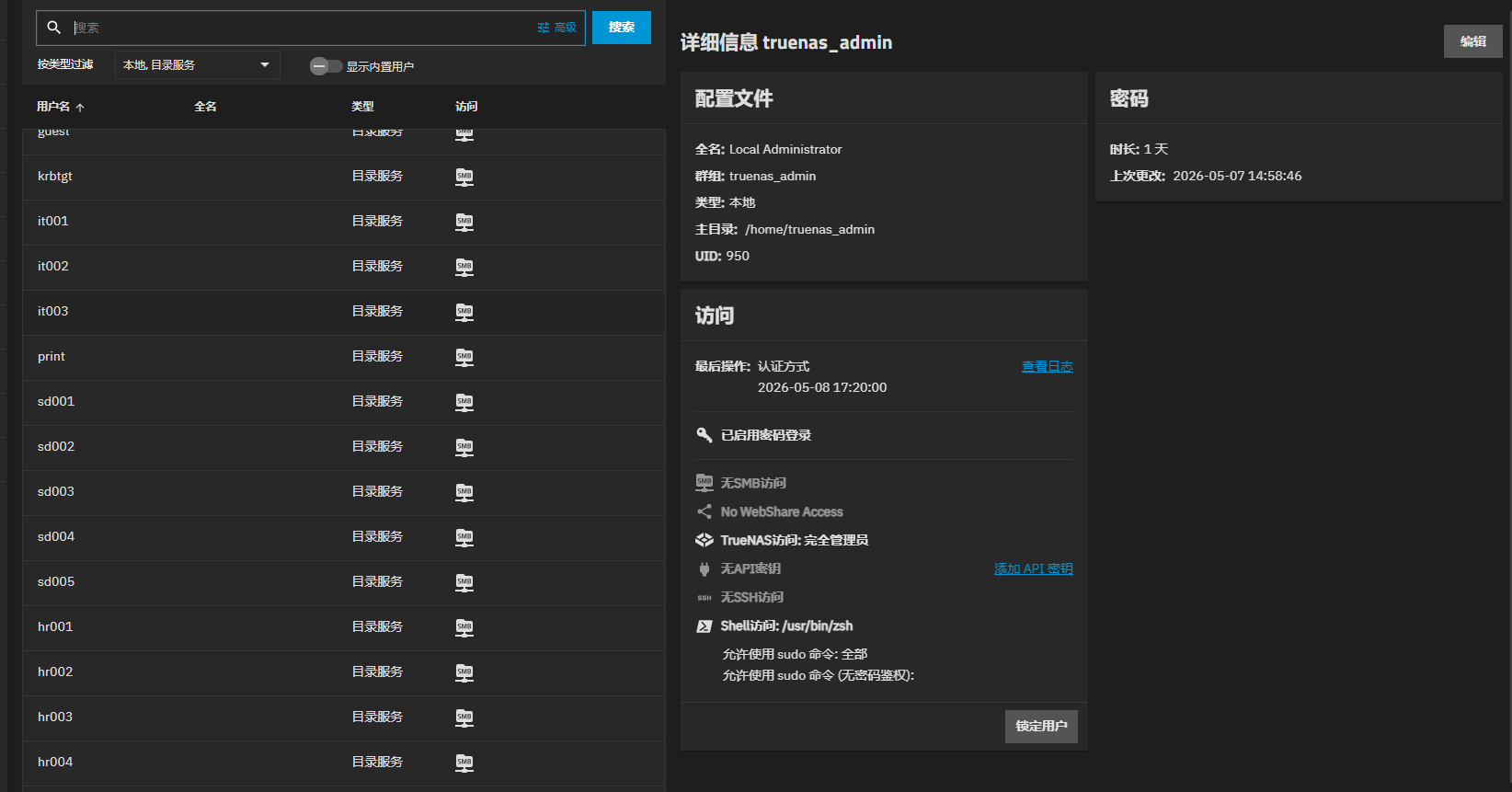
I am an organization that, in accordance with ISO requirements, assigns an account to each user and requires regular password changes. Its ultimate goal is to replace Microsoft Windows-server-2022
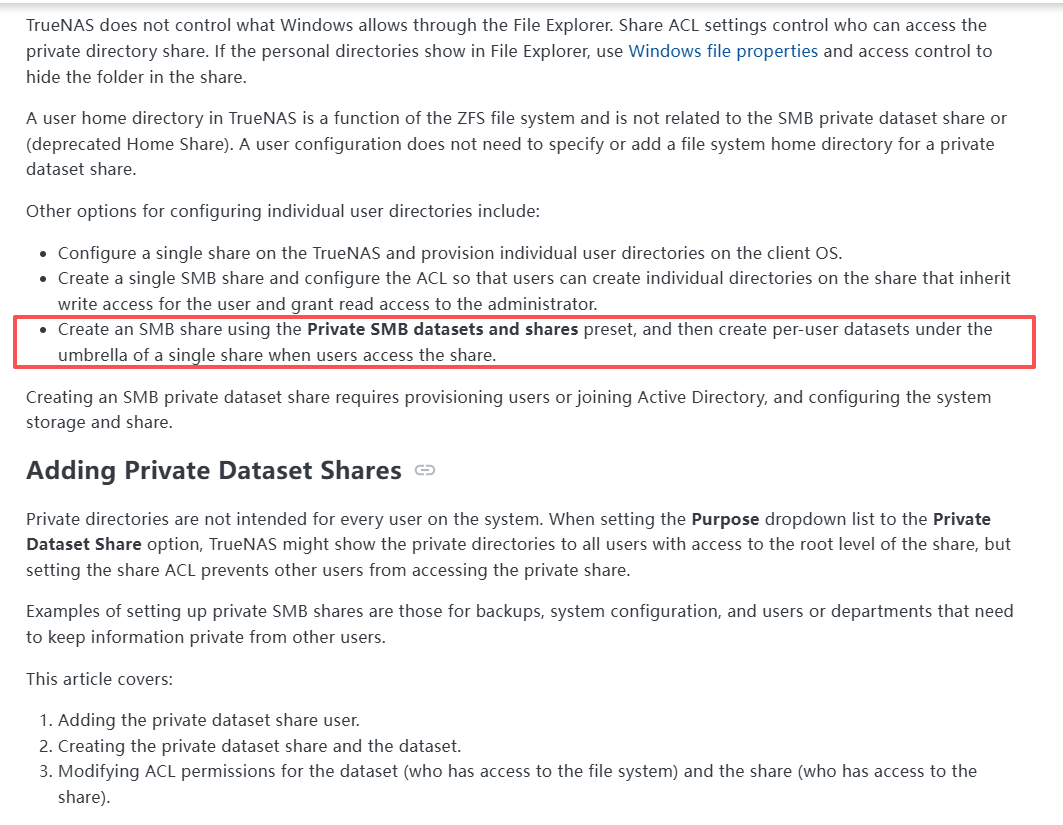
I operated based on this document, but there is a problem with the part marked in red. I hope the folder is created by the user, and I will set the permissions, because I cannot predict the user’s folder directory structure
TrueNAS can absolutely do what you want, just not from the TrueNAS GUI. Instead, use the Windows File Explorer to set folder permissions. This is exactly like what you are doing with your Windows File Server.
If you would like to think about your problem in a different and potentially much better way:
It sounds like you have created a top-level dataset that is shared to everyone. Underneath, users create directories as they want, and you manually change the permissions to match their sharing requirements. Is that correct?
If so, this is not a good idea for several reasons:
You are fighting how ZFS and TrueNAS works. You can use ZFS and TrueNAS any way you wish, but ZFS and TrueNAS are designed to manage sharing, permissions, quotas, snapshots and backups by dataset, not by folder.
Snapshots, backups (zfs send), and quotas work on datasets. If everything is a single dataset, you have to restore/quota the entire dataset. If instead each user/team/project had its own dataset, you can restore/quota just the affected user/team/project. This is much safer and enables faster restores from backup.
Project / team data is buried in user home directories rather than an easily identifiable team / project space.
When you need to maintain project / team data you are going into a user’s personal home directory. This is more likely to have privacy concerns than a team / project folder, independent of company policies and regulatory framework.
Setting permissions at a dataset level means you can look at the top of the dataset and understand the permissions for the whole dataset. This is much easier to audit than having to check permissions on every folder.
All the above is equally true of Windows File Servers, if you think of a dataset like a partition, or a top-level folder with strict permissions inheritance.
Instead consider:
Each team or project has their own dataset with permissions set on the dataset, and not on individual folders inside. Share these under a share with a name that make sense to your organisation, like “projects”.
Each user has their own private (not shared) dataset via a Private Datasets share with permissions set on the dataset above the user. This per-user dataset will be created automatically by Private Datasets when first accessed by the user so you don’t need to manually create it when you onboard a new user. Share these under a different share name that makes sense to your organisation, like “home”.
Use recursive snapshots to snapshot and backup all the datasets underneath a parent – for example all the teams/projects datasets and all the user datasets.
The end result is:
A share for shared data (“projects”) and a private share for each user (“home”)
Each user, team and project has their own datasets
Permissions are set by dataset, not on individual folders
Snapshots, backup / restore, and quotas are configurable per-dataset
Recursive snapshots and backups will avoid accidentally missing a dataset