TrueNAS and FreefileSync

Greetings all.

I am about to take the leap and install TrueNAS on my oldish spare desktop PC.

My rig will be my working Linux multi boot homePC (currently one internal SSD for Linux OSs, one internal 2TB HDD for my data and one internal 2TB HDD for all my data backup) plus my Linux multi boot laptop (currently 1 internal SSD for the OSs and one 1TB internal HDD for my data) plus my oldish spare desktop PC (will be configured with one 500GB SSD for TrueNas and one 2TB HDD for my data and one 2TB for all my data backups - setup is stripe). Yes, I understand the difference between stripe and mirror.

My one point of hesitation is data backup and I am hoping to use Freefilesync as I am familiar with it, and have extensively used Freefilesync for many years.

My thinking is that I will use TrueNas as a backup for my desktop PC using Freefilesync. So, my question is: am I thinking about this the right way?

That is; should I use TrueNas as my ‘master data’ plus ‘Master data backup’ repositories and my home desktop PC as my data and data backup arrangement? Does it matter which way I configure all this?

Cheers

I have truenas as my main backup and use freefilesync to create cold storage backups from the nas. I’ve been doing it for years and it works for me. Manual fir full control yet simple.

Thanks deckard. Just to clarify. Does this mean that your ‘original data’ is kept elsewhere? Maybe on your PC? Or is your TrueNas main backup your only data repository, except for your cold storage backups from the nas?

People use the word backup differently.

Thanks again. Cheers

I have a similar setup: my PCs / Windows → NAS server / fnOS → backup server / TrueNAS.

I use SyncBack (a windows program) to sync from my PCs to my NAS server, and from my NAS server to my backup server.

fnOS has its own backup capability but it doesn’t do incremental backup.

so I think your setup works as well.

1 Like

FreeFileSync has been great for file/folder replication, though I’ve moved away from backing up my data from pc → truenas & have gone straight to mapping network shares to my pc as daily storage. I only use local storage where it is a requirement. My setup also includes snapshot image recovery of the OS to Truenas as long as the recovery software allows network folder access in pre-os boot to restore the end point pc.

1 Like

Yes. I too am a long-time fan of Freefilesync. When you say. ‘straight to mapping network shares to my pc as daily storage’ how do you set this up? The reason I ask is because the pc to Truenas and Truenas to pc approach is quite some mucking about if as an alternative I could find a simpler networking approach to somehow just save me physically copying data from my desktop PC onto an external HDD/SSD then carrying it to my spare computer and Freefilesync updating my insitu HDD/SSD on the spare computer.

This is also why I originally asked whether I was looking at all this in the right way. I have no experience with networking at all and the more I looked into the options the more complicated it all seemed. I have heard of Samba so maybe I should look further into this area as well.

All of this is probably outside the bounds of a Truenas forum discussion but I thought that I would give it a go anyway. Hopefully I am not stretching anyone’s patience too much. There are a couple of networking forums out there but most of their discussions are stratospheric and way beyond my 75 years.

Thanks for your comments. Cheers

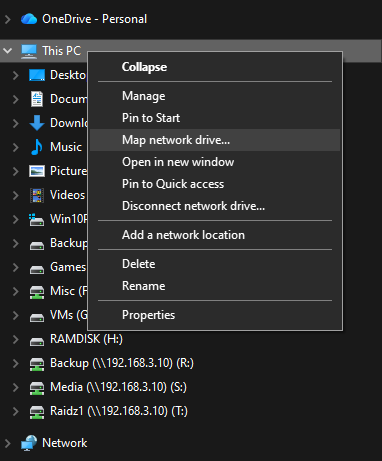
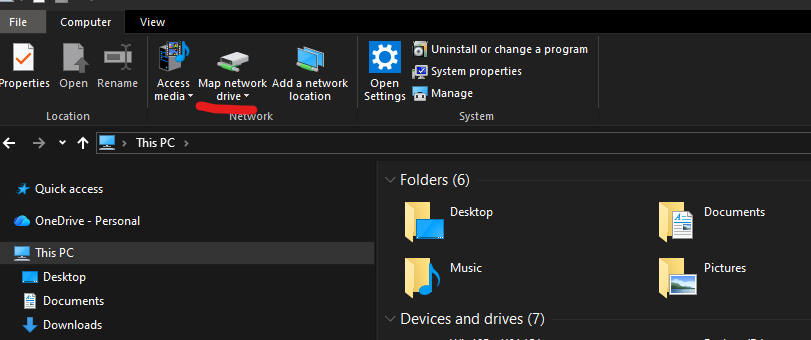
your server will show up as a network connection in Windows Network. double click it and provide your user name / password (the first time). your pool will share up and you right click it and pick “map network drive”.

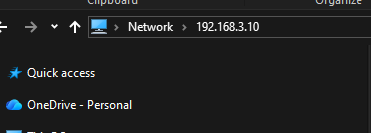
you can also use the ip address. roughly the same.

Great :slight_smile: For my desktop I alternate between my dual boot (Mint and Ubuntu) SSD setup so Thjere would be a different but still similar linkage setup. I also occasionally switch SSDs with a Windows 10 OS so I would just need to set everything up as you say.
One final Q. How does Freefilesync handle all this? Does your Freefilesync see the network and work ok regarding mirroring the data?

cheers

unfortunately i don’t use Freefilesync so cannot help you on that. hopefully others can.

1 Like

Many thanks. Understood. I’ll wait for some Truenas and Freefilesync users to chime in.

Cheers

For Ubuntu or Mint, you can lookup mounting network drives. You’ll have to use the cifs-utils and modify the /etc/fstab to make it persistent after reboot. There’s a lot of tutorials on how to do it. I’d show you here, but I’m limited with time.

Basically sudo mount.cifs //(network path) /(local folder path) -o username=, pass=

You can also reference file for credentials.

For Windows, lookup mapping network drives. It’s a tad different between win10 & win11 but will work the same. You can map the network path directly for access or assign it a letter drive.

I’ll check back later. If you can’t find the answers, I’ll post some better examples.

Thanks Glitch. As you can see below, I am totally new to networking and Truenas.

I found a good (I think) guide here Learn How to Mount a Network Drive on Ubuntu using the Terminal - Pi My Life Up

I am totally confused here. Is this mounting a network drive process over and above/separately from or in conjunction with what Truenas does with all it’s Pool setups and so on? That is, do I need to do this first for my dual boot Mint and Ubuntu for my laptop and for my dual boot Mint and Ubuntu and for my Windows separate SSD on my desktop PC? I thought that Truenas does all this network sharing and mounting stuff for my Laptop and Desktop PC but from what you say I will need to do your directions over and above what Truenas does.

From my limited understanding (and therefore I am probably wrong), Truenas can do a lot of things over and above sharing a network between different computers and different OSs. I only want to network my laptop and my desktop PC so I can use Truenas for data backup.

I better repeat what I said in previous posts.

  1. I have a laptop running dual boot Mint and Ubuntu.
  2. I have a desktop PC running Dual boot Mint and Ubuntu, and on the same desktop PC I switch SSDs occasionally to run Windows 10.
  3. I have a spare computer that I intend to only run TrueNas as an OS and Truenas will link up both my laptop and desktop PC.
  4. I want to network all the above so I can backup my onboard data without having to upload and download data to an external data SSD/HDD and attach this SSD/HDD to each computer to do the job.

Hope all of the above makes some sense.

that’s probably 10x more complicated than necessary - linux geeks are good at that.

I use q4os and under the desktop, there is an icon for “My Network Places”; clicking that and you will see another icon that says “Add a Network Folder”. Click that and provide the ip address + username + password (on the samba server) and you are done.

i’m sure your system has something similar. the gist here is that the network share is already available on the server (=your TrueNAS) and all you need is a way to mount a local folder to that.

1 Like

Thanks qili. Understood. Cheers

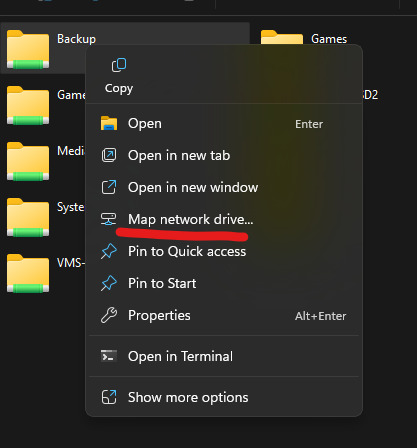
If you right click a folder or drive in Windows using File Explorer, you should see an option to “Map a Network Drive”. It will give you the option to enter and save alternate credentials, and if you’d like to reconnect automatically. Look at all the options.

Once you finish installing TrueNAS, it will tell you the IP address for the web interface to configure. Usually the default username is “truenas_admin”.

Once you’re into the Web GUI, you have to setup a data pool (VDEV) aka your Storage Volume. Google and do some more reading on that when ready. There might be some videos on YouTube worth watching.

After you have your data volume setup, in order to access from Windows, you have to setup a SMB share in TrueNAS. It’s pretty straightforward. Just click on the “Share” link under the main menu navigation. To access under a Linux OS there’s another type of share option there with a few clicks.

Once you map the network drive, you should be able to run your free file sync from your local machines to your TrueNAS.

TrueNAS Community Edition Setup:

Supermicro 6027R-TDARF

Qty 1 - Intel(R) Xeon(R) CPU E5-2609 0 @ 2.40GHz

  • 32 GB ECC DDR3 RAM

8 x 1 TB Western Digital SATA Drives (3.5” LFF) (configured ZFS Z3) - Usable Capacity: 4.01 TiB

500 GB Samsung SSD TrueNAS Boot Drive

500 GB Western Digital NVME Cache Drive

Adaptec ASR-7805Q SAS Controller in HBA Mode (8 internal ports and 1 GB cache)

Thanks MASD. Understood. My rigs setup is a bit more complicated as I have 2 desktop computers and 1 laptop. All run on Windows 10 but also I multiboot Mint and Ubuntu so I guess that I will need to set them all up so Truenas can see them all.

Cheers

What you have works, however you don’t really need TrueNAS for that, but it does make it easier. 500 GB for the boot SSD is big, you can get away with 128 GB drives, or mirrored drives (in case one fails) - the boot device is only for the boot partition, so anything after the boot isn’t usuable.

You would be better served to use both 2 TB as a mirror and create 2 separate datasets in TrueNAS one for data and one for backups. That way you would get the benefit or the ZFS operating system that TrueNAS uses.

  1. Install TrueNAS
  2. Create a user to share with, don’t use the root user
  3. Create a pool using your 2x2TB disks (it would be better if you had 3 of the same size)
  4. Create datasets:
    1. Data (set Dataset Preset to SMB)
    2. Backup
  5. Go to System, Services and ensure the SMB service is enabled
  6. Connect from your laptop or other systems and map the Data folder
  7. Connect over SMB to backup your other systems

If most of the time you will be connected to your TrueNAS then storing it on the server makes sense. If you will be remote, consider running TailScale, NetBird, or another overlay VPN and you can connect easily (https://youtu.be/o0Py62k63_c?si=guKKEyga7_t3sAqr) and securely from anywhere for both drives.

Why mention 3 drives? Well, if you need more storage then TrueNAS now has zfs expansion, but only if you are using raidz1, raidz2, raidz3 - so a mirror or strip won’t do it. Plus, with raidz1 and 3 disks you’re read/write performance is improved. With storage, you will always need to add more someday - so good to have an expansion option instead of replacing.

Hope that helps.

Thanks Ian. Understood. Yes that helps with the big picture. Cheers

Sorry, I’m late to the party. Been busy :sweat_smile:

I think the mention of multiple drives are for your desktop/laptop for multi-booting OSes.

TrueNAS offers shares over SMB services. We’ll go with SMB since it is accessible by both Windows 10/11 and Linux (Mint or Ubuntu).

Enable SMB, created the SMB share. If you’re not planning to share your NAS with everyone, you can just create 1 SMB share and grant yourself full permissions in ACL. Any sub-folders created by any of the OSes will inherit permissions from the parent and will be visible by all the OSes.

You will also be able to map all sub-folders as if you were mapping the parent folder for specific use cases. ie. map “/user” or map “/user/games”. In the case of mapping user, you will see the games folder and all sub-folders where mapping /user/games will only allow the mapping to see what is inside games.

The mapping is done on the OS side of the house and not TrueNAS.

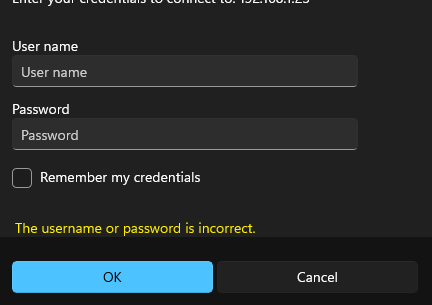
You’ll first want to test your connection and authentication to the SMB share in File Explorer. You can have Windows store the credentials for future access. “\\10.1.0.15\” or whatever your NAS ip in the address bar.

Once you confirm you can access the share, you can then proceed to map it.

If you can authenticate to the TrueNAS address via File Explorer, you can right-click on any of the shared SMB folders and map it, otherwise you can proceed. The SMB share is traversable by default and should appear unless you changed it.

In Windows 10/11, Right click on This PC and select Map network drive

The rest should be pretty self-explanatory.

For FreeFileSync, you can use the network path \\10.0.0.whatever\whatever2 to where you want to sync it, or if you mapped it to a letter drive, you simply use the letter drive to sync.

And that is Windows side for storage access. Speed will be dependent on your pool setup, hdd, ssd, and NIC.

In Linux, you’ll want to update your repositories (using Mint in the example but should hold true for Ubuntu)

sudo apt update && sudo apt upgrade -y

cifs should come with Mint & Ubuntu unless you opted to install a slim version. Incase of the slim version install via terminal.

sudo apt install cifs-utils

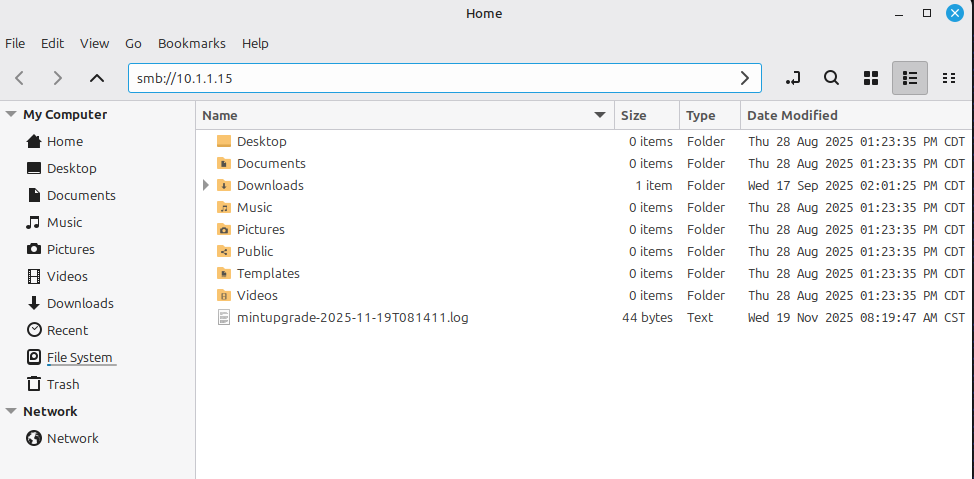
Check and see if you can access the SMB via the File Manager. You’ll need to use smb://”truenas ip”

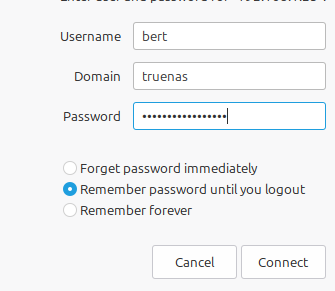
Authenticate as needed. In Linux, I found you need to enter the server name for Domain if you do not have a domain configured. Save it whichever method you feel comfortable doing.

At this point, you can pin, mount, add to favorites, etc…

Once mounted or authenticated, FreeFileSync can access it as per network path or by mounting path.

You can save the credentials and reboot, but the network path/mount will not load automatically. You will need to open File Manager and click on the mount or favorite to re-authenticate to the NAS.

Via terminal you can make this persistent after reboot. Example below.

sudo mkdir /mnt/media

sudo mount.cifs //10.1.1.15/Media /mnt/media -o username=bubbahotep,pass=elvis

sudo -s nano /etc/fstab

#This is my network share
//10.1.1.15/Media /mnt/Media cifs username=bubbahotep,pass=elvis 0 0

Save, Exit

sudo mount -a

And that is Linux