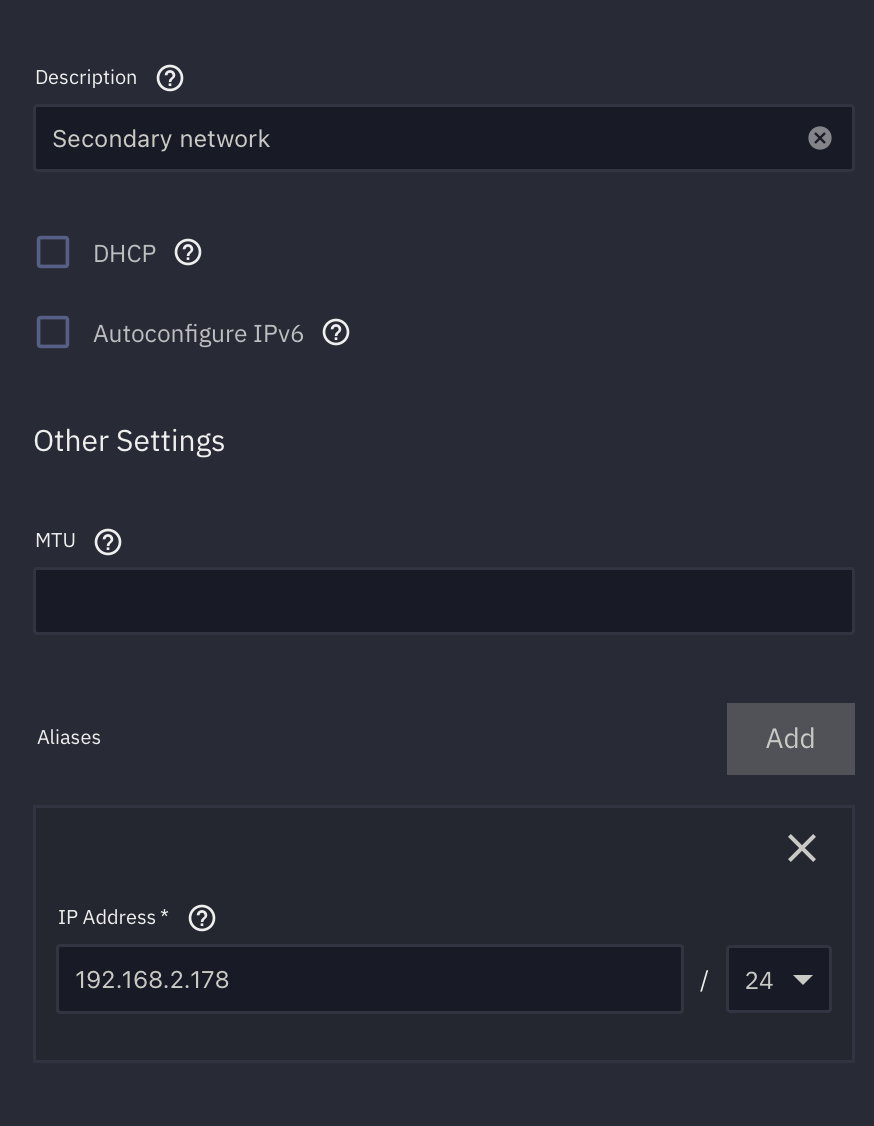
I am new to Truenas and wanted to try and connect my Server to 2 different networks with the help of 2 Nics but I can’t find out how to configure the mics correctly so that I can still reach the webui from each network or at least get the frigat app to see my cameras on the second network.
The first NIC has the IP: 192.168.178.178
The second doesn’t get one and I can’t find out how to create a static IP for it.
I want if it is possible be able to get to the webui from both networks. If not I will just try to set it up that my frigat app is on the second network and the webui on my primary network.
webui access should be possible if you’ve set the gui up to listen to 0.0.0.0 instead of one fixed ip.
You can set the listen ip for the webui under settings → general settings and top right corner settings for the gui section.
So I got it working it was a little bit stupid but when I tried with the Test the server terminated every connection to any network. I think it was because I accidentally used a IP that was reserved in the router. I am really sorry to waste your time like that. Thank you