I m trying to set up a Cloud Sync Task to a Hetzner Storage Box.
Setting up the credentials is succesful (“the credentials are valid”).
However, I get a “permission denied” error when trying to select the Remote folder in the Cloud Sync Task.
[EFAULT] 2025/09/28 03:09:53 ERROR : : error listing: error listing "": permission denied 2025/09/28 03:09:53 Failed to lsjson with 2 errors: last error was: error in ListJSON: error listing "": permission denied
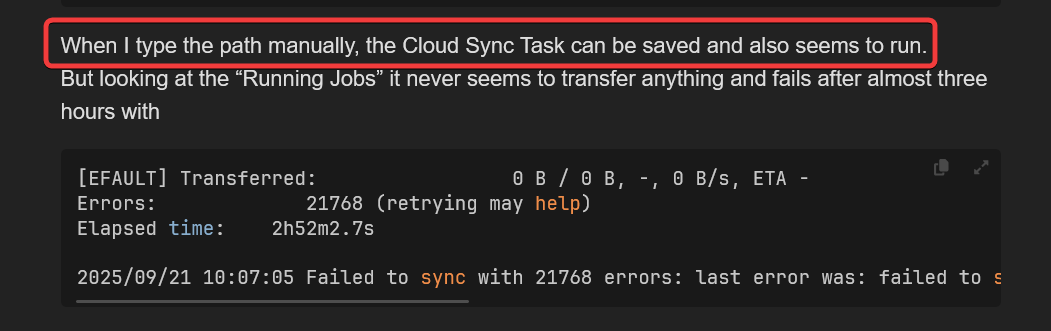
When I type the path manually, the Cloud Sync Task can be saved and also seems to run.
But looking at the “Running Jobs” it never seems to transfer anything and fails after almost three hours with
[EFAULT] Transferred:   	          0 B / 0 B, -, 0 B/s, ETA -
Errors:             21768 (retrying may help)
Elapsed time:    2h52m2.7s

2025/09/21 10:07:05 Failed to sync with 21768 errors: last error was: failed to set directory modtime: 1343 errors: last error: SetModTime failed: file does not exist
WinSCP and Duplicati have no problems uploading with the same credentials.
Has anyone successfully set up a Cloud Sync Task to a Hetzner Storage Box?
Sorry for the late answer but I just ran into the same problem and found a fix for it.
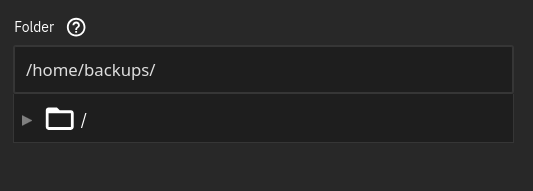
In the cloud sync task menu instead of selecting a folder in the file-tree folder picker you have to manually write /home/<somepath>/. You can also just write /home/ if you want your backups placed in your storage boxes root.
Now you can save the config without pressing anything else. Only scroll down and click “save”. In my experiments it seems like the path doesn’t get applied everytime you save. So if it doesn’t work the first time try it again. For me it seems that testing the config first with a dry run fixes this.
I was able to fix the problem (by reading the Hetzner documentation ).
This is not a TrueNAS issue, but a Hetzner problem.
So for anyone having the same issue in the future, here is the solution:
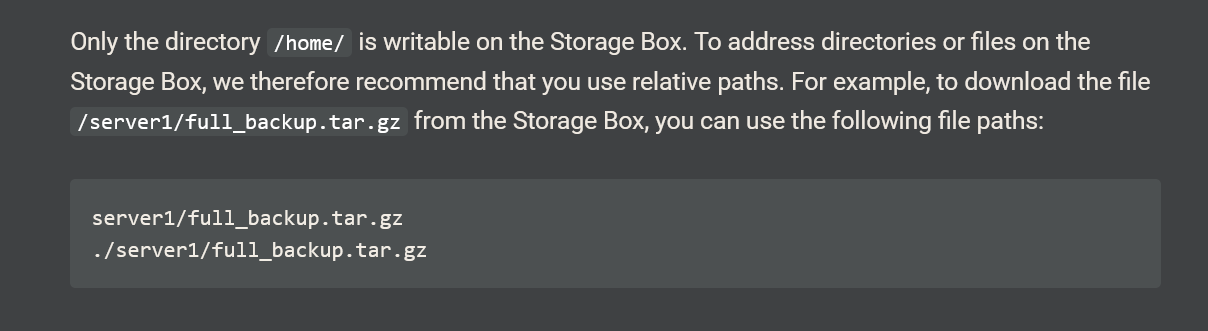
According to the Hetzner documentation, you CAN NOT use absolute paths.
So if you create a folder called “backup“ in your storage box, you CAN NOT address it with “/backup” but rather with “backup/“ (I guess this is also the reason, why the remote folder picker in TrueNAS does not work.
You have to use a relative path, so basically just omit the “/“ at the beginning.
Also, dont forget to encrypt uploaded files, as this is (to my suprise) not enabled by default.
Edit: oh yeah I forgot to mention. Since the remote folder picker does not work, you (obviously) have to manualyl type the remote path, as mentioned in my initial post.
Sorry, I didn’t read your initial post carefully enough, but for me the “fix” in my initial reply works.
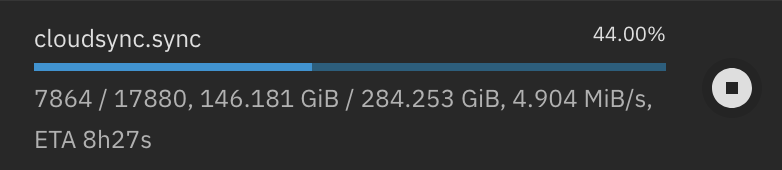
Here is the task that’s been running for 10+ hours now:
thank you so much! I would have never figured this out…
The rsync task is running now since over 3 months like an absolute charm.
Did you try to run a restore task to validate your backup?
When I use the “Restore” button on the cloud sync task I get a permission denied error.
I did set the restore task to a new Dataset that is configured exactly the same as my original Dataset and use the mode copy to download it. Unfortunately it errors our immediately:
[EFAULT] 2026/04/16 17:54:00 ERROR : error listing: error listing "": permission denied 2026/04/16 17:54:00 NOTICE: Failed to lsjson with 2 errors: last error was: error in ListJSON: error listing "": permission denied

 ).
).