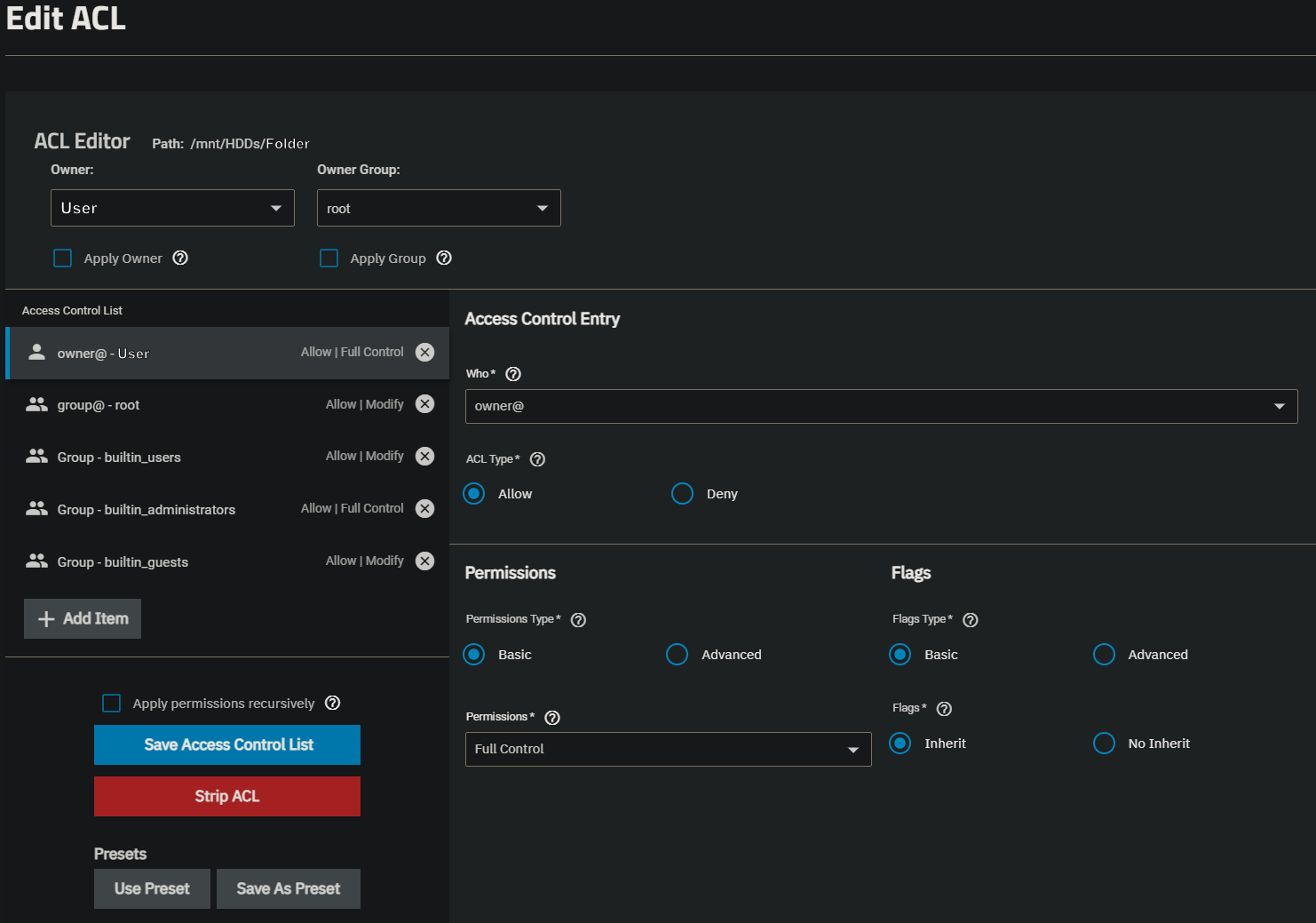
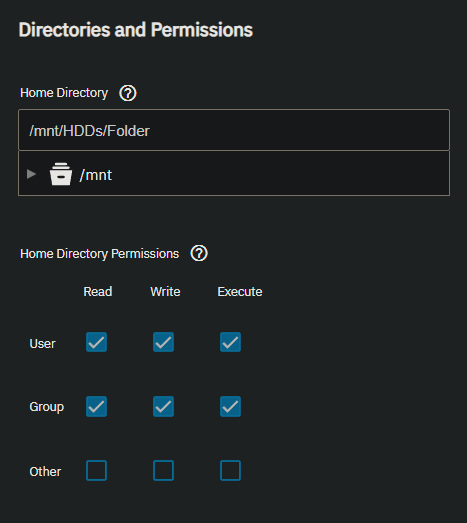
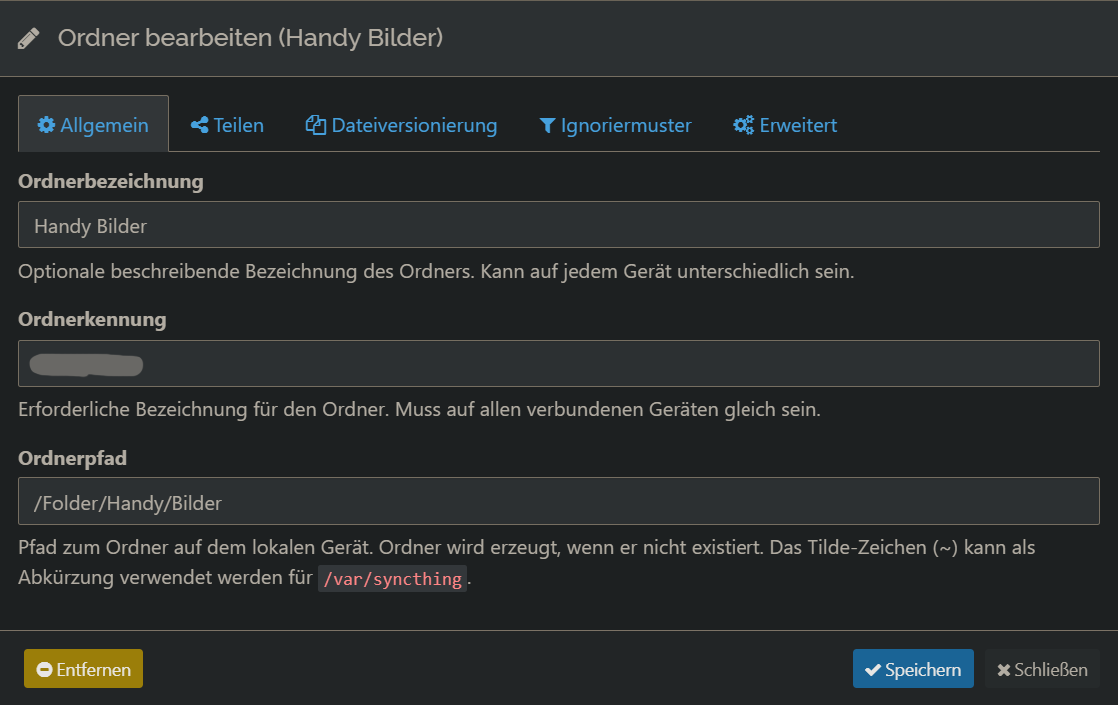
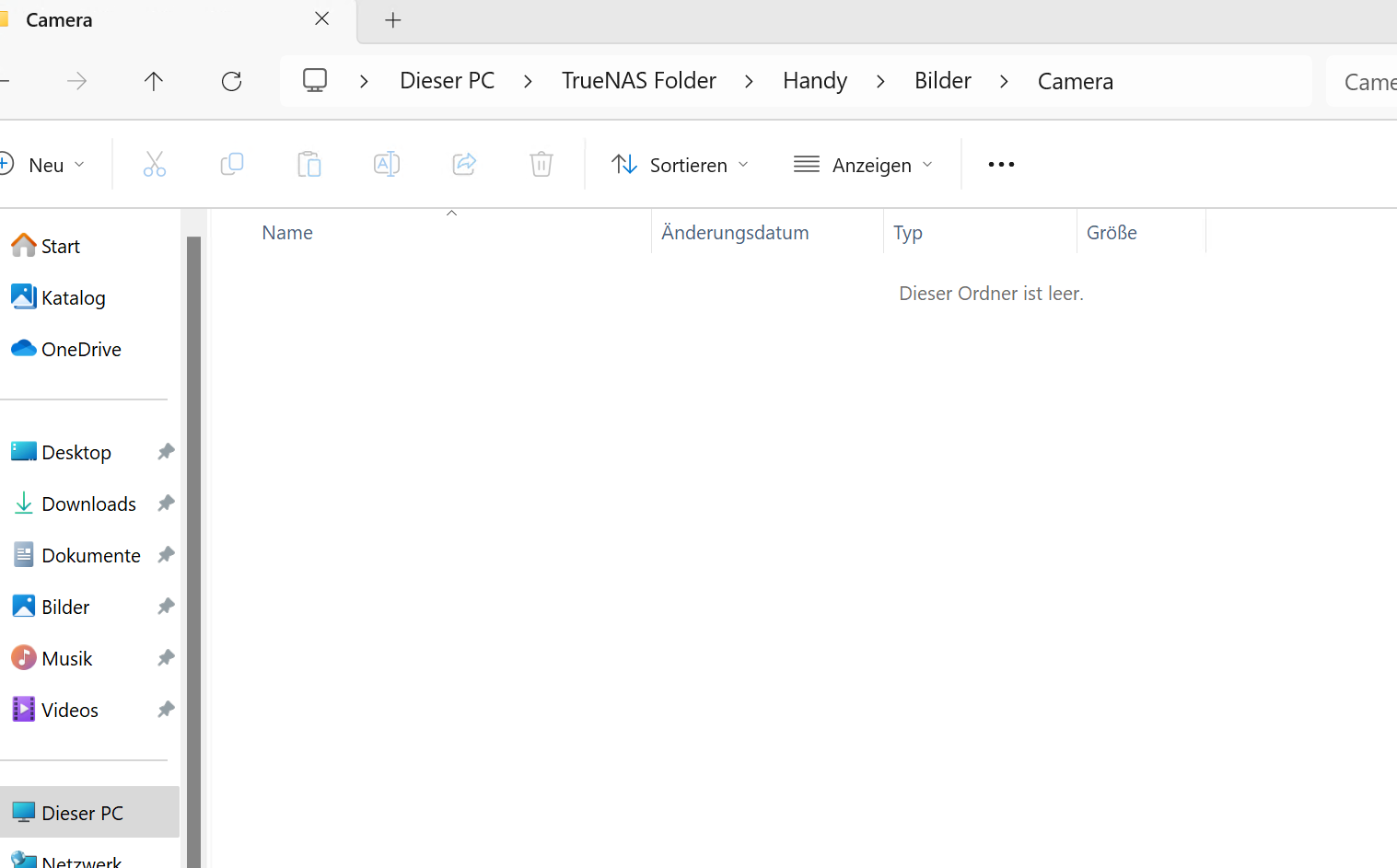
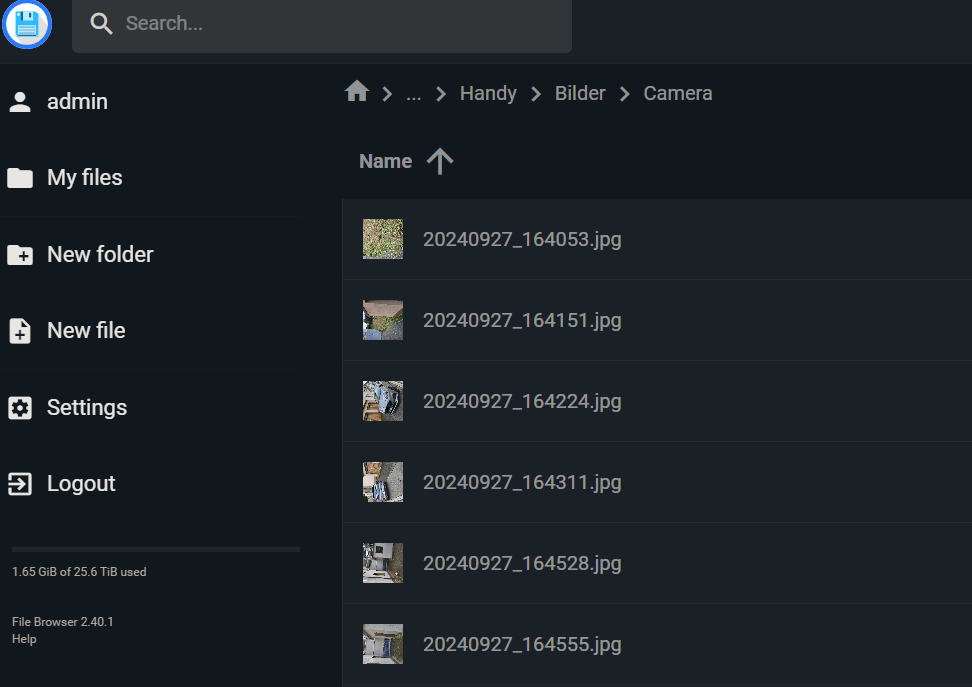
I am trying to sync pictures from an android phone to my nas where they can be accessed from a windows pc via an SMB share. The syncing is done via Syncthing, where i added an SMB share as additional storage. With the File Browser app i can see the Pictures syncing to the SMB directory, so this seems to be working fine. The issue is if i add the SMB share in windows with the same user and password as i added it to syncthing i only see the directory structure. All folders seem to be visible but none of the content, which i saw is there via the File Browser app. I did also confirm that if i add my SMB user to the builtin_administrators group i do see the files which leads me to believe this has something todo with permissions. The user has Full Control permissions on the dataset of the SMB share and for his home directory (which is the folder shared via SMB) he has Read, Write and Execute permissions for User and Group, set via the user settings. Does anyone know which permission might be missing or what the issue could be?
Some more visual information:
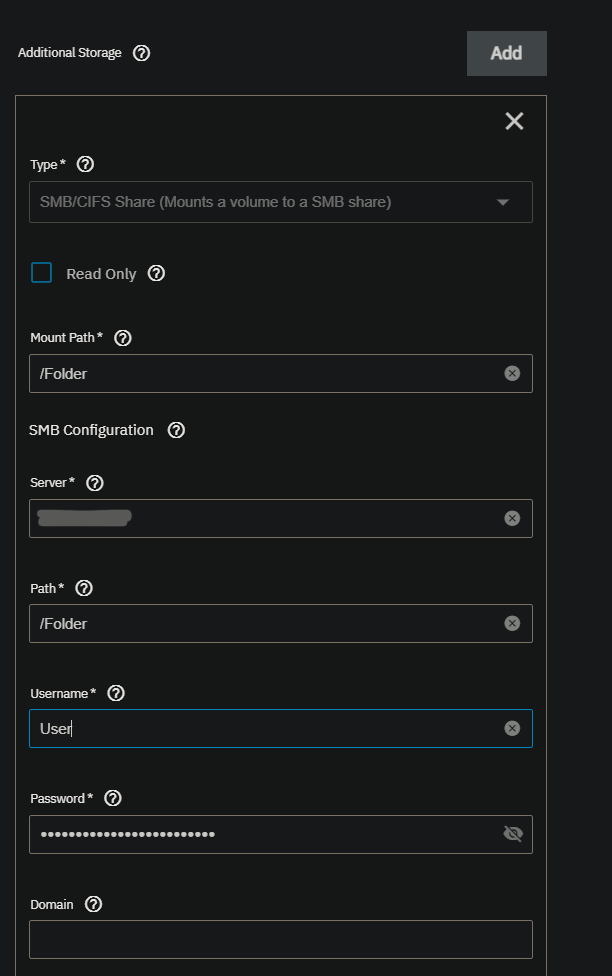
The config of how the SMB share mounted to Syncthing:
The file browser app is using the root user, so i do expect everything to be visible there. I did use the same user in Windows as i used to add the share to Syncthing. I thought that way all files put there by Syncthing should be accessible with that user from Windows as well but it seems to me as some permissions are wrong. I did also delete the credentials in the windows credential manager and readded them, so i am pretty shure the credentials are the same. Also the fact that i can go into all the folders tells me at least some permissions are there as i can not access folders from diferent users, which is how it should be
That doesn’t work as the file browser app has a configuration file in a diferent dataset where this user has no access to so it crashes on startup when i try to change the User ID it is using.
The files were marked as hidden for some reason. On the PC i tried to access the files from i had hidden files invisible and as i tried to check this on my main PC i noticed them being grayed out. That being said, i have not found a solution to the files getting marked as hidden.
Maybe Access-Based Share Enumeration is turned on? I believe this will hide files and folders that the connecting user does not have permission to access.
This setting is disabled on that share. I also checked Filesystem and Share ACL again and the user has full permissions for the share and is the owner with full control for the folder on the filesystem. It could also be an issue with Syncthing or the Phone it is synced from, i just dont know why or how those would make the files hidden
I have a dataset named like the user and shared via SMB so the user can access it from his Windows PC. I did not mean anything else with home directory, this might be the wrong wording in this case.
You are applying two different types of permissions to the same dataset when using the home folder and an SMB NFSv4 ACL. You need to lose the home folder idea that you’re doing and just focus on an SMB share using NFSv4 ACLs to access the data. Once fixed restamp the permissions on the share.