So, bit of a conundrum. I upgraded from Electric Eel to Fangtooth a bit ago. To my surprise, I could no longer access my WebUI. There was a solution posted about binding your webUI IPv4 address from the default 0.0.0.0 (why is this a requirement now?) to a static IP, which I did. Unfortunately, that didn’t work either.
However, I am able to connect to my web GUI via IPv6. Apps running fine without crashes!
Large problem though: IPv4 is not only not working, I cannot even ping my machine via IPv4 now from other devices locally! Since all my apps are configured with IPv4, although they deploy, I can no longer access their individual web GUIs now.
Does anyone know of a solution / troubleshooting I could test? Ironically, many people in the forums were having issues with IPv6 and not IPv4. I have the opposite.
Regarding “binding your webUI IPv4 address from the default 0.0.0.0”
What did you do exactly? Binding the WebGUI to 0.0.0.0 (meaning: allow connections from any ipv4 address) is perfectly fine and it is a good default. I suggest to restore this setting to 0.0.0.0.
You basically locked out yourself from all IPv4 adresses (except from the one entered) …
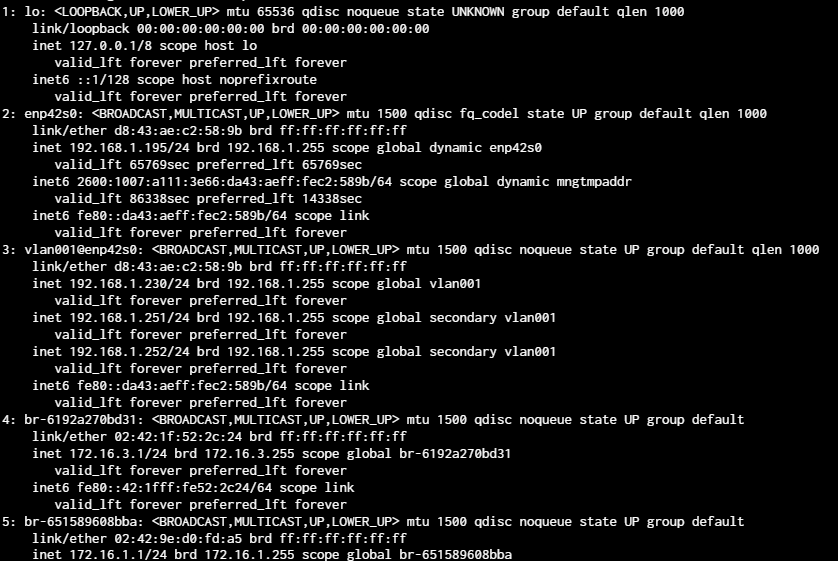
Regarding ping. Does your nas have an IPv4 address currently? What does “ip a” show?
I probably should’ve mentioned it but I did go back to 0.0.0.0 after the failed attempt so that’s presently at least not the issue.
What I did was in my console before accessing the WebGUI via IPv6 was simply:
System - General - Update - ui_hostaddress (IP)
Confirmed it applied, attempted access via static IPv4 and sadly nothing.
Yep, my NAS when viewing through the console does have an IPv4 address and shows my vlan I configured for app IP binding so it is definitely there but not reachable.
It does say I can access my console through IPv4 but it sadly does not let me.
Edit: I guess ignore this part since you're back to 0.0.0.0
@geri91 is on the money here - start with changing that back to default & lets go from there. Once you’re restored ipv4, we can help figure out further issues.
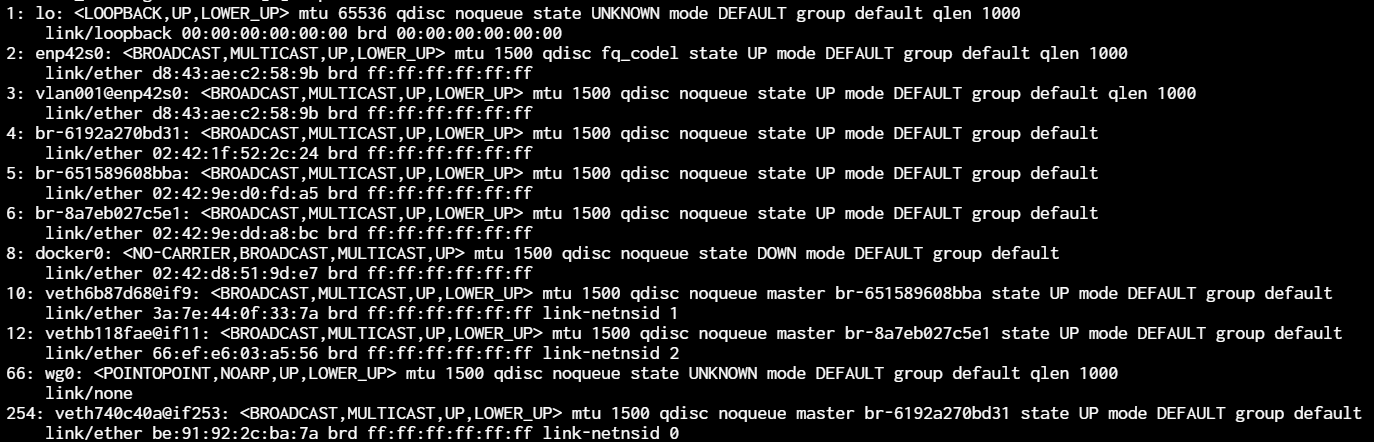
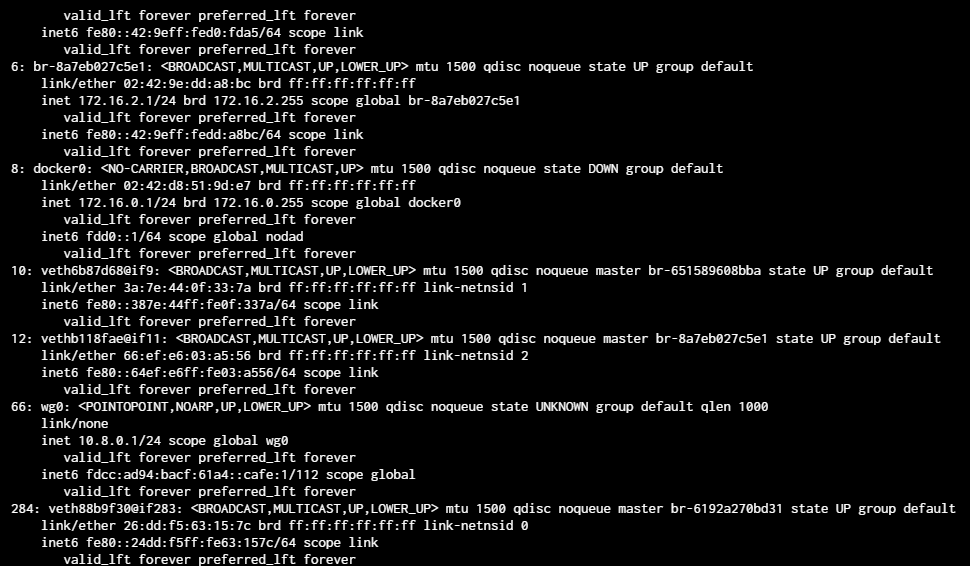
After you can get the GUI back screenshots of your network config, output of ip link and ifconfig will go a long way to figuring out any other possible issues that need to be resolved in terms of networking.
Since you mentioned VLANs, we might need even more info on how your network is setup & maybe some sanity checks on NAT.
ip link to tide you over while I figure out why ifconfig is giving me issues.
Context on VLAN: I needed to separate my apps via some static IPs because my reverse proxy needed more direct IPs to bind domains to so I set one, single VLAN up, configured some IPs, assigned to apps, everything working (hooray!)…except on Fangtooth (ugh)
Am I crazy, but shouldn’t you VLANs & docker be on a different subnet & this can otherwise cause issues (ie; the way you have it setup is not recommended)?
Also can your NAS ping back to 192.168.1.1? I’m just curious if your router sees it at all on IPv4, or if IPv6 is carrying this whole thing.
Uhh what else. wg0 is in ‘unknown’ state, I have no clue what that is, but maybe it is bad?
If I had to fix this & this NAS was just dump’d onto my network with the instructions of ‘make it work’, I’d likely delete everything other than enp42s0, then add it back step by step, checking that nothing is failing along the way, step by step.
I could be way wrong, but if you’re going to be using VLANs, is there even a reason to have an IP assigned to enp42s0? Wouldn’t this be a situation like a bridge where the VLAN should have the IP, not the physical port itself? It is embarrassing that I deal with networks professionally and don’t actually know this off the top of my head - but then again I’m not responsible for the Core routing…
Maybe not the quick fix that you’re hoping for.
*edited for readability as these are things just off the top of my head given your output.
Bit interesting but my ping when trying to reach the nameserver (router, .1), yields back to my VLAN IP set to my reverse proxy (.230) as destination unreachable. That itself is fascinating because my reverse proxy is only configured to interact with another app IP (.251, .252).
Edit note: forgot to add “2” at the start of the end IP addresses.
Wg0 is not relevant in this case.
Did Fangtooth’s update redo how IP’s are linked to apps…? Was working perfectly on EE. Investigation time…
I shall try nuking my Vlan and seeing the ping result afterwards.
However, I am out all day tomorrow for work so I probably won’t be able to do further testing until the day after tomorrow.
If you think of anything else that I could try later when I have time again, feel free to mention it. Thanks for the help so far! I have a lead now.
If I recall correctly; yes it did because it allowed for apps to be assigned individual IPs as opposed to previous versions.
Otherwise, I know TrueNAS has always hated multiple IPs on the same VLAN on the NAS, regardless of anyone’s protestations on what is/isn’t best practice/usecase - I won’t be arguing for this or commenting on it other than TrueNAS does not consider it best practice.
At least as far as VLANs go, yes, generally not considered best practice to put them on the same subnet cause admin management is difficult enough. It’s still possible but not advised. Separating them into different Class A or Class C networks makes it easier managing larger network environments (e.g. Marketing, Finance, Accounting, IT, Business, Backups, etc. etc.) and you’d be deemed crazy doing it the way I’m doing it.
But dang nab it this is just a homelab environment, not an enterprise one
Your VLAN configuration looks super invalid and I am unclear as to what the perceived benefit is. Just because something doesn’t cause errors to fill the screen doesn’t mean it’s something you should do, just as driving on the other side of the road is possible but not considered best practice or advised (disregarding the legal aspects). I don’t see how packets can be properly routed with your configuration, at least not in a reliable and reproducible manner, which is what I would expect almost any user would see as a bare minimum.
Having said that, your network configuration is complex and I suspect you’ve built yourself into a corner. Your comments about 0.0.0.0 previously make me wonder what’s really going on. My recommendation is to rip everything out, start over with a simple network without VLANs and Wireguard interfaces. Get it working and then slowly add sensible layers, if they are actually warranted, one at a time.
Alllllrighty here, had 30 minutes so I did a quick nuke of the VLAN, Wireguard, reverse proxy, and other network settings except for my main Ethernet config.
IPv4 is working now. It’s going to take me time to diagnose the culprit as I started small (e.g. disable Wireguard, test, repeat as I slowly removed items).
At first, just removing the VLANs was not working. Then I removed my reverse proxy and it was doing fine. Adding back the VLANs didn’t break IPv4 but when I flipped on Wireguard, it did break IPv4.
So after stopping Wireguard again (only VLANs and main Ethernet port up), IPv4 worked again.
So there’s a weird interaction occuring between my apps network config and my NAS’s network config. Even when removing any and all custom configs network-wise for the apps (returning to defaults) and the VLANs removed, second I flip an app to deploy and run, IPv4 dies.
Something…something in the apps is not working well with my network. I’m not sure if this is related to how containers / IP app mappings work now or if there’s a rogue setting that carried over and is wreaking havoc but I shall test and see.
Anyway though, I will mark this as solved since my IPv4 is up and running now. Appreciate the help from everyone!
EDIT NOTE: Nuke Network config except for basics, diagnose from there.
You mention that it broke when enabling Wireguard and then you widen that to “there’s a weird interaction occuring between my apps network config”, did you experience the same network issues when starting any arbitrary app, not just Wireguard?
Yep, I tore everything down to just my one connection (Ethernet). When I enabled an old app (any), it prevented me from accessing my IPv4. Didn’t matter whether it was Wireguard, file share, media server, when I deployed one of my old apps, it broke my IPv4 connection. No weird VLAN configs, no custom networking, just one pure Ethernet connection to my router running.
I ran a test where I made a new container with a simple, custom .YAML and it worked fine.
Something carried over from my old apps in EE into Fangtooth that is causing this. Although a workaround, I may just make new containers and copy my config from the old apps into their freshly created container counterparts.
My suspicion is that the remnants of the old IP binding I did on my apps in EE has not been fully transferred over into Fangtooth, despite me removing those custom configs in the apps.