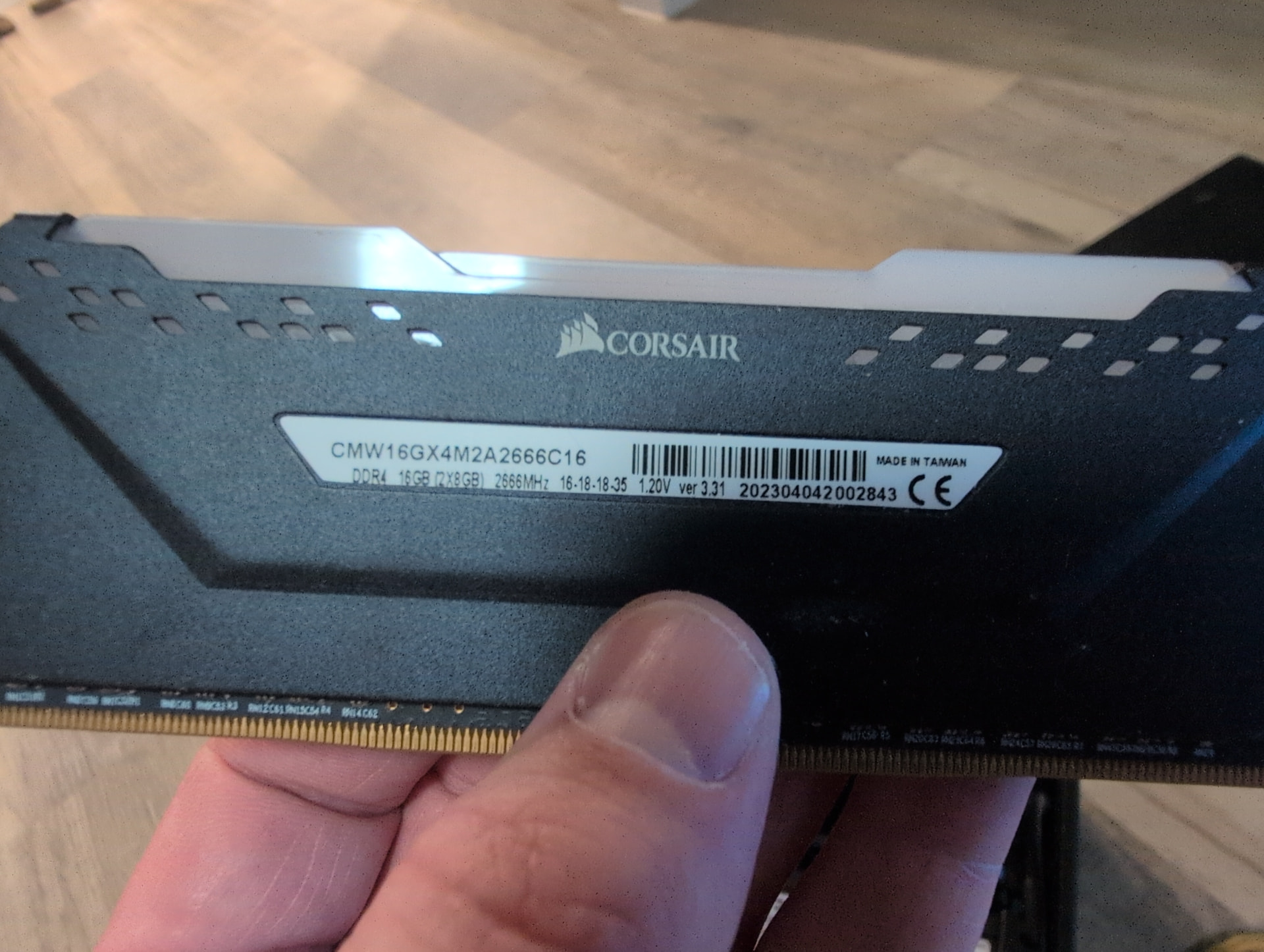
after a ram swap TrueNAS often keeps the old nic name or static and the link never comes back even though the sticks light up.
on the console (monitor+keyboard or ipmi):
option 1, reset network / configure interface
from shell: ip link
lspci | grep -i eth
if the nic shows but has no carrier, reseat the sticks first. mixed kit speeds (your new 2666 vs the old 3200) can also make the board hang the pch/nic until bios defaults are loaded.
if the interface name changed (eno1 to enp…), wipe the old static and set dhcp on the new one, then lock the ip again in the gui.
paste ip link and whatever the console network menu lists if it still stays dark.
A lot of that went over my head but I think I get the gist of it.
Your saying truenas possible hasn’t recognized there is new ram and is still waiting for the old ram be installed?
If I reset the network, does that mean it will change the IP address? If it does it does but it’ll be a lot of reconfiguring apps, proxies and DNS records. If its unavoidable I’ll obviously do that.
How does the amount of RAM have anything to do with PCIe addresses and NIC names?
As far as I can see we don’t even know if the system boots right now. The board sadly also has no diagnostic LEDs.
So yes - connect a monitor and keyboard and see if it even boots. If you can see the typical TrueNAS screen (with the list of options from 1-10) then we can try reconfiguring NICs but I suspect you either won’t get any output at all or some BIOS output that may tell you to enter setup or that some error has occured.
Upload a picture of the output if you get any. If not, reseat the RAM and remove the BIOS battery for a while (while having the power disconnected), then try again.
If it still doesn’t work, test the RAM in another system if you have a compatible one.
Also: Your kit (“corsair cmk16gx4m2a2666c16”) has no RGB so what lights do you mean are powering on?
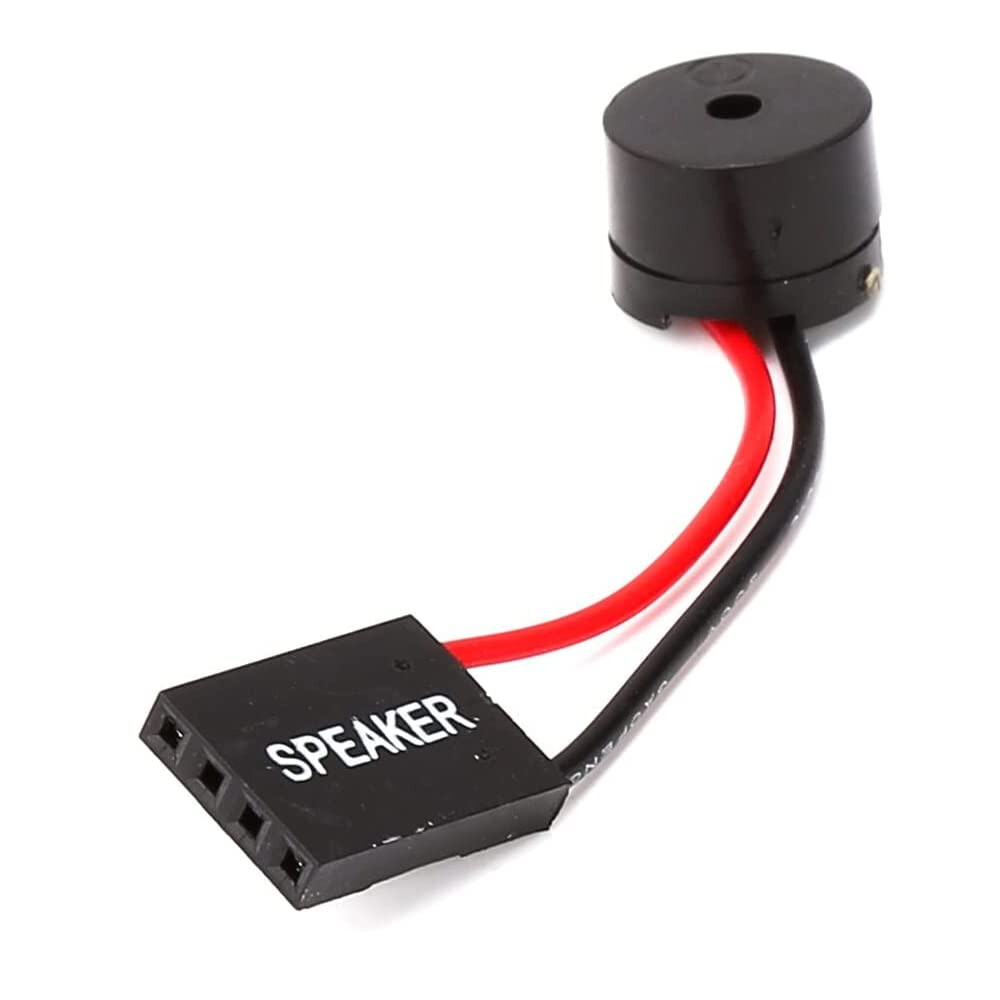
Edit: If you have an internal speaker lying around you may connect that to the speaker1 header on the board (between m2_2 and the left RAM slot) - that may give you a beep code if the board fails to boot which might point you to the reason.
The speaker would look like this:
Have you confused a RAM swap with a motherboard swap? Because the latter could affect a NIC name, but there’s absolutely no reason the former should.
I think Nite Route was confused. There’s no obvious reason a RAM upgrade should affect your network connection, so it’s likely there’s a deeper issue as TheColin is suggesting. Start by making sure the system even boots, then go from there.
Your new RAM (at least one of the sticks which btw. are a different model from what you wrote in the first post) and/or your mainboard (the RAM slots) are likely broken.
I may summon @winnielinnie with this but do a memtest.
To be more specific:
put your old RAM back in and see if it boots with that. If it doesn’t boot with the old RAM you may have damaged your motherboard during the swap. If it does boot and you want to be sure: run a memtest. If it passes (like at least one pass) without errors, we can definitely rule out damage to your board.
If it booted with the old RAM, insert only one stick of the new RAM and try booting. If it does, run a memtest - if that passes that stick and slot are good, if it doesn’t pass the test or didn’t boot at all, try the other memory slot. Start with the right slot. If the first stick is good, switch it for the second stick and test that in the same way. If both are good on their own, insert both and test again. If that fails, test one stick in the left slot.
With that you should be able to find any combination of faulty slots and/or sticks.
If you don’t know how to run a memtest, go to https://www.memtest.org/ or https://www.memtest86.com/
Both have guides for that. TL;DR: Flash a memtest image to a USB stick, boot from that and wait at least for one pass, when you have the “final” RAM configuration booting I’d suggest leaving it running over night for multiple passes.