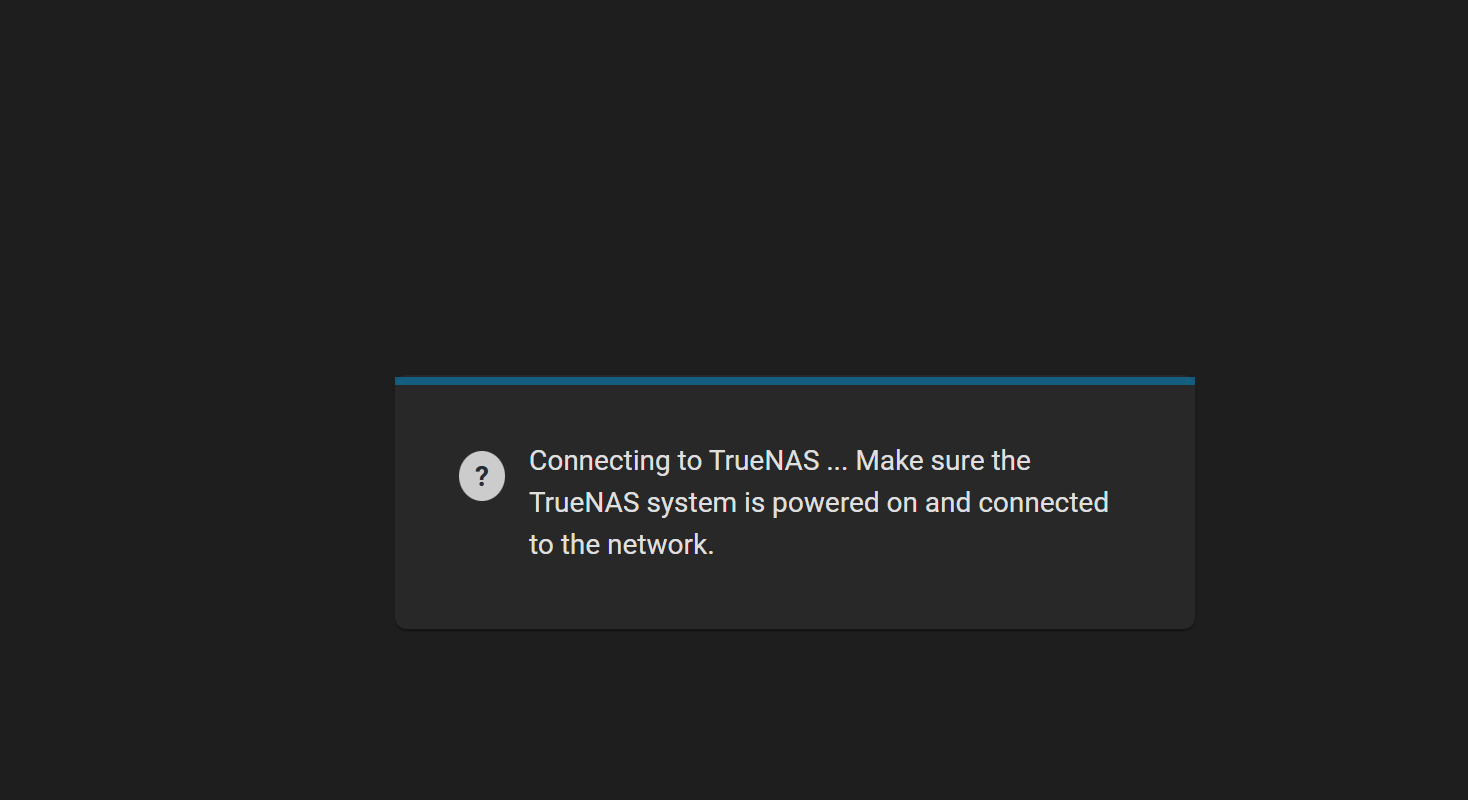
This is my first post but won’t be the last, I’m sure. We just lost maintenance support at the worst possible time. We need to move our X10 over to a new network, but we cannot get the changes to work as we cannot save them. We lose connection and can no longer communicate with the device even though we have other devices on the network we are changing over to, attempting to get to it. No one can see nor can we ping it.
Is there a way to change the ip address of igb0 without having to reset the igb0 configuration, as I am only seeing that option without losing access to the x10? I am new to the device, and any assistance would be much appreciated.
I am using the web portal currently to conduct the work. Thank you for your time and any assistance with this matter.
You should not need “other devices” to do it.
What flavour and version of TrueNAS are you running?
Normally, on SCALE/Community Edition, you initiate the network change on the client system and then, use the new IP to connect to the web GUI again. If you cannot connect before the timer runs out it suggests your changes are invalid.
If you think this is what you are doing then you need to provide more details, perhaps screenshot the network UI before and after you initiate the change.
Don’t forget that swapping network may also involve changing the Gateway (Default Route) and DNS (and static routes if you’ve set those up for some reason).
Linking to X-Series documentation. It may be easiest to do the changes using the console directly connected by serial or through the IPMI so you have a chance to confirm your changes and then connect back using the Web GUI.
The version I am running is TrueNAS-13.0-U4. TrueNAS ENTERPRISE. I tried to set the docs listed here when we first set it up and it works just as described after a successful setup. The problem now is I am not able to move it to the new domain as we can’t get the to confirm it works because we lose connection, but we can even open the new ip on the same laptop we are connected to the x10 with.
I am not good with the command line as I have never seen any documentation on how to set things up that way other than what’s in the docs from the site above, but that is for OOB management which is already set up. Is there some other documentation somewhere I may have missed? Thanks guys
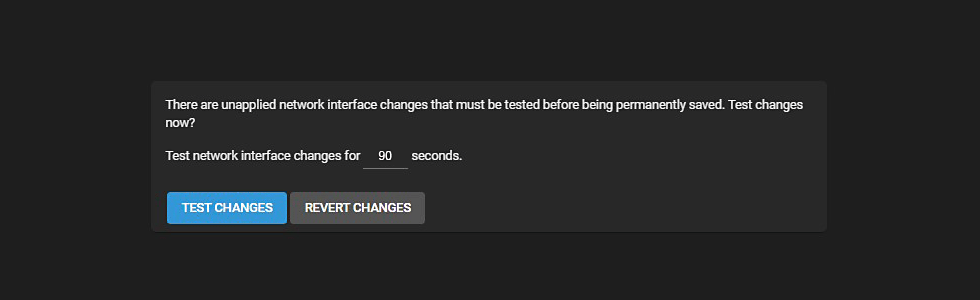
You should click TEST CHANGES and then reconnect to the server using it’s new IP before the 90 seconds have passed, if you do you will be shown a different window that lets you make the change permanent. Unfortunately the official docs do not have a screenshot of that. If you don’t do it within that timer the settings will be reverted.
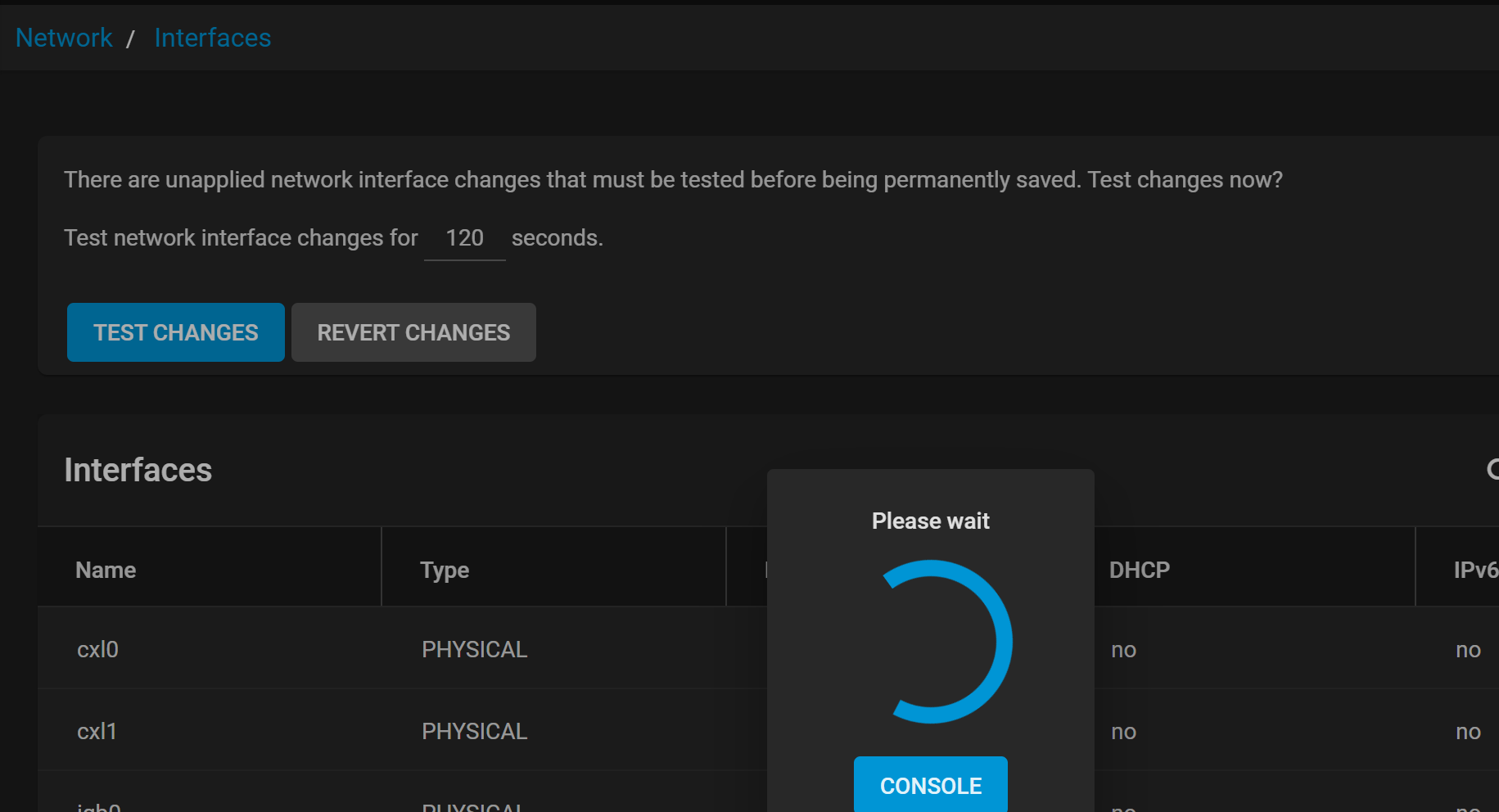
I do get that window but I thought we had to press the test setting button which takes us to a thinking window (drops connection) then back to the reverted settings. I am not able to get to the new ip even during this stage
Neofusion thank you for the static ip web link! I read it and was about to close it because we already have the static ips up and running, but I saw a blurb about bridging the connections and thought well that is something I have not tried, and low and behold, it worked, and I was able to save the connection IP to the new domain subnet! Thank you guys for getting back to me on this and lending a hand. I truly appreciate both you and SmallBarky!
I confess that I don’t know why bridging the connections would have resulted in this working, but I’m happy that its working for you now, for whatever reason.