
I don’t have a network drive in windows.
you have to map the network drives yourself
Map a network drive to get to it from File Explorer in Windows without having to look for it or type its network address each time.
- Open File Explorer from the taskbar or the Start menu, or press the Windows logo key + E.
- Select This PC from the left pane. Then, on the File Explorer ribbon, select More > Map network drive.
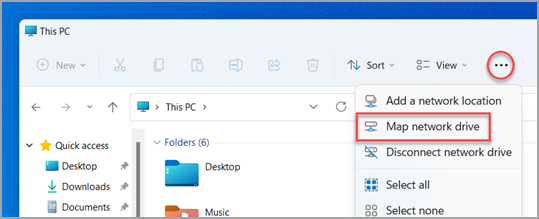
3.Note:* If you don’t see Map network drive on the More menu, you can right-click the This PC node in the folder pane and you’ll see the command there.
- In the Drive list, select a drive letter. (Any available letter will do.)
- In the Folder box, type the path of the folder or computer, or select Browse to find the folder or computer. To connect every time you sign in to your PC, select Reconnect at sign-in.
- Select Finish.
Note: If you can’t connect to a network drive or folder, the computer you’re trying to connect to might be turned off, or you might not have the correct permissions. Try contacting your network administrator.
I’ve beat my head into the ground on this thing I’ve tried everything to map a network drive but no luck. I’ve checked permissions I’ve reinstalled SMB for windows nothing seems to work. I’m at a loss.
You need to be very specific in what you have tried. Post screenshots of all your steps, if necessary. We can only go off the information provide by you.
Can you connect to your SMB share from Windows? Go to the Windows File Explorer and type in the IP address of your server and the share name. Something like ‘\172.16.0.101\bu2’. Two backslashes, ‘IP address of TrueNAS server’, backslash, ‘plex’